



You described your app. The AI built a working first version in minutes. Then the real work began.
You needed to:
- adjust the layout,
- connect the right data,
- refine a workflow,
- change how a form behaves, and
- make the app feel like yours.
In many AI builders, small visual edits are possible. You can usually tweak a button, adjust some text, or move basic elements around. But once you need deeper control over structure, logic, data, authentication, or responsive behavior, the workflow often shifts back to prompting the AI or editing code directly.
That is where many AI builders hit their limit. They are fast at creating an initial version, but harder to work with once you need to shape the product in detail. For non-coders, that can make the gap between “generated app” and “secure, production-ready app” difficult to close.
The important question is not whether a tool lets you change a button color. Most AI builders offer some version of that. The real question is whether the visual editor gives you enough control to keep building after the first AI generation so you can inspect and edit the UI, data bindings, workflows, backend tables, authentication flows, and responsive behavior without turning every change into another prompt.
This guide explains what a visual AI builder is, why visual editability matters beyond surface-level design tweaks, and how different approaches compare.
What Is a Visual AI Builder?
A visual AI builder is a platform that combines two capabilities: AI generation and visual (or no-code) editing.
The "AI" part is a given in 2026. Dozens of tools can generate something from a text description. The "visual builder" part is what separates them.
A true visual AI builder does three things:
- AI generates the full app: not just the UI, but the backend, auth, data workflows, and logic together
- The output is visually editable: every element the AI generates can be clicked, changed, and customized directly in a visual editor
- Changes stick: when you edit something visually, the next AI interaction doesn't override your changes
Most tools marketed as "visual AI builders" only do the first two partially, and many fail the third entirely.
The Three Categories of AI Builders
It helps to understand what you are comparing when you search for a visual builder with AI:
Code-first AI builders (Lovable, Bolt, Replit): These generate code. The output is a React or Vue codebase. Visual editing is minimal or nonexistent. Changes require re-prompting or editing code directly. Fast for initial generation, hard for non-coders to maintain.
Design AI tools (Webflow AI, Figma AI): These generate layouts and designs for websites. No application backend, no workflows, no user authentication. Great for marketing sites, not for web apps.
Visual AI builders (WeWeb): These generate the full application stack and keep everything visually editable. AI and visual editor work together throughout the build process. This is also what makes us central to the merging of visual development and AI.
For non-coders building web applications, only the third category actually works long-term.
Why AI-Only Builders Lead to Endless Back-and-Forth
Understanding why visual editing matters requires understanding what happens without it.
How Code-First AI Generation Works
When you use a code-first AI builder, the workflow looks like this:
- Describe your app to the AI
- AI writes code and generates a preview
- You want to change something (e.g. the font, the layout, an input field)
- You describe the change to the AI
- AI rewrites the relevant code
- Something else breaks
- You describe another fix
- Repeat indefinitely
Each iteration is a gamble. The AI might understand what you want. It might fix one thing while breaking three others. It might refuse to make the change without restructuring the entire component.
For a developer, this is frustrating but manageable. They can read the code, see what changed, and fix problems directly.
For a non-coder, there is no escape hatch. You cannot read the code. You cannot fix it manually. Every change is a negotiation with the AI, and the AI is not always cooperative.
Why Non-Coders Get Stuck Faster
The endless back-and-forth with AI compounds over time. The more you build on top of an initial AI generation, the harder changes become, especially when you don't have the technical knowledge to add guardrails when prompting the AI.
Early in the build: the codebase is clean, the AI understands the structure, changes are relatively reliable.
Three weeks in: you've added features, fixed bugs through re-prompting, and the codebase has accumulated inconsistencies. The AI's understanding of your app has drifted. A change to one component mysteriously breaks something in a different section.
At this point, non-coders often face a hard choice: pay a developer to untangle the AI-generated code, or start over.
The Maintenance Wall
Even if you survive the build phase, code-first AI tools create a long-term maintenance problem.
Your app is live. A user reports a bug. You want to add a new data field. You need to update the pricing on a page. In a code-first tool, every one of these requires re-prompting the AI, hoping it understands the context of your existing app, and testing the output.
This is not a workflow. This is a dependency. You are dependent on the AI's ability to make safe changes to code you cannot read or verify.
Most non-coders eventually hire a developer to maintain their AI-generated codebase. The "build without developers" promise of code-first AI tools breaks down at the maintenance stage.
How a Visual AI Builder Solves This
A visual AI builder makes two things true at the same time: AI generates fast, and you can edit anything visually afterward. Not just the UI, but also the roles and permissions of a user, filters on a database table, workflows with business logic, etc.
AI Generates, You Edit Directly
In a visual AI builder, the AI output is not a black box of code you don't understand. It's code with a small layer of abstraction on top of it to help you understand it and edit it in a visual canvas.
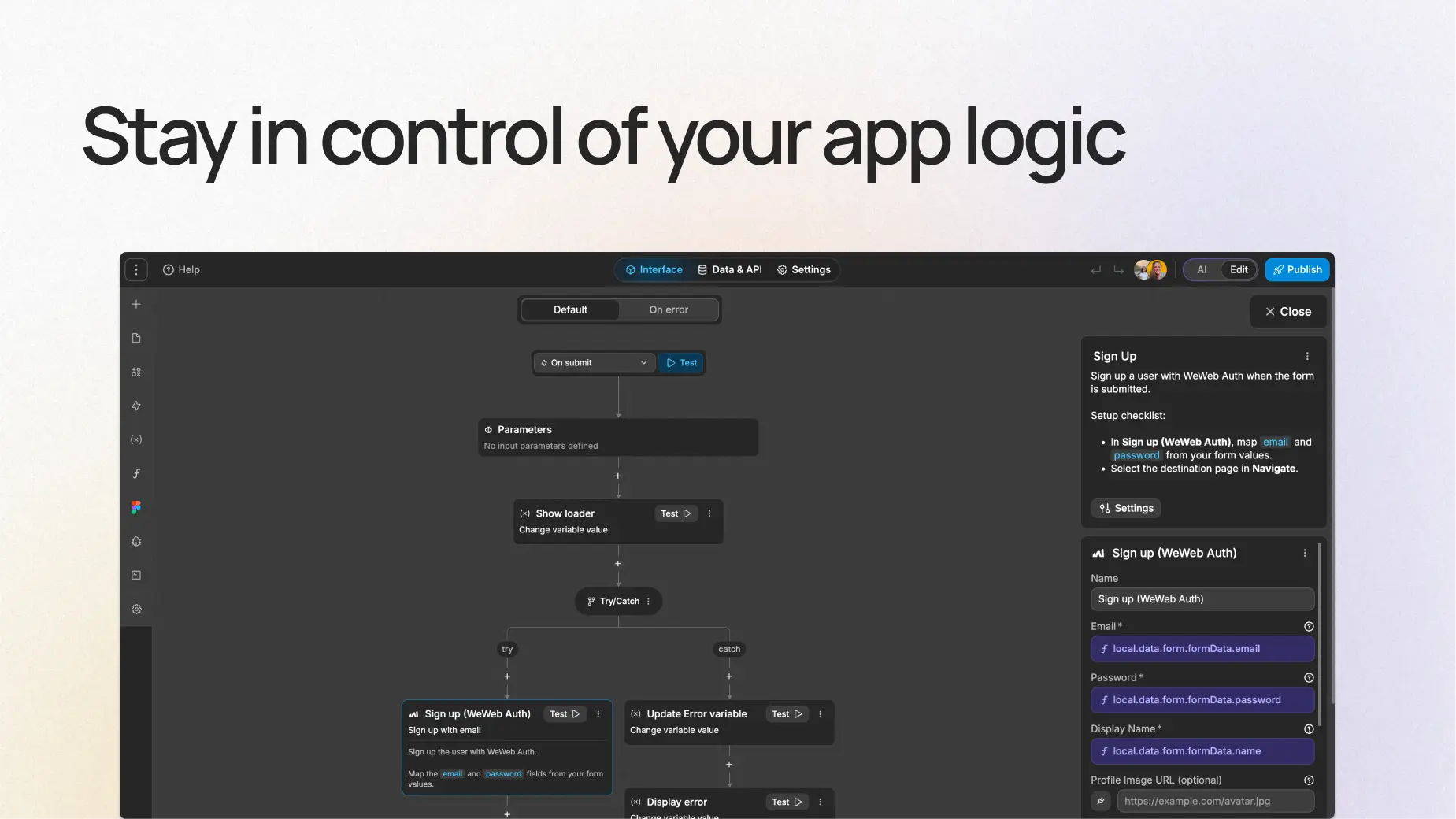
When our AI generates your app in WeWeb, you immediately see it in our visual editor. Every element is selectable. Every property is adjustable. Every workflow is laid out in a clear, intuitive way.
Instead of depending on AI to make changes you don't quite understand, you can see, understand, and control the most crucial features of your app.
What "Visually Editable" Means in Practice
Saying an app is "visually editable" covers a lot of ground. In a WeWeb-built app, here is what that means concretely:
UI elements: Every layout block, component, text element, button, form, and image is clickable and editable. Change position, size, color, typography, spacing, and responsive behavior through the editor.
Data bindings: See exactly which data source populates each element. Change the binding by clicking on the element and selecting a different data source, use Excel/Airtable-like formulas to make things dynamic.
Workflows: The logic behind access rules, buttons and forms is visible in our visual workflow editor. Drag to reorder steps, click to edit conditions, add new actions without touching code.
Backend schema: WeWeb Tables, our built-in backend, shows your database structure visually. Add fields, change types, set relationships without SQL.
Everything the AI generates is visible, inspectable, and changeable through the interface.
The Full-Stack Difference
Many tools claim visual editing but only apply it to the frontend. The backend remains a black box: a Supabase project you're expected to manage separately, or a generic database with limited visual tooling.
We generate the full stack in one go. When you describe your app to our AI, it generates:
- UI layouts and components: all editable in the visual editor
- WeWeb Tables backend: Postgres database with auto-generated APIs, visible and editable in the editor
- Authentication flows: user sign-up, login, role assignment, all configured visually
- Page workflows: the logic that runs when users take actions, visible in the workflow editor
You can also connect an external backend (e.g. Supabase, Xano, Airtable, Google Sheets) and mix and match multiple data source in a single project.
Visual Builder with AI vs Code-First AI: Side-by-Side
Here is how the two approaches compare across the criteria that matter for non-coders:
When code-first AI is the right choice: you're a developer validating fast, or you have developer resources to maintain the output long-term.
When a visual AI builder is the right choice: you're a non-coder building something you need to run and update yourself, without a developer on the team.
What to Look for in a Visual Builder with AI
Not all "visual AI builders" live up to the name. Before committing to a platform, test these five things:
1. Can you edit any generated element without re-prompting? Open the generated app, click on a Dropdown, Kanban board or Calendar element, try to customize it. If this requires going back to the AI, the visual editing is superficial.
2. Does the AI generate the backend too, or just the frontend? Ask the platform: "Did the AI generate my database schema and auth flows?" If the answer is no, you'll have backend setup work to do manually.
3. Can you make a change visually, then use the AI to add a new feature, and have both changes coexist? This tests whether visual edits and AI edits are truly compatible. In some tools, a new AI prompt can override manual edits, which defeats the purpose.
4. Is the visual editor genuinely full-featured? Can you fully customize the layout, typography, component behavior, and responsive design in the visual editor? Or is it limited to dragging pre-built blocks around?
5. Can you export the code? If the platform does not offer code export, you are locked in. A good visual AI builder gives you the Vue.js or React output so you own the application regardless of what happens to the platform.
How We Build Visual AI Apps: The WeWeb Workflow
Here is the end-to-end workflow for building a production-ready app with our visual AI builder:
Step 1: Describe your app with specifics. Include your screens, user types, and key actions. The more specific the prompt, the less adjustment the visual editing phase requires. Example: "A SaaS dashboard for a property management company. Users can view properties, add tenants, and log maintenance requests. Admins can view all properties; managers can only see their assigned properties."
Step 2: AI generates the full stack. Our AI produces UI layouts, WeWeb Tables schema, auth configuration, and business logic. This takes 5-20 minutes depending on the complexity of the app. The result appears directly in the editor.
Step 3: Review and adjust visually You are now in the visual editor. Click through each page. Identify what needs adjustment. Change it directly: move elements, update styles, modify data bindings, add actions to the workflows. This is where a visual AI builder pays off.
Step 4: Refine with the AI for new additions When you need a new feature (e.g. a new page, a new workflow, a new data model), use the AI to generate it. Visual edits you already made are preserved. The AI adds, it does not overwrite.
Step 5: Deploy or export One-click deploy to our global CDN, or export the Vue.js source code and host on your own infrastructure. Either way, the app is yours.
The AI handles the 80% that is structural. You handle the 20% that is specific to your use case. The visual editor is what makes that final 20% achievable without code. See how this compares to the no-code MVP approach if you're choosing between methodologies.
Frequently Asked Questions
Is WeWeb the only visual AI builder? We are the most complete one in the market today. Other tools offer partial visual editing alongside AI generation, but none combine full-stack AI generation (UI + backend + auth + workflows) with a pixel-perfect visual editor and code export in a single platform.
Can I still use the AI after I've made visual edits? Yes. Our AI works additively. Use it to add new sections, pages, or features. Your existing visual edits are preserved. You can also use the AI to modify specific parts of the app while keeping the rest of your work intact.
What if I want to add custom code? You can add custom CSS and JavaScript directly in our editor for logic that visual tools cannot handle. You can also importe coded components directly from GitHub or AI-builders for developers like Cursor and Claude Code. And once you've finished building your app in WeWeb, you can export the complete Vue.js SPA and host it anywhere.
How is this different from Webflow AI? Webflow's AI generates design layouts for marketing websites. We generate full web applications: backend, user authentication, data workflows, and UI together. Webflow is the right tool for marketing sites. We are the right tool for web applications.
What about the learning curve? We won't pretend there isn't one. Our visual editor is powerful, and learning it takes a few sessions. The trade-off: once you know the editor, you can build and maintain complex apps without any developer involvement. Check the best vibe coding tools for non-coders comparison for how we stack up against simpler options.
Conclusion
A visual builder with AI is not just an AI builder with a drag-and-drop interface bolted on. It's a platform where AI generation and visual editing are equally first-class, designed to work together throughout the build and maintenance lifecycle.
Endless prompting loops and unpredictable AI token consumption stop when you can click to change instead of prompting to change. That is what we built WeWeb to solve.
If you've been stuck in the re-prompting loop or you're evaluating AI builders before you start, the question to ask is simple: "After the AI generates my app, can I maintain it myself?"
With a true visual AI builder, the answer is yes.
Try our visual AI builder free and see how the workflow feels. Start from a description, edit visually, and deploy without writing a line of code.