



A slow WeWeb app is rarely caused by one mistake.
More often, performance degrades through accumulated decisions: too many requests on page load, oversized API responses, deeply nested elements, heavy images, repeated calculations, and third-party scripts competing for browser resources.
Every API request, image, font, workflow, and interface element has to be downloaded, processed, and rendered by the browser.
As your WeWeb app grows, seemingly harmless decisions such as loading an entire table, nesting extra containers, or adding another analytics script can gradually reduce loading speed and responsiveness.
The good news is that performance problems are often preventable.
Most improvements come from four areas:
- Data architecture
- Rendering and DOM structure
- Images, fonts, and other static assets
- Workflows and third-party scripts
This guide explains how to optimize each one:

💡 At the end of the post, you can download a free visual version of the WeWeb Front-End Performance Guide, including all the recommendations covered here and a practical pre-production audit checklist.
1. Start with your data architecture
In many slow applications, the app is requesting, synchronizing, or processing too much data.
Inspect what your app fetches, when it fetches it, and how much information each request returns:
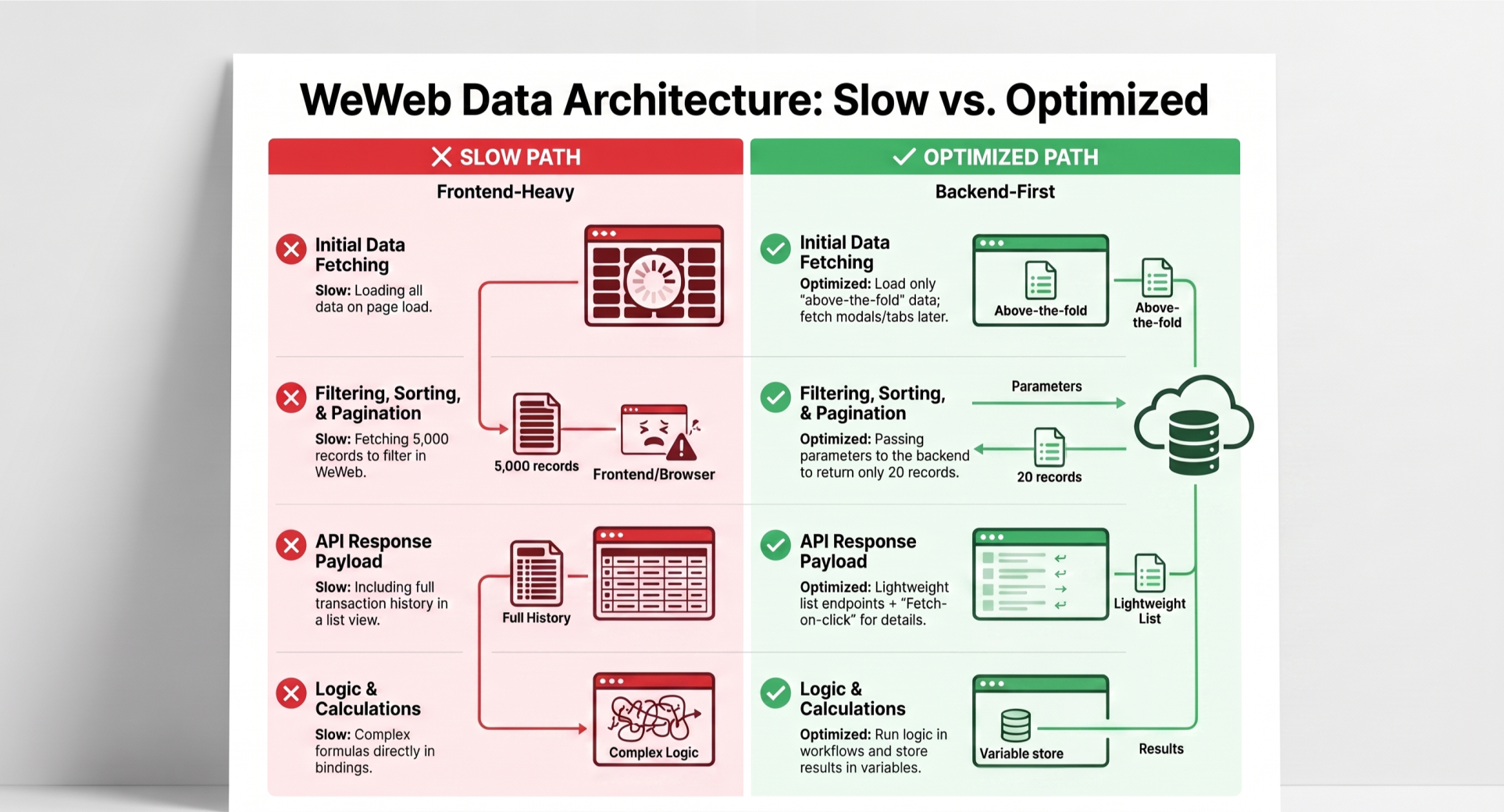
Only fetch essential data on page load
Data configured to fetch on page load are convenient, but they also compete for bandwidth and processing time during the most important part of the user experience.
Use page-load requests only for data that is required to display the initial view.
Good candidates include:
- The current user’s profile
- The records visible above the fold
- Permissions needed to determine the initial interface
- Essential configuration values
Everything else can usually be fetched later.
For example, data used only inside a modal doesn’t need to load when the page opens. Trigger it through a workflow when the user opens the modal.
The same principle applies to:
- Hidden sections
- Secondary tabs
- Admin panels
- Detailed record views
- Data far below the fold
This is one of the simplest ways to reduce initial loading work without removing functionality.
Move filtering, sorting, and pagination to the back end
A common performance approach is to load an entire database table into WeWeb and then use front-end formulas or filters to display a subset.
That approach creates several problems:
- The browser downloads records the user may never see.
- Large data sets consume more memory.
- Filtering and sorting happen on the user’s device.
- Performance worsens as the database grows.
Instead, pass dynamic parameters to your back end and let it return only the relevant records.
Whether you use WeWeb native backend, Xano, Supabase, or another API, the back end should generally handle:
- Filtering
- Search
- Sorting
- Pagination
- Permission-based record selection
For example, instead of loading 5,000 users and displaying 20, request only the 20 users needed for the current page.
Keep API responses focused
Even a well-filtered request can be too heavy if every record contains unnecessary nested data.
Suppose you are displaying a list of customers. The list may need:
- A name
- An avatar
- A status
- A company
- A record ID
It probably doesn’t need each customer’s full transaction history, activity log, and related documents in the same response.
Create lightweight endpoints for list views, then load full record details when the user opens an individual item.
Avoid complex calculations directly inside bindings
WeWeb makes it possible to write formulas directly in bindings. This is useful for simple transformations, but complex logic can become expensive when the source data changes frequently.
When these calculations are embedded across multiple bindings, they may be evaluated repeatedly as the interface updates.
A better pattern is to:
- Run the calculation in a workflow.
- Store the result in a variable.
- Bind the component to that variable.
This also makes the application easier to debug because business logic is separated from display logic.
Be especially careful when a formula updates something that causes the formula to run again.
These circular dependencies can produce unnecessary recalculation or even infinite update loops.
2. Reduce the amount of work the browser has to render
After optimizing data, the next step is to simplify the page’s DOM (the structure of all the elements the browser has to render) and reduce their number and complexity.
The browser must calculate the size and position of every element, paint it, and update it whenever the layout changes.
The larger and more deeply nested the DOM becomes, the more work the browser has to do.
Remove unnecessary containers
Visual builders make it easy to add wrappers for spacing, alignment, or organization.
But over time, a simple card can end up inside many layers of groups and containers.
Use WeWeb’s structure panel to review the hierarchy of important pages and reusable sections.
Look for:
- Empty containers used only for spacing
- Multiple wrappers serving the same layout purpose
- Groups containing a single element without a functional reason
- Deeply nested reusable components
Where possible, use margin, padding, flex, and grid properties on existing elements instead of adding another layer.
The goal is to ensure that every container has a clear layout or functional purpose.
Choose the right conditional rendering method
There is an important difference between removing an element from the DOM and simply hiding it:
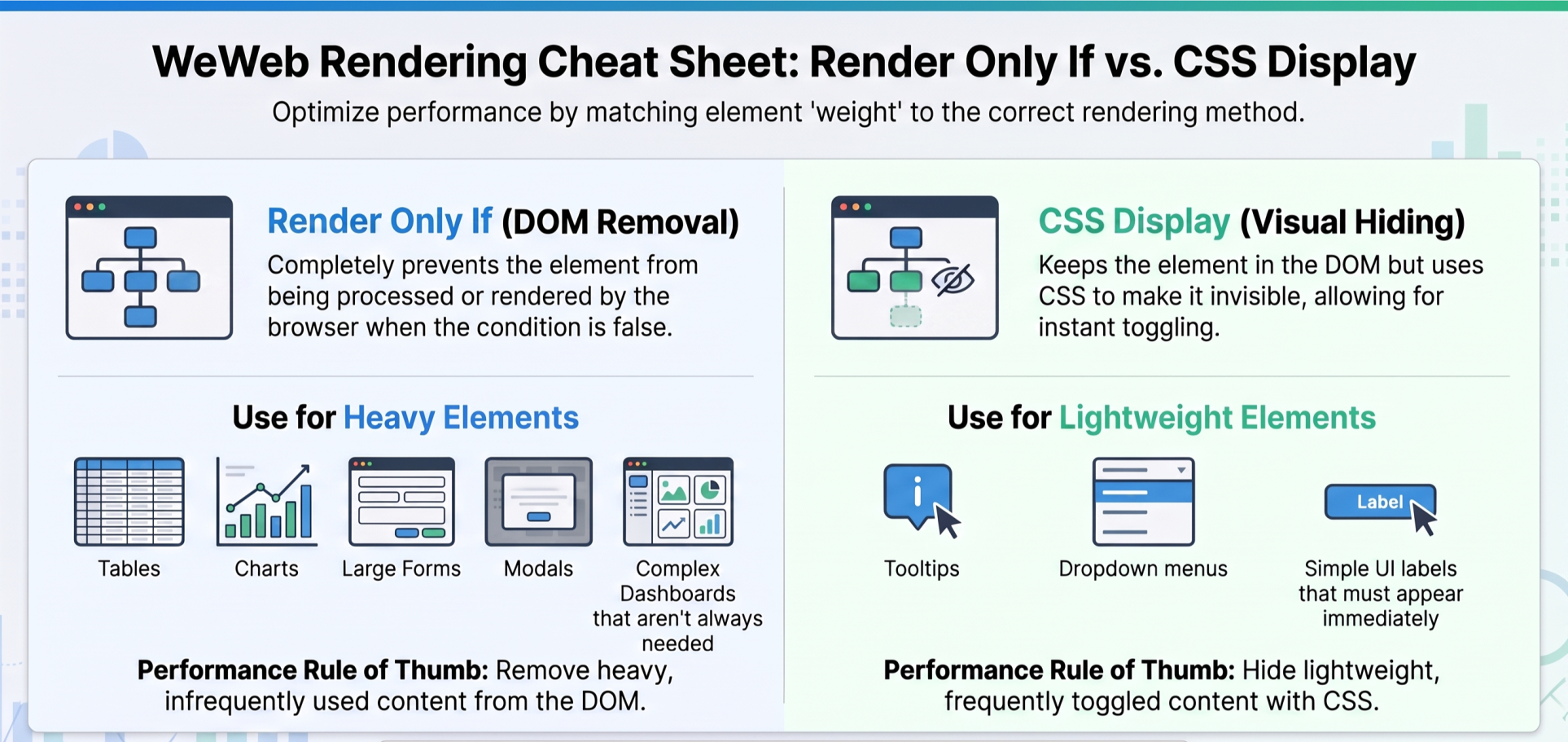
Use “Render Only If” for heavy elements
When a condition is false, “Render Only If” prevents the element from being rendered.
This is generally the better choice for:
- Tables
- Charts
- Large forms
- Modals
- Side panels
- Complex dashboards
- Content that may never be opened
If a modal is closed when the page loads, there is often no reason to render its entire internal structure immediately.
Use display or visibility for lightweight elements
Display-based hiding keeps the element in the DOM and changes only its CSS visibility.
This can be useful for small elements that must toggle instantly, such as:
- Dropdown menus
- Tooltips
- Small navigation states
- Simple labels or indicators
The trade-off is that the browser still has to maintain the hidden element.
A practical rule is: Remove heavy, infrequently used content from the DOM. Hide lightweight, frequently toggled content with CSS.
Reserve space to prevent layout shifts
Layout shifts occur when content changes position while the page is loading.
They are frustrating for users and can negatively affect Cumulative Layout Shift, one of Google’s Core Web Vitals.
This often happens when:
- Images load without defined dimensions
- Lists initially have no height
- Asynchronous content pushes existing content downward
- Fonts change after the initial render
There are several ways to reduce this in WeWeb.
Set minimum heights
For a list, chart, or dynamic content block, define a reasonable min-height so that the surrounding layout remains stable while data loads.
Use skeleton loaders
A skeleton loader should roughly match the final content structure. It reserves space and gives users immediate feedback that data is loading.
Define image aspect ratios
Set an explicit ratio such as 16 / 9 or 4 / 3.
This allows the browser to reserve the correct space before the image has finished downloading.
Limit the initial size of dynamic lists
Rendering hundreds of cards, rows, or repeated elements at once can make scrolling and interaction noticeably less smooth.
Use either:
- Server-side pagination
- A controlled “Load more” pattern
- Infinite scroll with a limited initial batch
For many interfaces, starting with 10 to 20 items provides a much better experience than rendering the entire collection.
Infinite scroll should still be controlled. It shouldn’t become a way to accumulate thousands of rendered elements in the same page session.
3. Optimize images and static assets
Static assets frequently account for most of a page’s total download size.
Images are usually the first place to look, but fonts, icon libraries, tracking scripts, and embedded media can also contribute significantly:
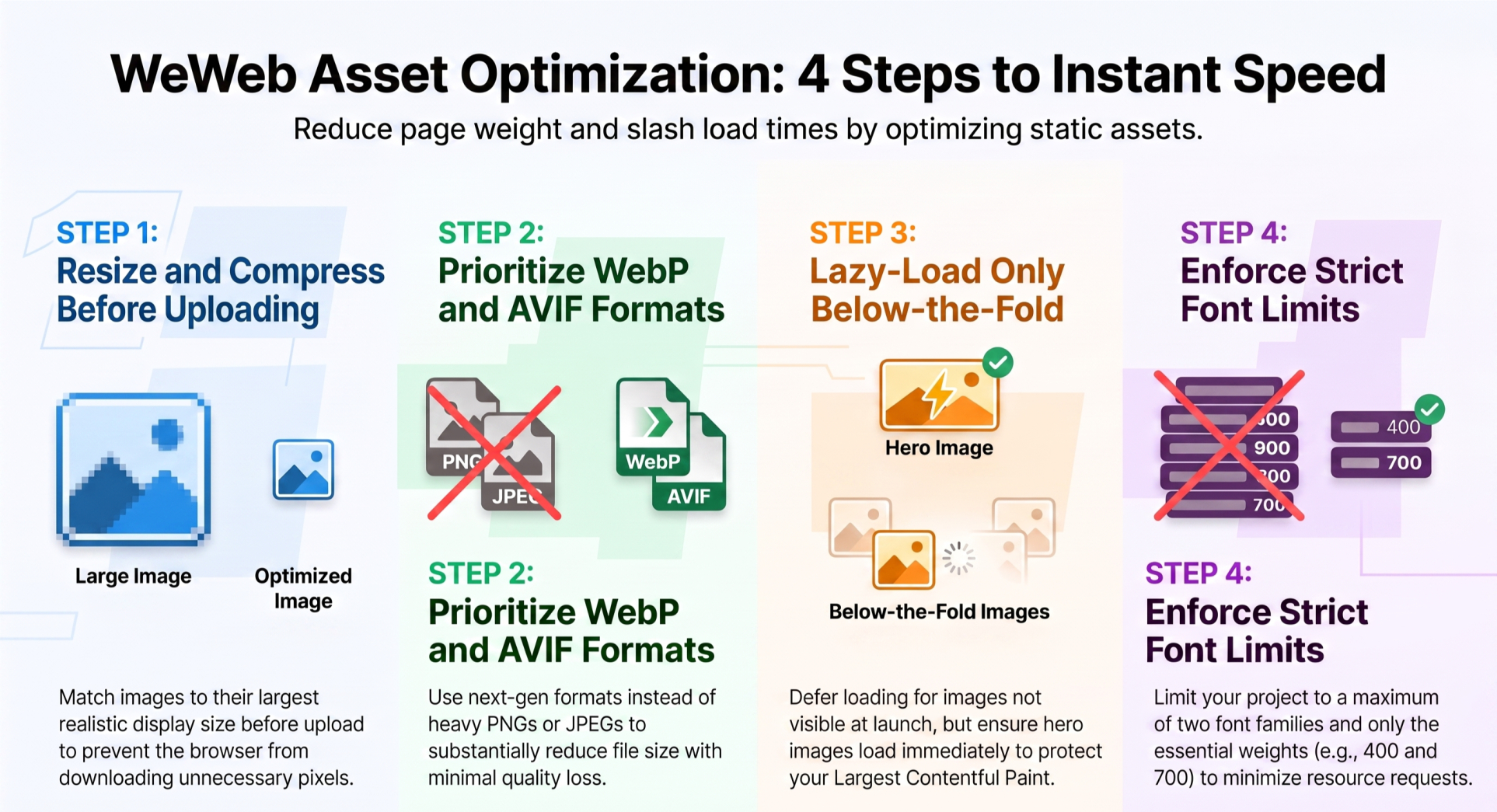
Resize images before uploading them
Changing an image’s visual dimensions in the editor doesn’t reduce the size of the original file.
If a 4,000-pixel-wide image is displayed at 600 pixels, the browser may still download the full source image.
Before uploading an image:
- Determine its largest realistic display size.
- Resize it to that size.
- Compress it.
- Export it in an appropriate format.
Prefer WebP or AVIF
WebP and AVIF can substantially reduce image size compared with unoptimized PNG or JPEG files.
As a practical guideline:
- Use WebP for broad compatibility and straightforward optimization.
- Consider AVIF when very small file sizes are important and your target browsers support it.
- Keep PNG for assets that specifically need its characteristics, such as certain transparent graphics.
- Avoid using large PNG files for ordinary photographs.
Tools such as Squoosh and TinyPNG can help compress assets before upload.
Lazy-load below-the-fold images
Images that aren’t visible when the page opens usually don’t need to load immediately.
Enable lazy loading for:
- Images farther down the page
- Gallery thumbnails
- Images inside closed sections
- Secondary content cards
Don’t blindly lazy-load the main hero image or another asset that is likely to become the page’s Largest Contentful Paint element.
Critical above-the-fold imagery should load promptly.
Be strict about fonts
Every font family, weight, and style adds another resource the browser may need to download.
A project that uses one family in six weights is not loading “one font.” It may be loading six separate font files.
A good default is:
- No more than two font families
- Only the weights actually used
- Usually 400, 500, and 700 at most
System fonts provide the best raw performance because they require no font download. Custom fonts may still be appropriate for the brand, but they should be used deliberately.
Also consider the loading experience. A slow font can cause invisible text or a noticeable visual swap after the page has rendered.
Use one icon library consistently
Mixing Font Awesome, Lucide, Phosphor, and other libraries in the same project can increase the amount of icon-related code and assets included in the app.
Choose one primary icon system and use it consistently.
For one-off brand marks or complex custom visuals, an optimized inline SVG is often a good option. It can render without an additional image request and provides precise control over the markup.
Avoid placing large, unoptimized SVG exports directly into the page. Design tools may include hidden layers, metadata, or excessively complex paths that should be cleaned before use.
4. Control third-party scripts
Marketing, analytics, support, and behavioral tools can add significant work to the initial page load.
Common examples include:
- Google Tag Manager
- HubSpot
- Hotjar
- Crisp
- Advertising pixels
- A/B testing tools
- Multiple analytics platforms
Each script may download more JavaScript, initialize listeners, inspect the DOM, create network requests, or run work on the browser’s main thread.
Audit every script
For each third-party tool, ask:
- Is it still actively used?
- Does it need to run on every page?
- Does it need to load before the user can interact?
- Does another tool already provide the same data?
- Can it load only after consent or a specific action?
Mature applications often contain scripts that were added for an experiment and never removed.
Load non-critical scripts asynchronously
Use asynchronous or deferred loading when the integration supports it.
This reduces the chance that a third-party script blocks the browser from parsing and displaying the main page.
However, async and defer don’t make a script free. The code will still consume network and processing resources when it runs.
Delay scripts that aren’t immediately needed
A good strategy is to initialize non-essential tools after the initial experience is available.
In WeWeb, this can be implemented through a global workflow:
- Trigger the workflow on app load.
- Add a delay.
- Initialize the script using custom JavaScript.
This can be useful for chat widgets, heatmaps, and other tools that don’t need to run before the user sees the page.
A fixed delay should not be treated as a universal rule. Some scripts may be better triggered by:
- User consent
- The first interaction
- Opening a support panel
- Visiting a specific page
- An idle-browser callback
The goal is to keep non-essential work out of the critical loading path.
5. Design workflows for responsiveness
Workflows connect user actions to application logic.
They can also create a slow experience when they trigger too much work or keep the interface blocked for too long.
Avoid locking the entire interface
A loading state can be useful when the user must wait for a critical operation. But not every API request needs a full-screen loader.
Prefer localized feedback where possible.
For example:
- Show a loading state inside the button being submitted.
- Show a skeleton only in the section being refreshed.
- Allow the user to continue navigating while secondary data loads.
- Use optimistic updates when the operation is safe and reversible.
Full-page blocking should be reserved for actions where continued interaction could corrupt data or create conflicting operations.
Debounce search and filter inputs
A filter connected directly to an input change may send a request for every character typed.
Typing “performance” could produce requests for:
- p
- pe
- per
- perf
- and so on
Add a debounce, often around 300 milliseconds, so the request runs only after the user pauses typing.
This reduces:
- API traffic
- Database load
- UI updates
- Race conditions between requests
- Visible flickering in the results
For slower or more expensive searches, a slightly longer delay or an explicit submit action may be more appropriate.
Prevent duplicate requests
Review workflows for actions that may run more than once because of:
- Multiple triggers
- Component mount events
- Route changes
- Variable watchers
- Repeated button clicks
- Overlapping global and local workflows
Disable submission controls while a mutation is in progress, and avoid fetching the same data from several places unless there is a clear reason.
A practical pre-production performance checklist
Before publishing a WeWeb app, review the following areas.
Data
- Fetch only essential data on page load.
- Move filtering, sorting, and pagination to the back end.
- Keep API responses focused.
- Avoid loading full related datasets unnecessarily.
- Debounce request-driven search inputs.
Rendering
- Remove unnecessary nested containers.
- Use “Render Only If” for heavy hidden content.
- Limit the initial number of rendered list items.
- Reserve space for asynchronous content.
- Add skeleton loaders where useful.
Images and fonts
- Resize images before uploading them.
- Use WebP or AVIF where appropriate.
- Compress large assets.
- Lazy-load below-the-fold images.
- Define explicit image dimensions or aspect ratios.
- Remove unused font weights and families.
- Use one primary icon library.
Scripts and workflows
- Remove unused third-party scripts.
- Defer or delay non-critical integrations.
- Avoid full-interface loading states for local actions.
- Prevent duplicate workflow execution.
- Test the app with marketing and analytics scripts enabled.
Mobile
- Test on a real mobile device, not only a narrow desktop window.
- Review full-screen sections carefully.
- Use modern viewport units such as dvh where appropriate.
- Test on a slower network and a less powerful device.
- Check that large lists, animations, and fixed elements remain smooth.
Performance is an architectural habit
Front-end performance is not something to address only after an application becomes slow.
The best results come from making performance part of the building process:
- Request less data.
- Render fewer elements.
- Ship smaller assets.
- Delay non-essential work.
- Measure the experience on realistic devices.
A well-optimized WeWeb application doesn’t merely earn a better PageSpeed score. It feels more responsive, is easier to use, and gives users greater confidence in the product.
Download the complete performance guide
For a visual summary of the recommendations in this article, download the complete guide.