


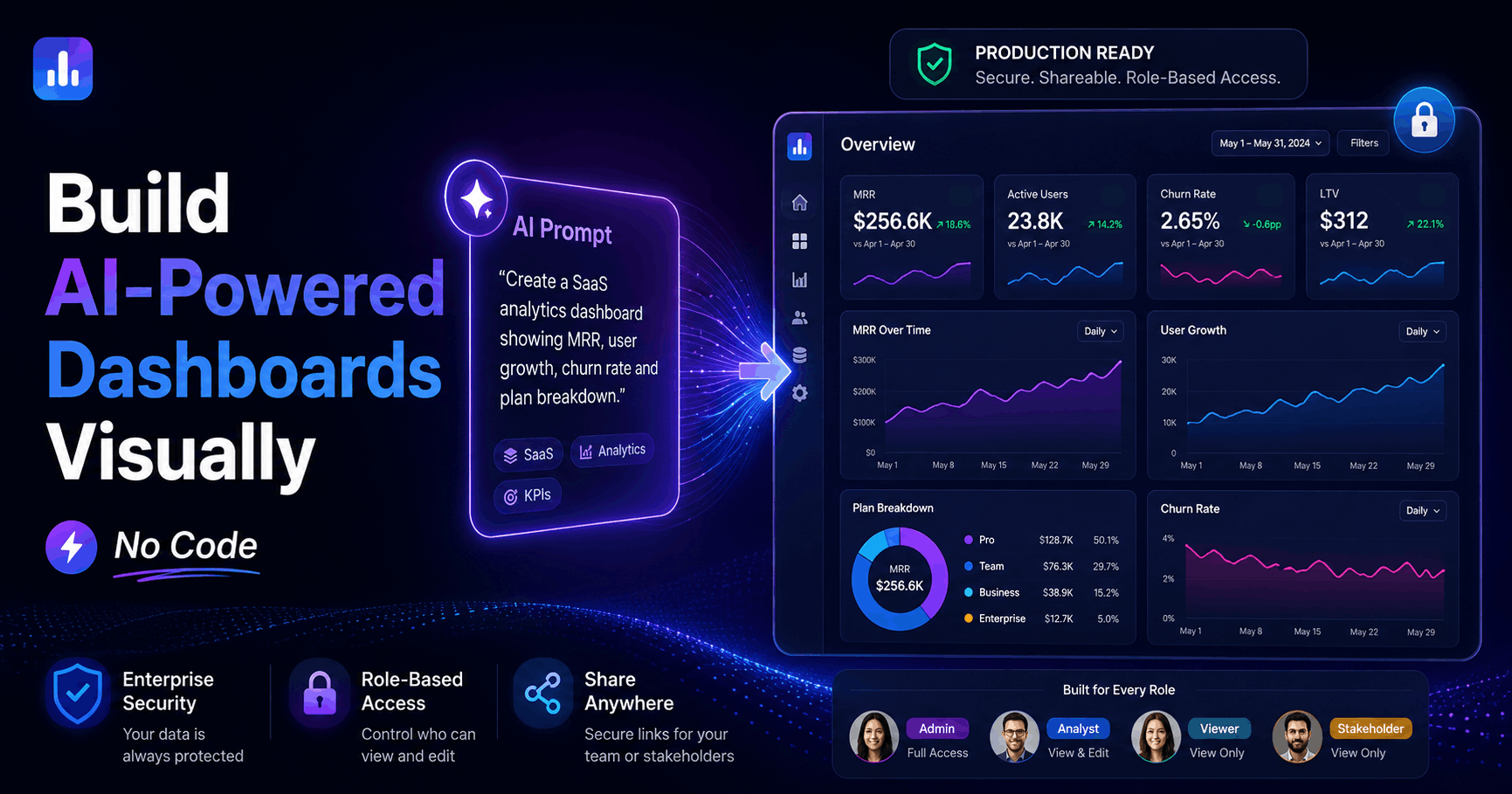
AI has made building dashboards fast. Describe what you want and a tool like Claude generates a working layout in minutes. That part works well.
The problem comes next. The dashboard lives on your laptop. An HTML file. To make it part of your daily operations, you need to put it somewhere your team can access but the moment you do, everyone sees everything. Confidential sales data, customer metrics, financials. No role-based filtering. No authentication. A URL anyone can open.
This guide covers how to close that gap: AI generation for the layout and design, with WeWeb handling authentication, role-based views, and deployment. The result is a dashboard your team can use anywhere, with the correct role-based access controls ensuring users can only access authorized data.
Why AI-Generated Dashboards Aren't Production-Ready on Their Own
AI tools like Claude Code are genuinely good at dashboard layout. Describe your metrics, your filters, your preferred chart types, and you get a working result fast. Iterating on the design through prompting is quick.
But what you get is an HTML file. And getting that file in front of your team, safely, requires solving three problems AI code generators don't make easy:
Authentication: Who is allowed to access this dashboard? If you host an HTML file, anyone with the URL can open it.
Role-based data filtering: Different users should see different data. A sales rep should see their own pipeline. A manager should see their team's. An executive should see everything. A static file doesn't know who is logged in.
Deployment: Hosting a file is not the same as deploying an application. File hosting gives you a URL. Application deployment gives you auth, user management, role enforcement, and ongoing access control.
These aren't edge cases. They're the requirements for almost any real business dashboard. Building the layout is only the start.
The Production-Ready Dashboard Workflow
Here is how to go from AI-generated layout to a working dashboard your team can use.
Step 1: Generate the Dashboard Layout
Import an existing layout you've already designed elsewhere or use WeWeb AI. Describe what you need:
"Build a sales performance dashboard. Show monthly revenue, pipeline by stage, and top deals. Include a filter by date range and by sales rep. Sales reps should see only their own deals; managers should see all deals for their team; admins see everything."
Our AI generates:
- Dashboard layout with charts and tables
- Data model and API connections
- Auth flows for three user roles (sales rep, manager, admin)
- Role-based data filtering logic
- Filter components for date and sales rep
The role-based access logic is generated alongside the UI, not as an afterthought.
Step 2: Review the Generated Output Visually
The generated dashboard appears in our visual editor. Click through each section:
- Is the layout what you expected?
- Are the charts showing the right data?
- Are the filters in the right position?
Walk through the generated result first. Identify what needs adjustment before you start editing.
Step 3: Edit Layout and Components Directly
Use the visual editor to make targeted adjustments. It gives you a guaranteed outcome for the specific change you want to make, without the risk of an AI re-generation touching other parts of the dashboard.
To change a chart type: Click the chart component, open the settings panel, select the new chart type. Done.
To move a section: Drag it. Sections snap to the grid.
To add a new metric: Drag a chart component from the component library onto the canvas. Connect it to your data source by clicking the data binding selector.
To change column order in a table: Click the table component, open the columns panel, drag columns into the order you want.
For major structural changes like adding a new section, generating a new data model, rebuilding a workflow, use the AI. For precise, targeted edits where you know exactly what you want, the visual editor gives you control over exactly what changes.
Step 4: Configure Role-Based Views
Role-based dashboard views work at two levels:
Data filtering by role: When a sales rep logs in, the dashboard queries only their deals. When a manager logs in, it queries deals for their team. This is handled through our built-in auth system and role-based data filters.
In our editor, you set this up by:
- Defining roles in the auth configuration (sales rep, manager, admin)
- Adding a data filter to each data source: "filter by logged-in user's ID" for reps, "filter by logged-in user's team" for managers
- Testing by logging in as a test user with each role
Section visibility by role: Some sections should only appear for certain roles. The admin KPI summary, for example, should be visible only to admins.
In our editor: click the section, open the visibility settings, set "show only when user role is admin." Done.
Step 5: Connect Your Data Sources
Our AI connects to common data sources automatically. You can add or change connections through the visual editor too.
Supported connections:
- WeWeb Tables (our built-in Postgres backend) for storing dashboard metrics
- Supabase, Xano, or any REST/GraphQL API for external data
- Airtable or Google Sheets for teams already managing data there
Real-time data sync is supported with Supabase and Xano so your dashboard can update automatically as data changes without a page refresh.
Step 6: Deploy
One-click deploy to our global CDN. Your dashboard is live, accessible by URL, and available to every role with appropriate data restrictions enforced.
If your organization requires self-hosting (data sovereignty, compliance requirements), export the Vue.js SPA and host on your own infrastructure. The role-based logic exports with the code.
Role-Based Dashboards: The Core Problem Most Tools Don't Address
Most AI app builders can build a dashboard layout. Very few handle role-based views without code.
As a result, users are forced into an imperfect choice: duplicate dashboards per role (expensive to maintain) or give everyone the same view (not secure).
In WeWeb, role-based views are a first-class feature. You can define roles visually, configure data filters visually, and set section visibility visually. Without writing code, you can create access controls to ensure your one dashboard has multiple secure views.
This is especially relevant for:
- SaaS products with customer dashboards: each customer sees only their own data
- Internal analytics tools: execs, managers, and reps need different views
- Client portals: each client sees their project data
If role-based views are part of your requirements, this is the angle to evaluate most carefully when comparing tools.
Comparison: Building Dashboards in WeWeb vs Alternatives
Lovable and Claude Code are the closest AI-native alternatives to WeWeb, but both require prompting through role-based auth logic rather than configuring it visually. That's a meaningful gap if user-level data separation is a requirement.
Frequently Asked Questions
Can I connect my dashboard to real-time data? Yes. We support real-time data sync with Supabase and Xano. Your dashboard updates automatically as your data changes.
Can I embed my dashboard in another app or website? Yes. WeWeb apps can be embedded as iframes or accessed via direct URL. Role-based auth applies regardless of how the dashboard is accessed.
What if I need a chart type that isn't in the default components? Our component library includes the most common chart types (line, bar, pie, donut, scatter, table, KPI cards). For custom visualizations, you can add custom JavaScript components or use third-party chart libraries.
Is WeWeb's dashboard builder good for enterprise use? Yes. We support self-hosting (for data sovereignty), HIPAA-compliant architectures, and enterprise SSO. Fortune 500 companies use WeWeb for internal dashboards and customer-facing analytics. Read more about building internal dashboards with no-code for enterprise patterns.
Can I export dashboard data? Data export is handled through your backend. If your data is in WeWeb Tables, you can export directly. If you're using Supabase or another backend, exports work through that system.
Conclusion
AI tools are fast at building dashboard layouts. The gap is everything after: authentication, role-based data filtering, and deployment that enforces access control.
WeWeb closes that gap without code. AI generates the initial dashboard, the visual editor handles targeted changes, and the built-in auth system ensures the right people see the right data.
If you need dashboards that different users see differently, and you need them in front of your team without exposing confidential data, our visual AI development platform is built for this.
Start building your dashboard free. No credit card required.