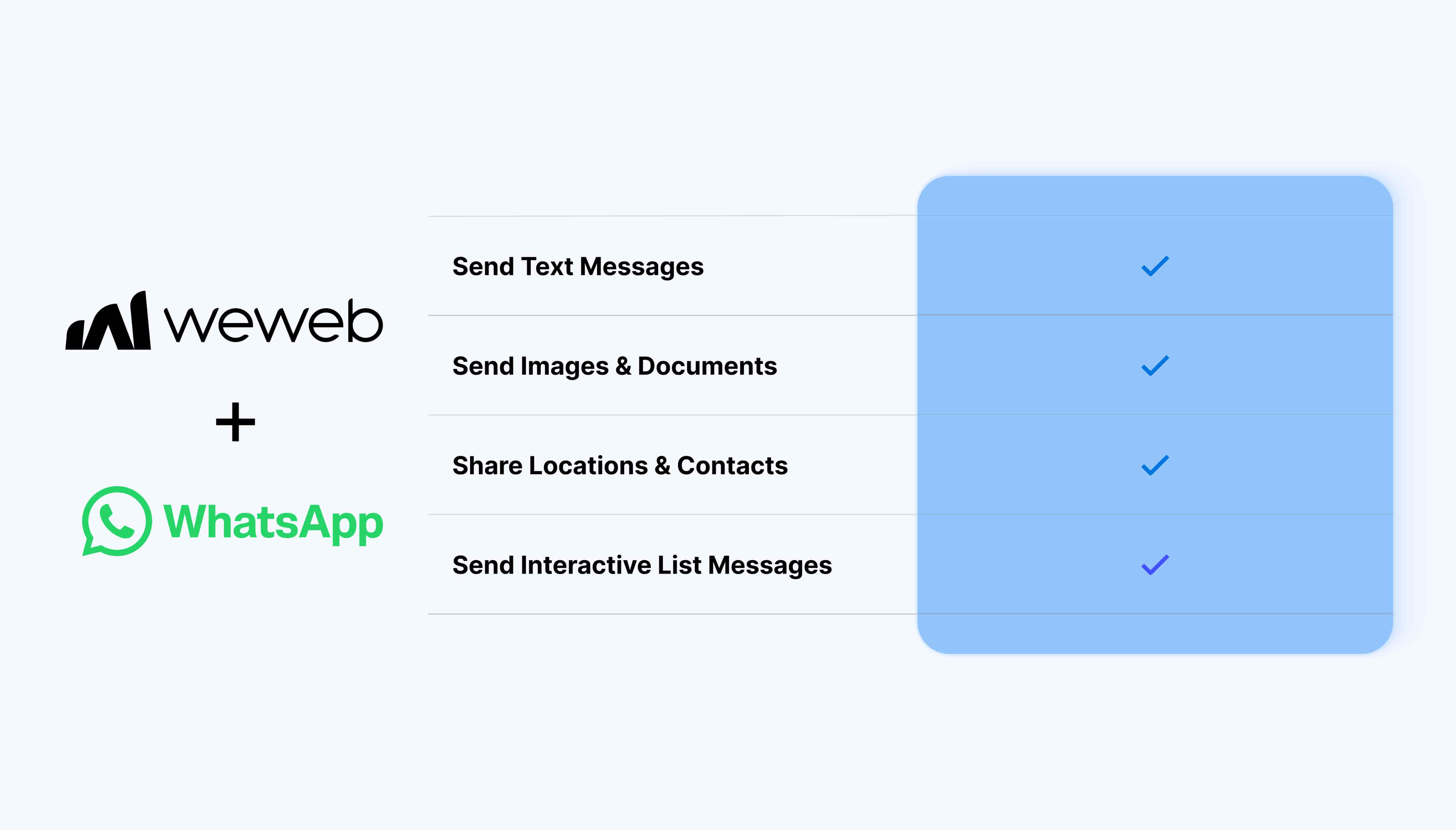
The WhatsApp integration lets you connect your WhatsApp Business account to WeWeb and build messaging directly into your workflows:
Send text messages within WhatsApp’s supported messaging window
Send images and documents
Share locations and contact information
React to existing messages using their message ID
Send pre-approved WhatsApp templates
Add reply buttons for predefined user choices
Send interactive list messages for menus and guided selections
What WeWeb supports natively
Category
Feature
What it does
Data
Templates table
Access WhatsApp message templates available for your connected business account
Messaging
Send text
Send a standard text message through WhatsApp
Media
Send image
Send an image through a WhatsApp workflow
Media
Send document
Send a document through WhatsApp
Messaging
Send location
Send geographic location information
Messaging
Send contacts
Send contact information in a WhatsApp message
Messaging
Send reaction
React to an existing WhatsApp message using its message ID
Templates
Send template
Send a pre-approved WhatsApp message template
Interactions
Send reply buttons
Send a message with predefined reply buttons
Interactions
Send list message
Send an interactive list of options users can choose from
Authentication
WhatsApp connection
Connect using an access token, phone number ID, business account ID, and app secret
Why use WeWeb with WhatsApp
WhatsApp provides the messaging channel, while WeWeb connects it to your app’s data, workflows, and business logic.
You can automatically send updates after actions in your app, deliver images or documents, share structured information such as locations and contacts, and create interactive experiences with reply buttons and list messages.
Perfect for:
Sending transactional notifications and updates
Sharing order, booking, or account information
Sending documents and images
Sharing locations or contact details
Sending approved business notification templates
Building interactive menus and guided message flows
Connecting WhatsApp communication to backend processes
And more…
Integrating WhatsApp with WeWeb
Connecting WhatsApp requires credentials from your Meta configuration.
You’ll need:
A system-level access token
A phone number ID
A business account ID
An app secret
Once you have the required credentials:
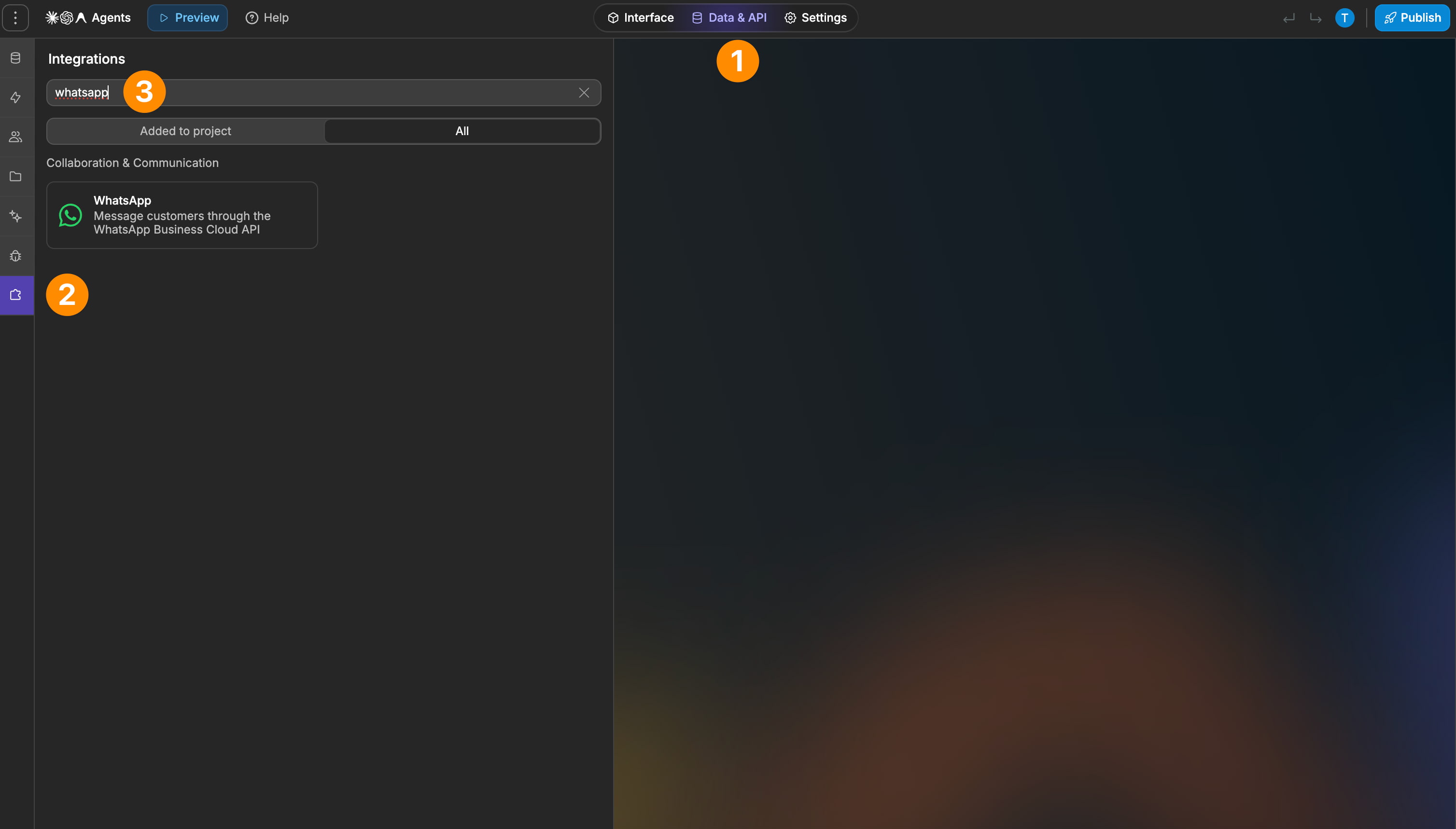
Add WhatsApp as an integration in WeWeb
Enter your WhatsApp and Meta credentials
Save the connection
Create or open the workflow where you want to use WhatsApp
Add the appropriate WhatsApp action
Configure the recipient and message content
Best practices
Complete your WhatsApp Business and Meta app configuration before connecting the integration to WeWeb
Use the correct phone number ID and business account ID for the WhatsApp number you want to send from
Keep your access token and app secret secure
Use normal text messages during the 24-hour user-initiated messaging window
Use approved WhatsApp templates when messaging users outside that window
Use reply buttons for a small number of clear choices
Use list messages when users need to choose from a larger set of options
Use the relevant message ID when sending reactions
Test templates and interactive messages with representative data before using them in production
Limitations
Regular messages are subject to WhatsApp’s 24-hour user-initiated messaging window
Outside that window, businesses generally need to use an approved WhatsApp template
Templates must be configured and approved through the WhatsApp/Meta ecosystem before they can be sent
FAQs
What do I need to connect WhatsApp to WeWeb?
You need a system-level access token, phone number ID, business account ID, and app secret from your WhatsApp Business and Meta app configuration.
Can I send normal WhatsApp messages from WeWeb?
Yes. The integration includes a Send text action.
WhatsApp’s messaging rules still apply: standard messages can be sent during the 24-hour window following a user-initiated conversation.
What happens outside the 24-hour messaging window?
Businesses generally need to use a pre-approved WhatsApp message template. WeWeb provides both a templates table and a Send template workflow action.
Can I send images and documents?
Yes. The integration includes dedicated Send image and Send document actions.
Can I send locations and contacts?
Yes. Dedicated actions are available for sending geographic location information and structured contact details.
Can I react to an existing WhatsApp message?
Yes. Use the Send reaction action with the ID of the message you want to react to.
Can I add buttons to WhatsApp messages?
Yes. Send reply buttons lets you provide predefined choices users can select directly from the conversation.
Can I create menu-style WhatsApp messages?
Yes. Send list message lets you present users with an interactive list of options, making it suitable for menus and guided selections.
Can I send WhatsApp templates from WeWeb?
Yes. You can access available templates through the integration’s templates table and send an approved template using the Send template action.