



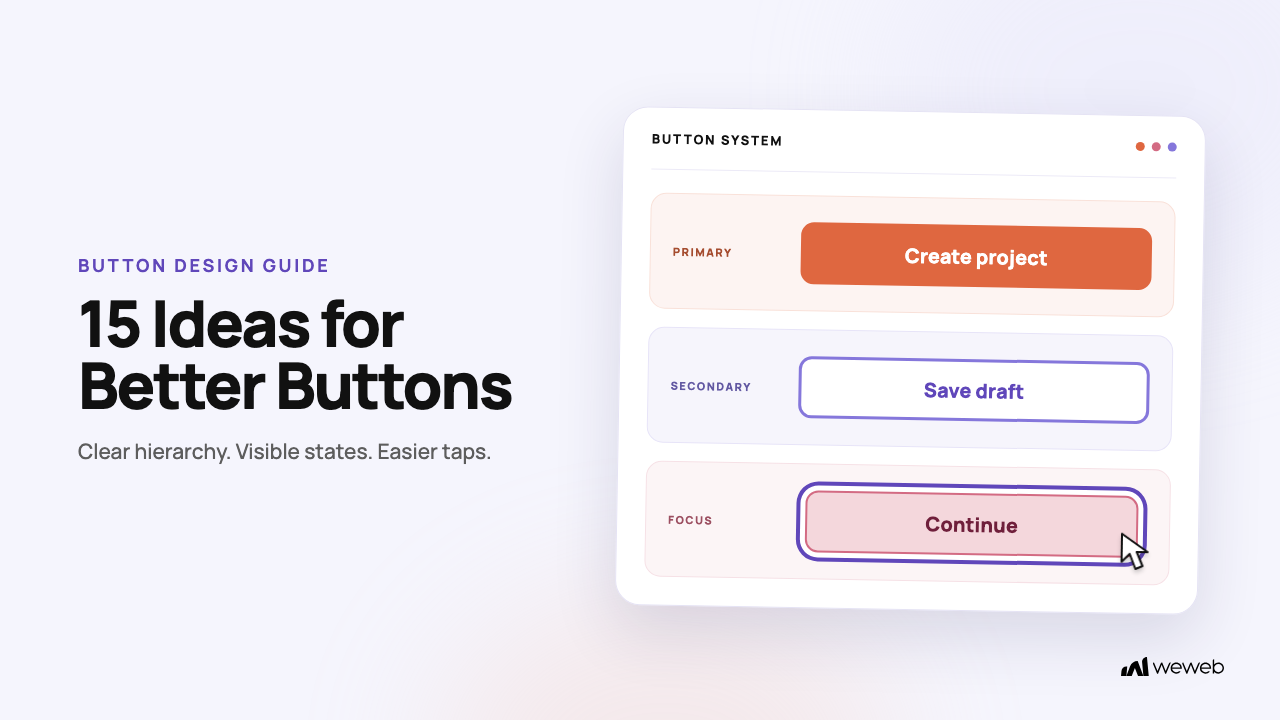
Buttons are one of the most fundamental interactive elements in any digital interface.
While they might seem simple, the best button design is clear, accessible, and trustworthy, combining intuitive visual cues with action oriented text to guide users confidently. The quality of this design directly impacts user experience, accessibility, and ultimately, your conversion rates.
A poorly designed button can cause confusion and lost opportunities, while a great one helps users navigate your application with ease and efficiency. This guide explores the principles to achieve that.
Why button design matters in web apps
In a web app, buttons are not just decorative UI elements. They are decision points. They help users create accounts, save data, approve requests, upload files, trigger workflows, complete purchases, and move through complex product experiences.
That is why button design matters so much for SaaS dashboards, customer portals, internal tools, marketplaces, and business applications. A button that is unclear, inaccessible, or visually inconsistent can slow users down, create frustration, and hurt conversions. A well-designed button system makes your app easier to use, easier to trust, and easier to scale.
In WeWeb, teams can build reusable button components, define consistent styles, manage button states, and adapt layouts across desktop and mobile without rebuilding every interaction from scratch.
Button Fundamentals: Structure, Hierarchy, and Placement
Effective button design starts with a clear understanding of structure and hierarchy. Not all buttons are created equal, and users need visual cues to understand their importance.
Visual Hierarchy: Establishing a clear hierarchy prevents user confusion and decision fatigue. The best button design makes the desired path obvious.
Placement: Where you place a button is as important as how it looks. Users have established expectations based on common design patterns. For example, in Western cultures, placing the primary action button on the right is common, as we read from left to right. Placing buttons in predictable locations (like the top right for account access or the bottom of a form for submission) reduces cognitive load.
Copy That Clicks: Labels That Build Confidence
The text on your button, or its label, should be crystal clear. Vague labels like “Submit” or “Click Here” are less effective than action oriented, specific copy.
A good button label should:
- Start with a clear action verb, such as “Create,” “Save,” “Download,” “Book,” or “Start.”
- Explain what will happen after the click.
- Avoid vague wording like “Submit,” “Click here,” or “Continue” when a more specific label is possible.
- Match the user’s intent at that moment in the flow.
- Reduce anxiety by being explicit about the outcome, especially for payment, deletion, account creation, or form submission actions.
For example, “Create account” is clearer than “Submit.” “Download report” is more useful than “Click here.” “Book a demo” sets a stronger expectation than “Get started” when the next step is a sales call.
The best button design uses copy that empowers the user by providing clarity and building trust.
Size, Spacing, and Tap Targets
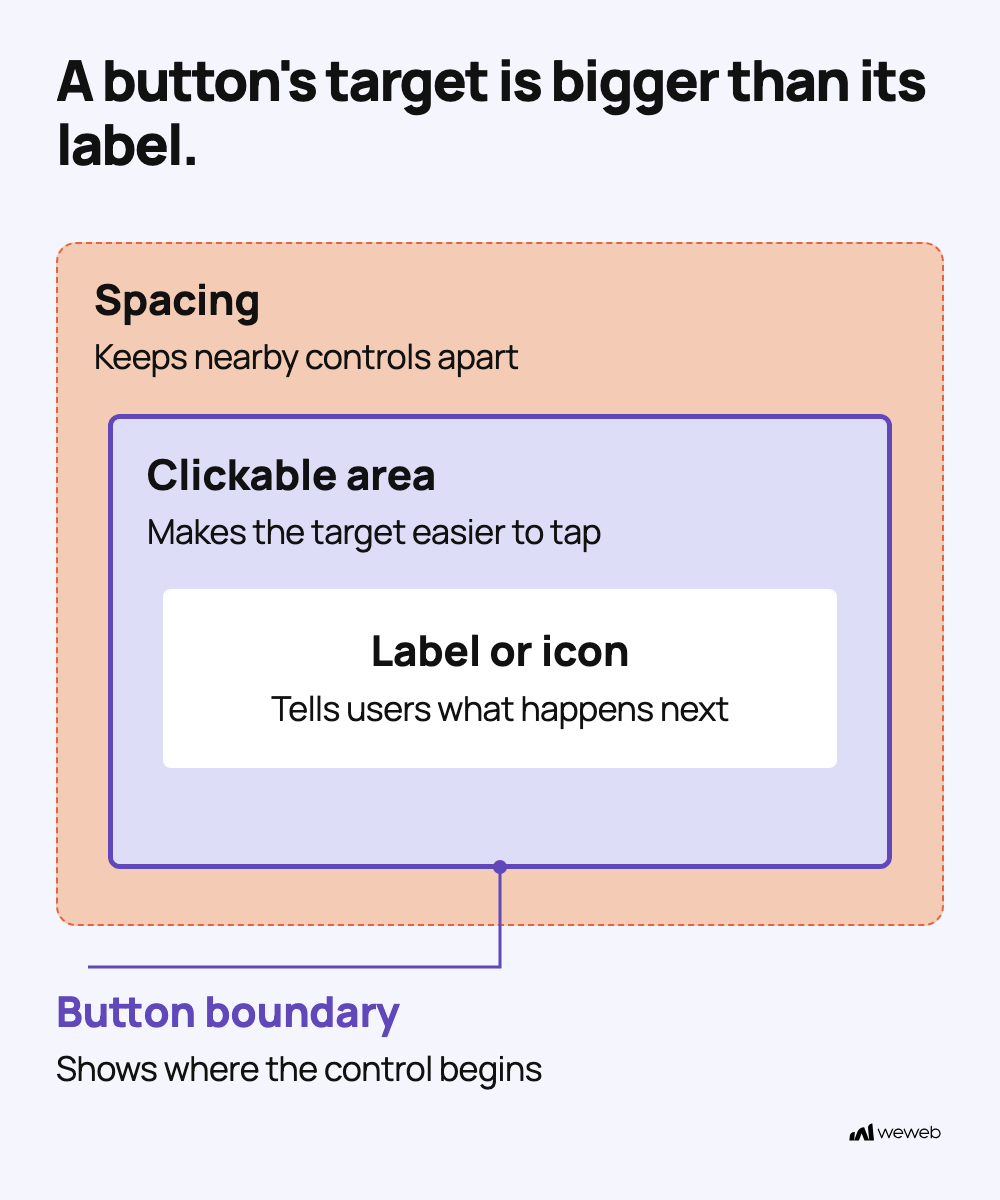
Button size and the space around it are critical for usability, especially on touch devices.
According to a study by the MIT Touch Lab, the average width of an adult’s index finger is 1.6 to 2 cm, which translates to 45 to 57 pixels. For comfortable touch interaction, aim for targets of at least 44×44 CSS pixels. WCAG 2.2 Level AA sets a 24×24 CSS pixel baseline, although smaller targets can still conform in specific cases, including when enough space separates them.
Ample spacing, or whitespace, around a button helps it stand out and prevents accidental clicks on adjacent elements. Crowded interfaces are a common source of user error. When you’re building an application, tools like WeWeb’s visual editor give you precise control over padding and margins, making it easy to implement these best practices.
Color, Contrast, and Visual Style
Color is a powerful tool in button design. It evokes emotion, draws attention, and signals function. The best button design uses color purposefully.
A strong button system usually includes:
- Primary buttons for the main action on a screen.
- Secondary buttons for alternative actions.
- Tertiary or text buttons for low-priority actions.
- Destructive buttons for delete, remove, cancel, or irreversible actions.
- Disabled buttons for actions that are not currently available.
- Loading buttons for actions that take time to complete.
Avoid choosing button colors based only on aesthetics. Start with hierarchy, accessibility, and user intent. The goal is not just to make buttons look attractive — it is to help users understand what action to take next.
Consistency, States, and Feedback
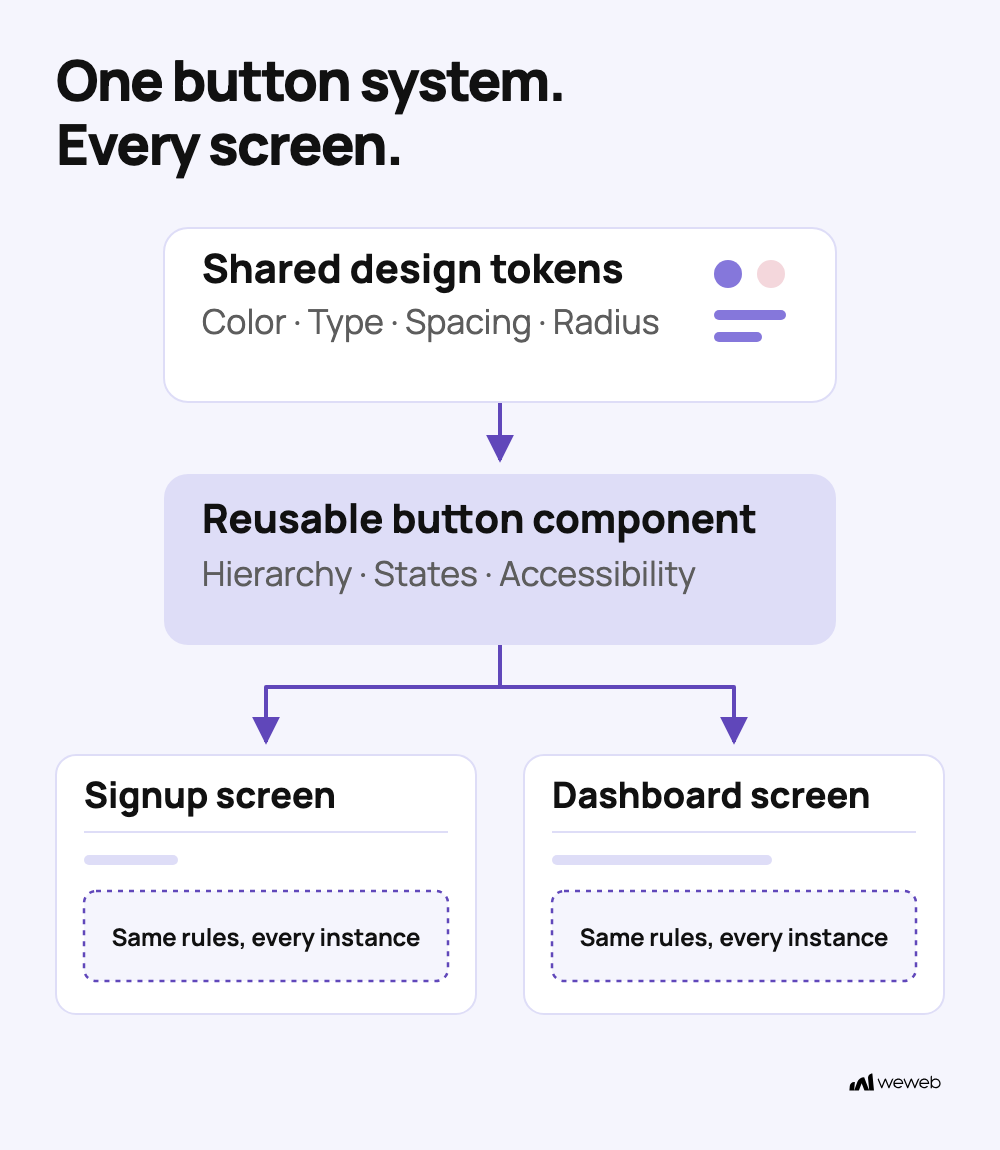
Consistency is a cornerstone of good UX. Buttons for similar actions should look and behave the same way throughout your application. This predictability makes your interface intuitive.
Buttons also need to communicate their status to the user through different states:
- Default state: how the button looks before the user interacts with it.
- Hover state: how the button responds when a user moves their cursor over it.
- Focus state: how the button appears when selected with a keyboard or assistive technology.
- Active state: how the button looks while it is being pressed or clicked.
- Disabled state: how the button appears when the action is unavailable.
- Loading state: how the button communicates that an action is in progress.
- Success or error state: how the interface confirms whether the action worked.
These states help users understand what is happening. For example, a hover state confirms that a button is interactive, a focus state helps keyboard users navigate, and a loading state prevents people from clicking the same button multiple times while a form is being submitted.
Providing this instant visual feedback reassures users that the system has registered their action.
Accessibility Essentials (WCAG Aligned)
For buttons, this involves several key considerations aligned with WCAG.
Accessible button design should account for:
- Sufficient color contrast between text and background.
- Visible keyboard focus states.
- Logical focus order across forms, modals, and pages.
- Native button elements for actions whenever possible.
- Accessible labels for icon-only buttons.
- Clear text for destructive or irreversible actions.
- Tap targets that are large enough and well spaced for touch users.
- Feedback for loading, success, and error states.
- Button states that do not rely on color alone.
Creating an accessible product is not just about compliance: it’s about providing a better experience for all users. A platform like WeWeb empowers you to build professional, accessible web applications from the start.
Button Types and When to Use Them
Different situations call for different button styles. Choosing the right one is key to the best button design.
Use these common button types:
- Primary buttons: Use these for the main action on a screen, such as “Start free trial,” “Save changes,” “Create project,” or “Book a demo.” There should usually be only one primary button per screen or decision area.
- Secondary buttons: Use these for alternative actions that are useful but less important, such as “Cancel,” “Back,” “Preview,” or “Save as draft.”
- Tertiary or text buttons: Use these for low-priority actions, supporting links, or actions that should not distract from the main flow.
- Icon buttons: Use these for compact, repeated actions such as edit, delete, close, search, or expand. Always include an accessible label so screen readers can understand the action.
- Destructive buttons: Use these for risky or irreversible actions, such as deleting a record, removing a user, or canceling a subscription. Make the label specific and consider adding a confirmation step.
- Disabled buttons: Use these when an action is temporarily unavailable, such as before a required field is completed. Make sure users understand why the action is disabled.
- Loading buttons: Use these when an action takes time to process, such as submitting a form, saving data, uploading a file, or generating a report.
The goal is not to create many styles for the sake of variety. The goal is to help users understand which actions are most important, which are optional, and which require extra care.
Designing for Context: Mobile, Desktop, and Content Density
The ideal button design adapts to its context.
Building responsive applications that provide the best button design for every screen size is straightforward with a powerful visual builder.
On mobile, buttons need larger tap targets, generous spacing, and labels that stay readable on small screens. Primary actions should be easy to reach, especially in forms, onboarding flows, and checkout experiences. Avoid placing important buttons too close together, because small spacing increases the risk of accidental taps.
On desktop, users often have more space and more complex workflows. Buttons may appear in toolbars, tables, modals, side panels, and dashboards. In these cases, hierarchy becomes especially important. The main action should remain easy to identify, while repeated actions like edit, duplicate, export, or delete should be consistent and predictable.
Test, Learn, Optimize
There is no single “perfect” button that works for every website and every audience. The principles in this guide are a starting point. The key to finding the best button design for your specific use case is testing.
A/B testing different variations of your buttons can lead to significant improvements in conversion rates. You can test:
- Button copy, such as “Start free trial” versus “Create your first app.”
- Button placement, such as above the fold, inside a sticky footer, or after a pricing section.
- Button color and contrast, especially for primary CTAs.
- Button size, padding, and visual weight.
- Button hierarchy, such as primary versus secondary styling.
- Button icons, such as adding an arrow, plus sign, or download icon.
- Button microcopy near the CTA, such as “No credit card required” or “Free until you publish.”
- Button states, including loading, disabled, hover, and focus states.
- CTA destination, such as sending users to signup, demo, templates, or documentation.
- Mobile versus desktop placement, especially for sticky or repeated CTAs.
Do not test everything at once. Start with the button that has the biggest business impact, such as signup, demo booking, checkout, form submission, or onboarding completion.
Analyze user behavior and data to understand what resonates with your audience and iterate on your designs.
15 Best Button Design Ideas & Examples
This section dives into actionable strategies and visual examples to elevate your user interface’s most critical interactive elements.
By exploring these fifteen best practices, you can ensure your buttons are not only aesthetically pleasing but also functional and intuitive for every user. These examples serve as a comprehensive guide to mastering the nuances of button design across various use cases and user flows.
1. Include designs for all states (hover, focus, active, loading)
A button that communicates every step (idle, hover, focus, active, loading) eliminates hesitation and makes the UI feel trustworthy. When these states are defined as variants and tokens from the start, engineers ship faster, QA finds fewer surprises, and layout shifts vanish when labels change or spinners appear. For enterprise teams, that clarity compounds across surfaces, keeping accessibility airtight and maintenance predictable.
Build it now:
- Define the button’s default, hover, focus, active, disabled, and loading states before using it in production.
- Make the loading state the same width as the default state to avoid layout shift.
- Use a visible focus style for keyboard users, not just a hover style for mouse users.
- Add a disabled state for actions that are unavailable until required fields are completed.
- Save these states as reusable variants so every button behaves consistently across the app.
Compliance checkpoints: 4.5:1 text contrast (AA), 3:1 non-text contrast, web AA 24×24 CSS px minimum (exceptions apply), iOS 44pt, Android 48dp targets, visible :focus-visible outline.
Ship next: Tokenize all button states and roll out a shared :focus-visible style across your component library.
2. Use sufficient color contrast
Contrast is a simple, measurable win that protects readability in every theme and device. By baking compliant color pairings into tokens, teams get predictable AA conformance and faster delivery. Users see labels instantly, errors drop, and support tickets shrink, while the design system remains flexible enough to scale across light/dark modes without rework.
Build it now:
- Check the contrast between the button label and the button background.
- Test button contrast in both light and dark modes if your app supports themes.
- Check hover and focus states for sufficient contrast. WCAG does not require disabled controls to meet those contrast thresholds, but their labels should still be easy to read.
- Do not use low-contrast brand colors for critical actions unless you adjust the text, border, or background.
- Create approved color tokens for primary, secondary, destructive, and disabled buttons.
Compliance checkpoints: 4.5:1 text contrast (AA), 3:1 large-text contrast and required UI/state visual-cue contrast, AA 24×24 CSS px minimum (exceptions apply); 44–48px tap targets as a design recommendation, semantic button.
Ship next: Audit and fix token contrast pairs across states and themes, then enforce 44px minimum tap targets on mobile.
3. Ensure keyboard accessibility
Keyboard operability is table stakes: every action must be reachable, focusable, and triggerable without a mouse. Baking this into the component from day one avoids retrofits and compliance risk. It also lifts completion rates for power users, voice users, and anyone navigating quickly through forms and dashboards.
Build it now:
- Navigate the page using only the Tab key and confirm every button can be reached.
- Make sure buttons can be activated with Enter or Space.
- Add a clear focus indicator so users always know which button is selected.
- Keep the focus order logical, especially in forms, modals, and multi-step flows.
- Avoid using non-semantic elements like divs or spans for clickable actions when a native button is more appropriate.
- Test keyboard navigation on the most important flows, such as signup, checkout, dashboard actions, and form submission.
Compliance checkpoints: keyboard-operable controls (SC 2.1.1), a visible focus indicator (SC 2.4.7), 3:1 non-text contrast for required visual cues, and a 24×24 CSS pixel minimum target size under WCAG 2.2 AA unless an exception applies. Larger 44–48px targets are recommended for easier touch interaction.
Ship next: Run a keyboard-only traversal of key flows and fix any element lacking native focus, visible focus, or Space/Enter activation.
4. Ensure screen reader compatibility
Buttons should announce clearly, behave predictably, and confirm outcomes without seizing focus. Leaning on native semantics unlocks consistent announcements and interactions across assistive tech, while a few ARIA attributes cover specialized cases like toggles and async updates. The result: fewer QA cycles and higher trust.
Build it now:
- Use native button elements for actions whenever possible.
- Give every icon-only button a clear accessible label.
- Make sure the button label explains the action without relying only on nearby visual context.
- Use ARIA attributes only when needed, such as for toggle buttons or expanded/collapsed states.
- Test key flows with a screen reader to confirm actions are announced clearly.
Compliance checkpoints: 4.5:1 text contrast, 3:1 contrast for required component/state visual cues, AA 24×24 CSS px minimum (exceptions apply); 48px mobile targets as a design recommendation, semantic button, visible keyboard focus.
Ship next: Replace any div-based buttons with native elements, document focus tokens, and verify announcements with a screen reader pass.
5. Provide adequate target size and padding
Large, forgiving hit areas reduce mis-taps, speed up tasks, and help users with limited dexterity. Standardizing size via tokens removes ambiguity and keeps components consistent across platforms, so your UI feels equally reliable on desktop, tablet, and phone.
Build it now:
- Set a minimum tap target of at least 44px by 44px for mobile-friendly buttons.
- Add enough horizontal padding so labels do not feel cramped.
- Keep enough spacing between adjacent buttons to prevent accidental taps.
- Increase padding for icon-only buttons so the clickable area is larger than the icon itself.
- Test buttons on a real phone, not only in desktop browser preview.
Compliance checkpoints: iOS 44×44pt, Android 48×48dp, Web AA 24×24 CSS px minimum (exceptions apply), 4.5:1 text contrast, 3:1 UI contrast, semantic button.
Ship next: Update tokens to enforce 44–48px targets and patch icon-only buttons with adequate padding.
6. Don’t rely on color alone to convey information
Color only signals vanish for color blind users and in glare or low contrast contexts. Pairing color with text, icons, or patterns preserves meaning everywhere. When codified in tokens and patterns, this safeguard becomes automatic, and your UI remains comprehensible under any theme or lighting.
Build it now:
- Pair status colors with text, icons, or labels so meaning is clear without color.
- Use clear copy like “Delete,” “Error,” “Success,” or “Required” instead of relying only on red, green, or yellow.
- Add borders, icons, or helper text to warning and destructive actions.
- Test your interface in grayscale or with a color-blindness simulator.
- Make sure focus, error, and success states remain understandable without color.
Compliance checkpoints: 4.5:1 text contrast, 3:1 contrast for required UI/state visual cues, 24×24 CSS px minimum under WCAG 2.2 AA (exceptions apply), 44–48px mobile targets as a design recommendation, visible keyboard focus.
Ship next: Extend tokens to include icon and border cues for every status; audit key flows where color is the only signal.
7. Differentiate primary and secondary buttons
A clear hierarchy directs attention to the next best step and reduces decision time. Formalizing one primary style (filled) and a secondary (outline/ghost) maps cleanly to tokens and variants, making consistency easy across products and themes.
Build it now:
- Define one primary button style for the most important action on the screen.
- Use secondary, outline, ghost, or text styles for supporting actions.
- Avoid placing two visually dominant primary buttons next to each other.
- Make destructive actions visually distinct from normal primary actions.
- Review key screens and confirm the intended next step is obvious within a few seconds.
Compliance checkpoints: 4.5:1 text contrast, 3:1 contrast for required component/state visual cues, 44px tap targets as a design recommendation, visible keyboard focus, semantic button.
Ship next: Sweep key screens to confirm a single primary action and promote/demote styles accordingly.
8. Use clear, action-oriented labels
Verb-first labels set immediate expectations, cut ambiguity, and lift conversion, especially in critical flows. They’re simple to localize and perfect for A/B testing. Codify them once, and the whole system benefits from predictable, scannable actions.
Build it now:
- Replace vague labels like “Submit,” “Next,” and “Click here” with specific action labels.
- Use a Verb + Object structure, such as “Create invoice,” “Save changes,” “Invite teammate,” or “Download report.”
- Make destructive actions explicit, such as “Delete project” instead of “Confirm.”
- Match the label to the result users expect after clicking.
- A/B test high-traffic CTA labels to see which version drives more completions.
Compliance checkpoints: 4.5:1 text contrast, 3:1 component contrast, 44–48px tap targets as a design recommendation, visible keyboard focus, semantic button.
Ship next: Rewrite ambiguous labels to Verb + Object and A/B test top-traffic CTAs.
9. Avoid more than one primary action per screen
When everything shouts, nothing stands out. Limiting each screen to a single dominant action reduces cognitive load, clarifies the happy path, and makes analytics cleaner. It also simplifies QA and scales beautifully across complex flows.
Build it now:
- Identify the single most important action on each screen or section.
- Style that action as the only primary button.
- Convert competing actions into secondary buttons, text links, or menu items.
- Split complex flows into smaller steps if users are being asked to make too many decisions at once.
- Use analytics to confirm whether the primary CTA is the action users actually need most.
Compliance checkpoints: 4.5:1 text contrast, 3:1 component contrast, 44–48px tap targets as a design recommendation, 8px spacing, semantic button with accessible names.
Ship next: Inventory each screen, keep one primary button, and restructure flows where competition exists.
10. Make buttons look like buttons
Clear affordances (fills, borders, elevation) prevent “mystery meat” UI. Users should spot actions instantly, which boosts completion and reduces support tickets. Standardized visual cues, grounded in research from NN/g, keep your interface legible and compliant across themes.
Build it now:
- Use visual cues such as fill, border, shadow, spacing, or shape to make buttons look clickable.
- Avoid styling important actions as plain text unless they are true links.
- Keep button styles consistent so users learn what is interactive.
- Make hover and focus states visible enough to reinforce clickability.
- Test your UI with someone unfamiliar with the app and ask them what they think is clickable.
Compliance checkpoints: 4.5:1 text contrast, 3:1 component contrast, larger touch targets as a design recommendation, WCAG 2.2 focus rules.
Ship next: Audit affordances across variants and align them to tokens so every button unmistakably reads as clickable.
11. Provide clear interaction feedback
Fast, unambiguous feedback (press states, progress, success/error) reassures users and prevents double-clicks. When tied to tokens and non-blocking announcements, the interface feels instant without compromising accessibility or analytics.
Build it now:
- Add hover, active, and pressed states so users know the button responded.
- Use a loading state for actions that take time, such as saving, uploading, or submitting a form.
- Disable the button temporarily after submission to prevent duplicate clicks.
- Show success, error, or confirmation feedback after the action completes.
- Keep feedback close to the button or affected area so users understand what changed.
Compliance checkpoints: 3:1 non-text contrast, 4.5:1 text contrast, 44–48px tap targets as a design recommendation, 150–200ms motion tokens, WCAG 2.2 AA 24×24 CSS px minimum (exceptions apply).
Ship next: Roll out a tokenized feedback model: state styles plus polite announcements across your primary CTA component.
12. Keep styles consistent across screens and flows
Consistency saves time and attention. Systemizing sizes, radii, and states eliminates decision fatigue and visual drift, so updates propagate cleanly from tokens to Figma to production. That reliability boosts trust and conversion.
Build it now:
- Create a small set of reusable button styles: primary, secondary, tertiary, destructive, disabled, and link-style.
- Use the same button hierarchy across forms, dashboards, modals, and onboarding flows.
- Avoid one-off button colors, sizes, or corner radii unless there is a clear design-system reason.
- Document when each button type should be used.
- Audit existing screens and replace inconsistent buttons with reusable components.
Compliance checkpoints: 4.5:1 text contrast (AA), 3:1 contrast for required component/state visual cues, 44–48px tap targets as a design recommendation, semantic button.
Ship next: Publish a single token-backed button spec and refactor rogue variants to align with it.
13. Differentiate buttons and links
Buttons do things; links go places. Keeping that contract intact protects accessibility, analytics, and user expectations. Visual styles should reinforce the difference so users never hesitate about what will happen next.
Build it now:
- Use buttons for actions that change something, such as saving, submitting, deleting, or opening a modal.
- Use links for navigation to another page, section, or external resource.
- Avoid making links look like primary action buttons unless they are a major CTA.
- Make sure keyboard and screen reader behavior matches the element’s purpose.
- Review analytics so button clicks and link navigation are tracked correctly.
Compliance checkpoints: 4.5:1 text contrast (AA), 3:1 contrast for required component/state visual cues, 44–48px tap targets as a design recommendation, semantic button, visible focus indicators.
Ship next: Audit components: convert navigational “buttons” into links and ensure focus/target rules are consistent.
14. Keep labels short and specific
Concise, concrete labels scan faster and localize more safely. Clear intent (“Create invoice”) reduces errors and helps responsive layouts flex without truncation. The side effect is a tidier design system: fewer overrides, fewer mismatches.
Build it now:
- Keep button labels short enough to scan quickly.
- Remove filler words that do not clarify the action.
- Use specific labels like “Add teammate,” “Export CSV,” or “Send invite.”
- Check that labels fit on mobile without awkward wrapping or truncation.
- Leave room for longer translated labels if your product supports multiple languages.
Compliance checkpoints: 4.5:1 text contrast, 3:1 component contrast, 44–48px targets as a design recommendation, 24×24 CSS px minimum under WCAG 2.2 AA (exceptions apply), ~30% i18n expansion, semantic button.
Ship next: Replace vague labels with specific Verb + Object text and verify they wrap gracefully under localization.
15. Say exactly what happens next
Outcome-oriented copy removes anxiety and speeds decisions. When a button states the result, such as “Create account” or “Delete 12 records,” users commit confidently. It’s easy to standardize in tokens and powerful to personalize with dynamic data for precision.
Build it now:
- Use outcome-based labels that tell users what will happen after clicking.
- Replace “Continue” with more specific labels like “Review order,” “Create account,” or “Go to dashboard.”
- For destructive or high-risk actions, include the object or quantity, such as “Delete 12 records.”
- Add confirmation steps for actions that cannot be easily undone.
- Make sure the next screen or feedback message matches the promise made by the button label.
Compliance checkpoints: 4.5:1 text contrast (AA), 3:1 component contrast, 44–48px targets as a design recommendation, visible focus rings, semantic button with accessible name.
Ship next: Update high-traffic CTAs to explicit, data-backed labels and verify stable, accessible states end-to-end.
Quick Implementation Checklist
Before publishing any important button in your app, check that:
- The button label clearly explains what happens next.
- The main action is visually distinct from secondary actions.
- There is only one primary button per screen, form, or decision area.
- The button has default, hover, focus, active, disabled, and loading states.
- The focus state is visible for keyboard users.
- The button can be reached and activated with keyboard navigation.
- The text and background colors have enough contrast.
- The button has enough padding and tap target size for mobile users.
- Icon-only buttons include an accessible label.
- Destructive actions use clear wording and confirmation where needed.
- Loading states prevent duplicate submissions.
- Success and error feedback appears after the action completes.
- Buttons and links are visually and semantically distinct.
- Button styles are consistent across pages, modals, forms, and dashboards.
- The button works across desktop, tablet, and mobile layouts.
- High-impact CTAs are tracked so you can measure clicks and conversions.
Tools and Resources
Creating high-converting, accessible buttons is easier when your team has the right design and testing workflow. These tools and resources can help you design, validate, and improve your button system:
- Contrast checkers to validate text, background, border, and focus-state contrast.
- Accessibility testing tools to catch keyboard, focus, semantic, and screen reader issues.
- Browser developer tools to test hover, focus, active, disabled, and responsive states.
- Analytics tools to measure CTA clicks, form completions, and drop-off points.
- A/B testing tools to compare button labels, placement, hierarchy, and visual emphasis.
- Heatmap and session recording tools to see where users click, hesitate, or miss key actions.
- Design systems to keep button styles, states, sizes, spacing, and usage rules consistent across your product.
- Component libraries to reuse tested button patterns across pages, modals, forms, dashboards, and onboarding flows.
- Mobile device previews to test tap targets, spacing, and layout behavior on smaller screens.
- Screen reader testing to confirm icon-only buttons, toggles, and form actions are announced clearly.
If you are building in WeWeb, you can create reusable button components, define consistent styles, customize responsive behavior, and connect buttons to workflows, APIs, forms, navigation, and dynamic app actions.
This is especially useful for SaaS apps, internal tools, customer portals, and dashboards where buttons often trigger real product logic, not just page navigation.
Build Better App Interfaces with WeWeb
Good button design is not only about choosing the right color, shape, or border radius.
In a real web app, buttons trigger actions: they submit forms, save data, open modals, route users, upload files, approve requests, confirm destructive actions, and guide people through important product moments.
With WeWeb, you can design reusable button components visually and connect them to real app logic.
That means your buttons can do more than look good. They can power the user flows behind your SaaS dashboard, internal tool, customer portal, marketplace, or business application.
You can use WeWeb to:
- Create reusable button styles and components.
- Design responsive buttons for desktop, tablet, and mobile.
- Add clear hover, focus, disabled, and loading states.
- Connect buttons to forms, workflows, APIs, and navigation.
- Build consistent CTAs across signup, onboarding, dashboards, and portals.
- Test and refine user flows without rebuilding your frontend from scratch.
The best button design helps users know what to do next. WeWeb helps you turn those decisions into working product experiences faster.
To go one step further, watch this tutorial that shows you how to build more consistent app interfaces faster by using design systems and AI in WeWeb:
Conclusion
Buttons may be small, but they carry a lot of responsibility. They guide users through decisions, confirm intent, trigger workflows, and often determine whether someone completes a signup, purchase, form, or key product action.
The best button design is clear, accessible, consistent, and responsive. It uses strong hierarchy, specific copy, visible states, comfortable tap targets, and feedback that reassures users their action worked.
If you are building a web app, do not treat buttons as isolated visual elements. Treat them as part of your product experience. A better button system can make your app easier to use, more trustworthy, and more likely to convert.
With WeWeb, you can build reusable, responsive, high-converting app interfaces visually — from buttons and forms to full SaaS dashboards, customer portals, internal tools, and business applications.
Start building with WeWeb and create button interactions that look good, work well, and help users take action.
FAQs
What makes a good button design?
A good button design is visually clear, easily understood, and accessible. It uses a strong visual hierarchy, action oriented copy, sufficient color contrast, and appropriate sizing to guide the user and provide clear feedback through various states (like hover and active).
How does button color affect conversions?
Color can significantly impact conversions by drawing attention to the primary call to action. High contrast colors that stand out from the rest of the page tend to perform best. The specific color that works best can vary depending on brand, audience, and cultural context, which is why A/B testing is so important.
What is the ideal button size for mobile?
For mobile devices, aim for tap targets of at least 44×44 CSS pixels to make buttons easier to tap. This is a touch-friendly design recommendation, not the universal WCAG 2.2 AA threshold. SC 2.5.8 requires at least 24×24 CSS pixels unless a permitted exception applies.
Why is button hierarchy important?
Button hierarchy is crucial for guiding users through a desired workflow. By visually distinguishing between primary (most important), secondary (alternative), and tertiary (least important) actions, you reduce cognitive load and make it clear to the user what the main goal of the page is.
How can I ensure my button design is accessible?
To ensure your design is accessible, make sure the button text has a color contrast ratio of at least 4.5:1 against its background. The button must be navigable and operable using a keyboard, with a clearly visible focus indicator. Additionally, use descriptive labels and ensure tap targets meet the 24×24 CSS pixel minimum in WCAG 2.2 AA or a permitted exception, with larger targets for comfortable touch use.
What is the most important element of the best button design?
While all elements are interconnected, clarity is arguably the most important. If a user doesn’t understand what a button does or can’t easily see and interact with it, the button has failed. This clarity comes from a combination of explicit copy, logical placement, and strong visual signifiers.