


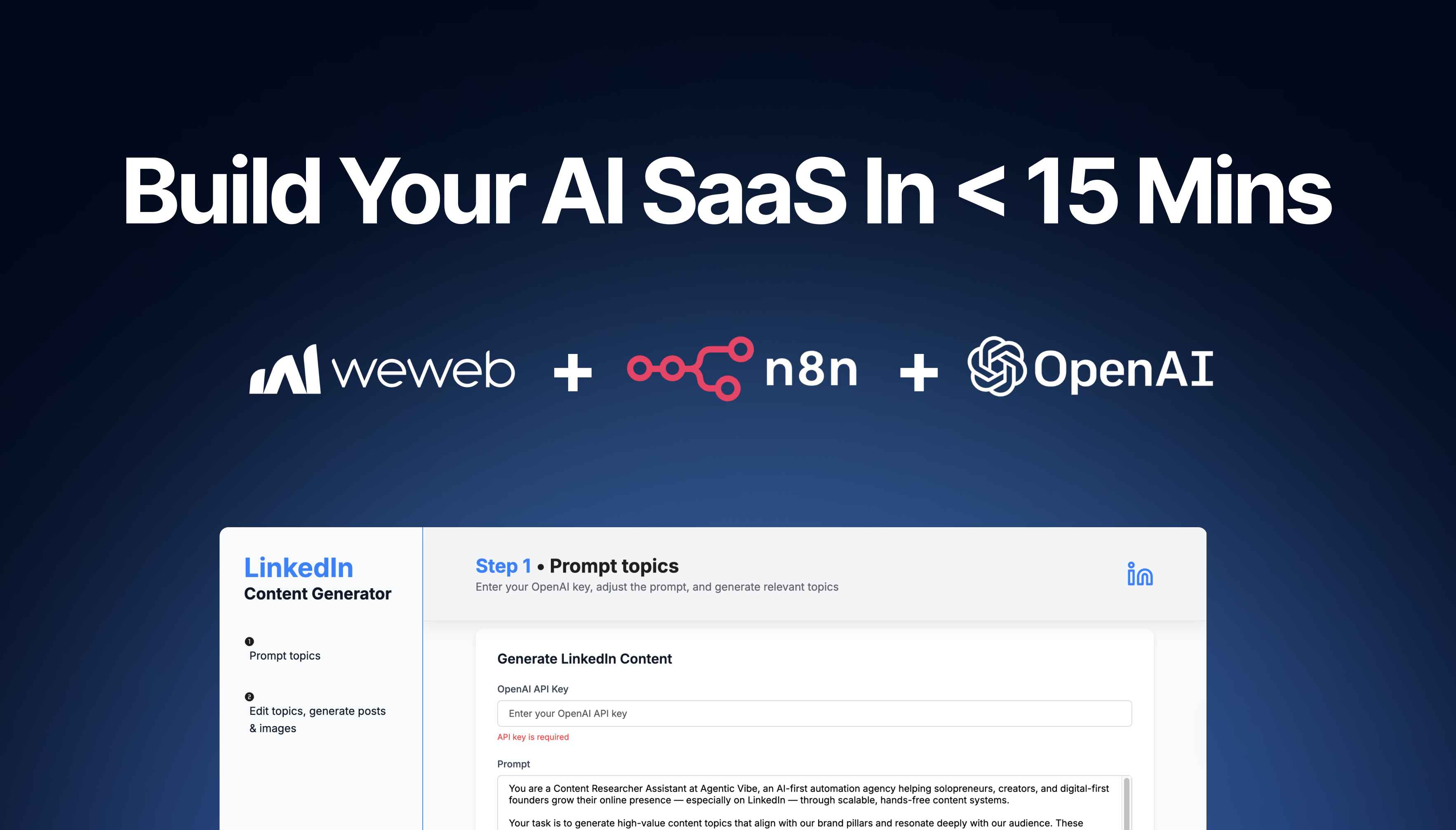
Why build an AI-powered content generator?
Content is the fuel of LinkedIn growth, but consistency is hard.
In this blog article, we'll show you how you can build an app that leverages AI to draft LinkedIn posts and images for you.
We'll use WeWeb (for the front-end), n8n (for workflow automation), and OpenAI (for generating text and images).
But the approach is modular and you can change everything as you see fit!
The best part? We’ve already created free templates on both the WeWeb and n8n marketplaces so you can get up and running in less than 15 minutes:
- WeWeb UI Template → WeWeb Marketplace
- n8n Backend Workflow → n8n Marketplace
Let’s dive in.
Walkthrough of the finished app
Here’s what happens when someone uses the published app today (more on how you can improve it later):
1. Enter your OpenAI key
The user pastes their own OpenAI API key into the app’s interface built in WeWeb.

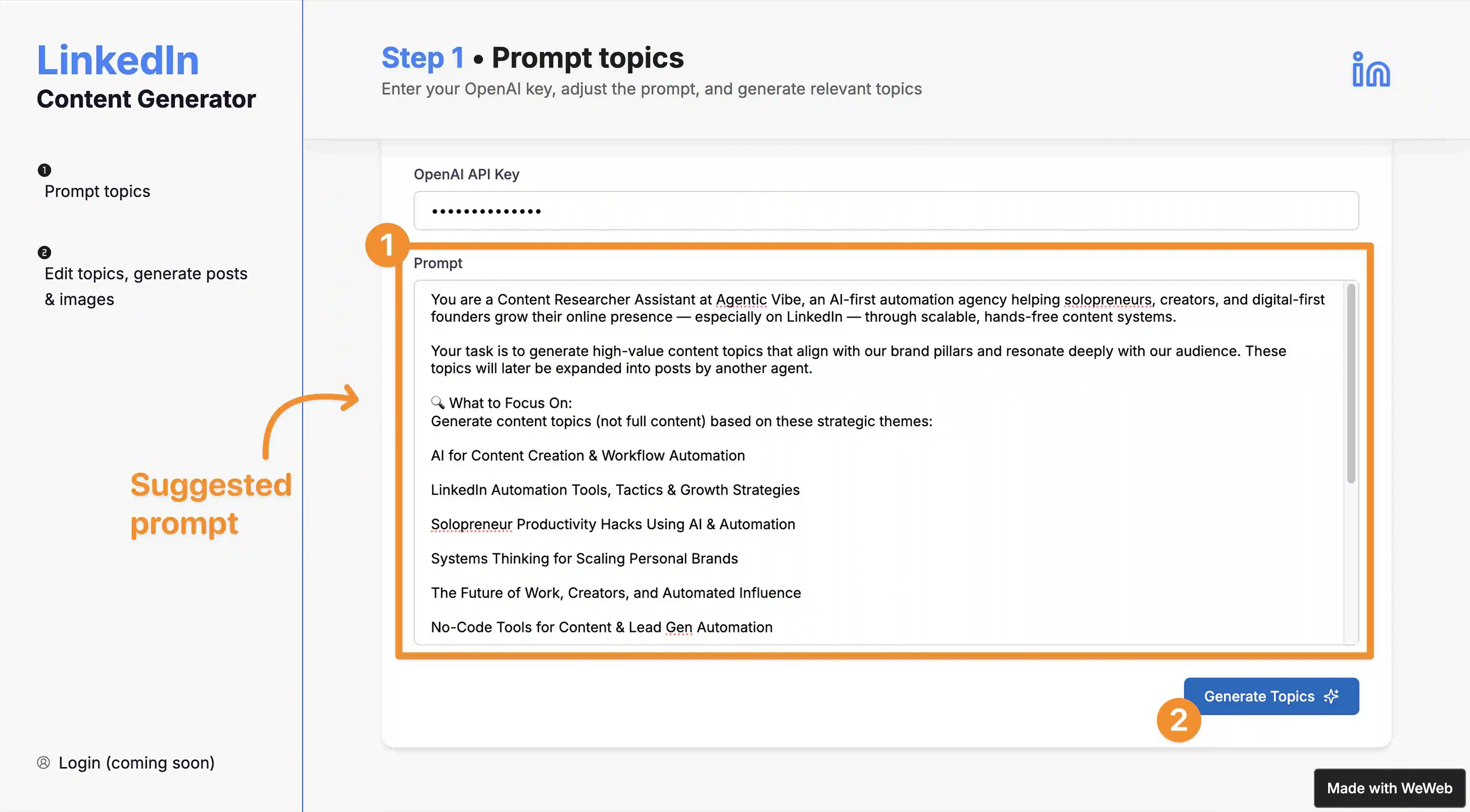
2. Generate LinkedIn topics
- The user sees a suggested prompt (which they can update) to generate LinkedIn topics relevant to their business.
- When they submit, the app calls an n8n workflow that uses GPT-4 to generate 6 potential LinkedIn post ideas.
3. Review and refine topics
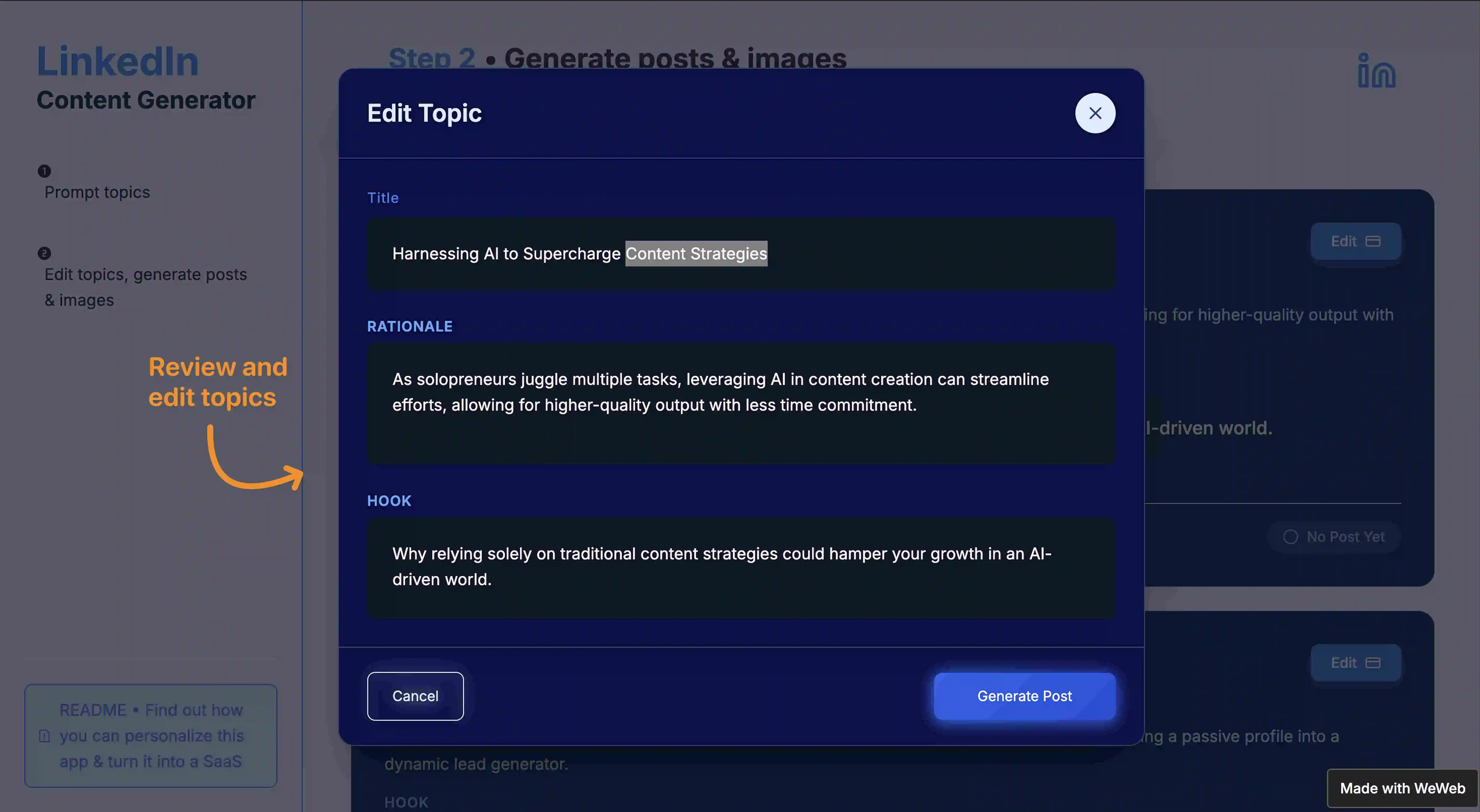
- The 6 topics appear in the WeWeb interface.
- The user can review and edit them directly before moving on.
4. Turn topics into posts
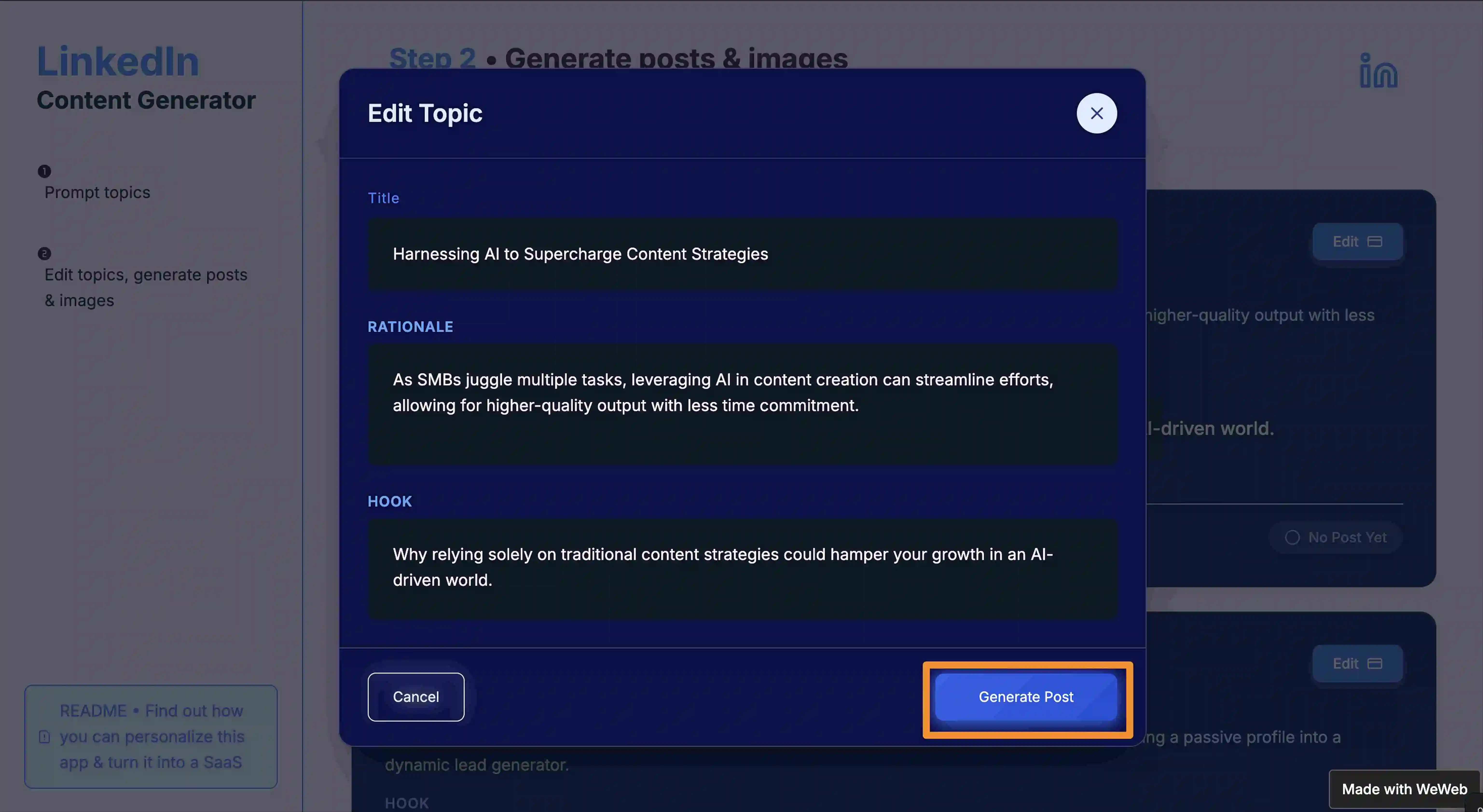
- Once happy with the topics, the user triggers a second n8n webhook.
- This generates full LinkedIn posts with hashtags for each chosen topic.
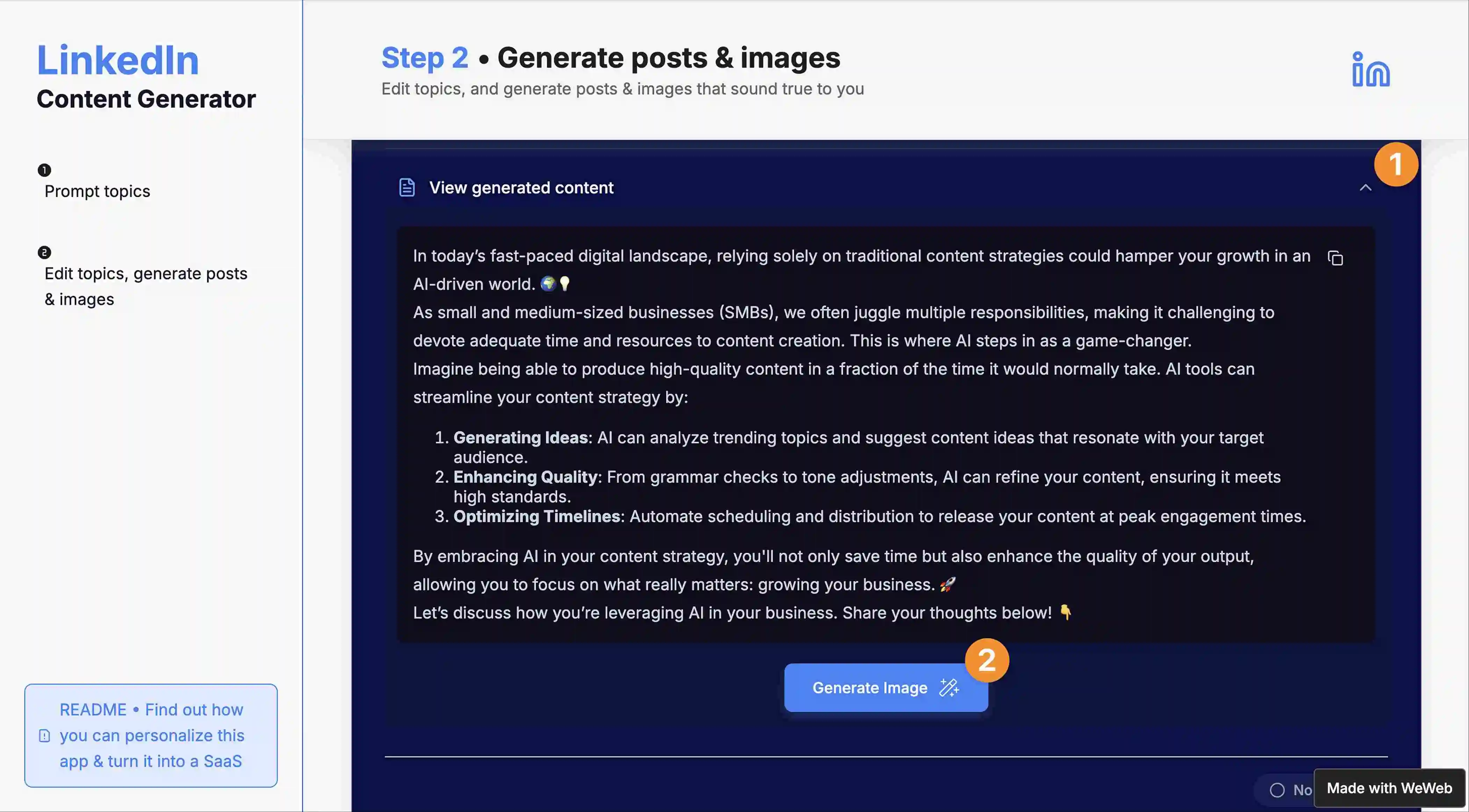
5. (Optional) Add AI images
- If enabled, the workflow also calls DALL·E to create images that match each post.
6. Copy or share the results
- The finished posts (and images, if generated) are sent back to the WeWeb front-end.
- The user can copy them, edit further, or save them for posting on LinkedIn.
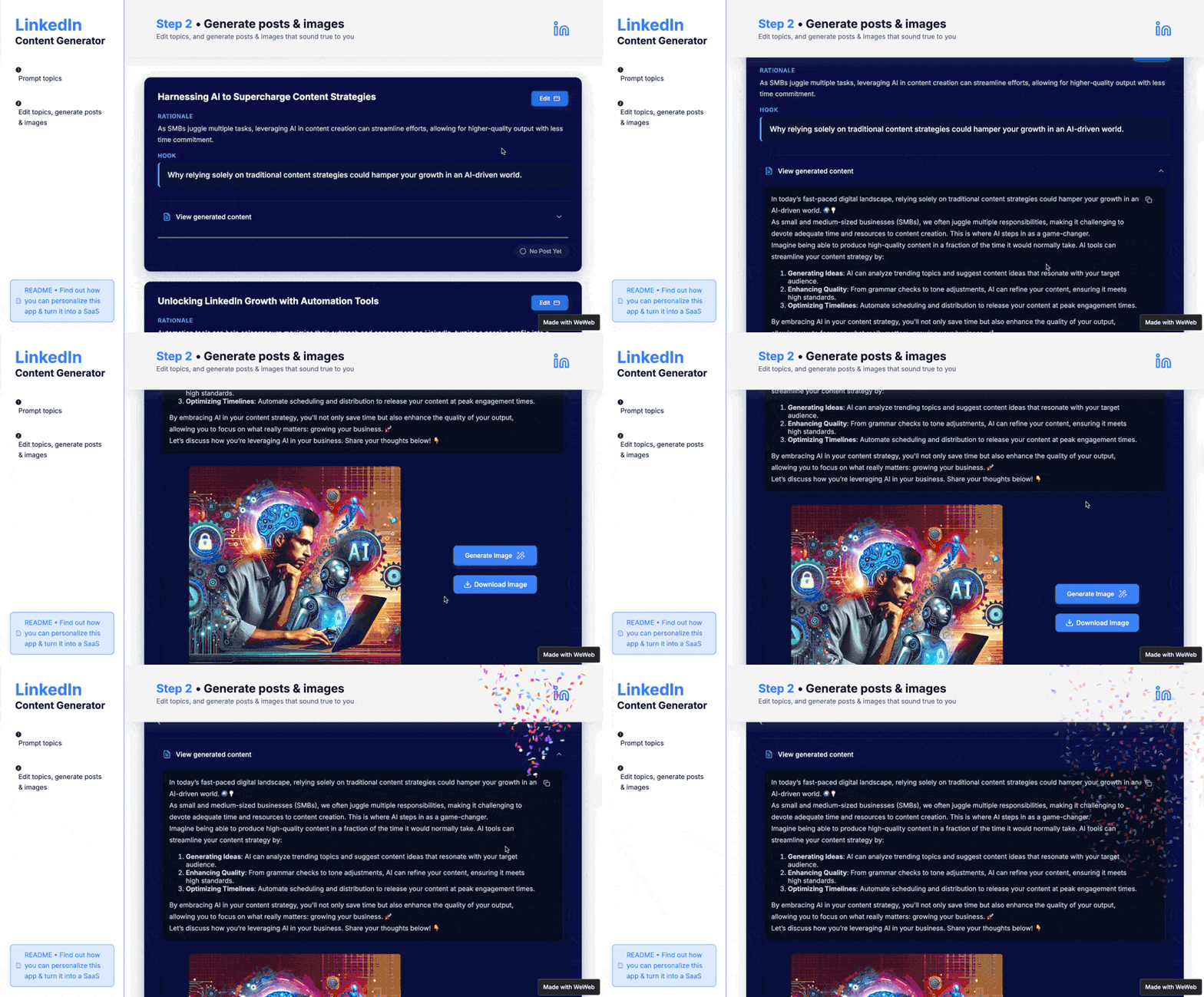
This way, instead of spending 30+ minutes drafting a LinkedIn update, the user can create polished, on-brand posts in seconds.
Step 1: Duplicate the templates
With the free templates, you don’t need to start from scratch.
- UI Template (WeWeb) → Import the WeWeb template.
- Backend Template (n8n) → Import the n8n workflow.
Step 2: Update the n8n webhooks in WeWeb
The WeWeb app uses three webhook calls to talk to n8n. You’ll need to update those URLs with your own n8n instance endpoints.
Webhook 1: Generate 6 topics (on form submit)
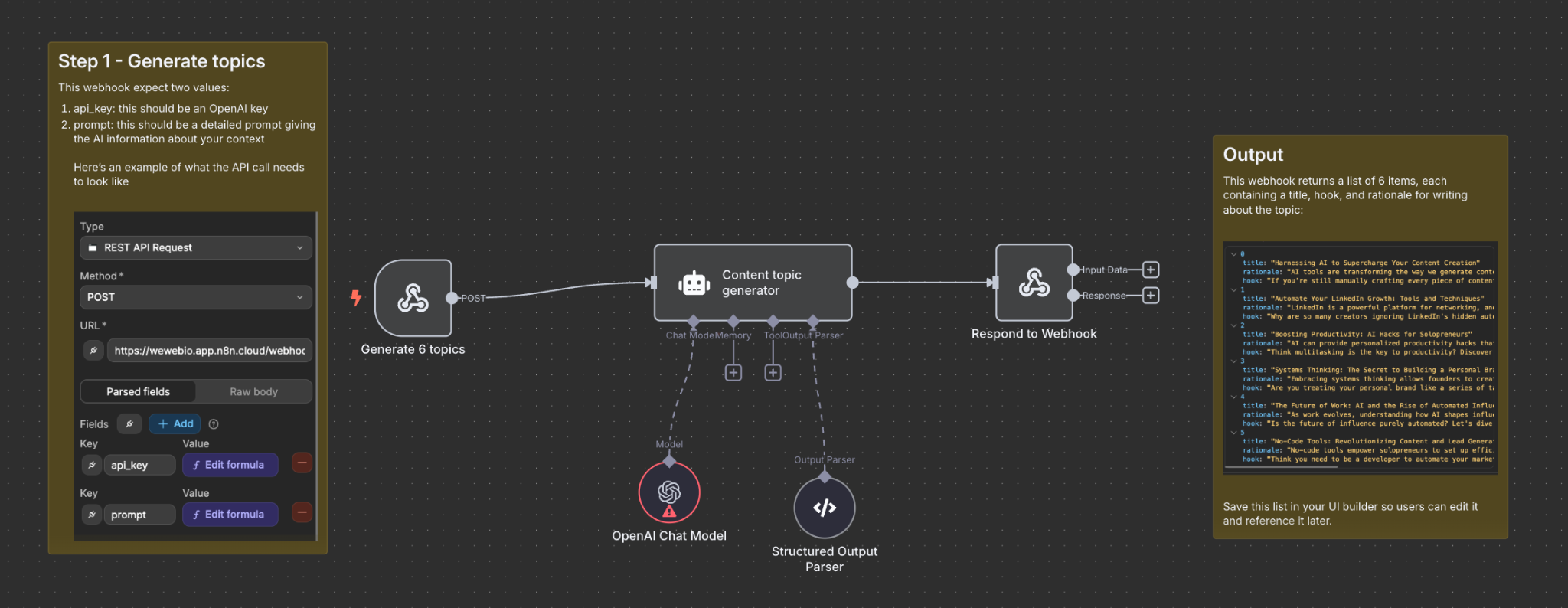
This will work by default because it calls one of my own n8n workflows.
If you want to use your own:
- In n8n, copy the production webhook URL for the “Generate 6 topics” workflow:
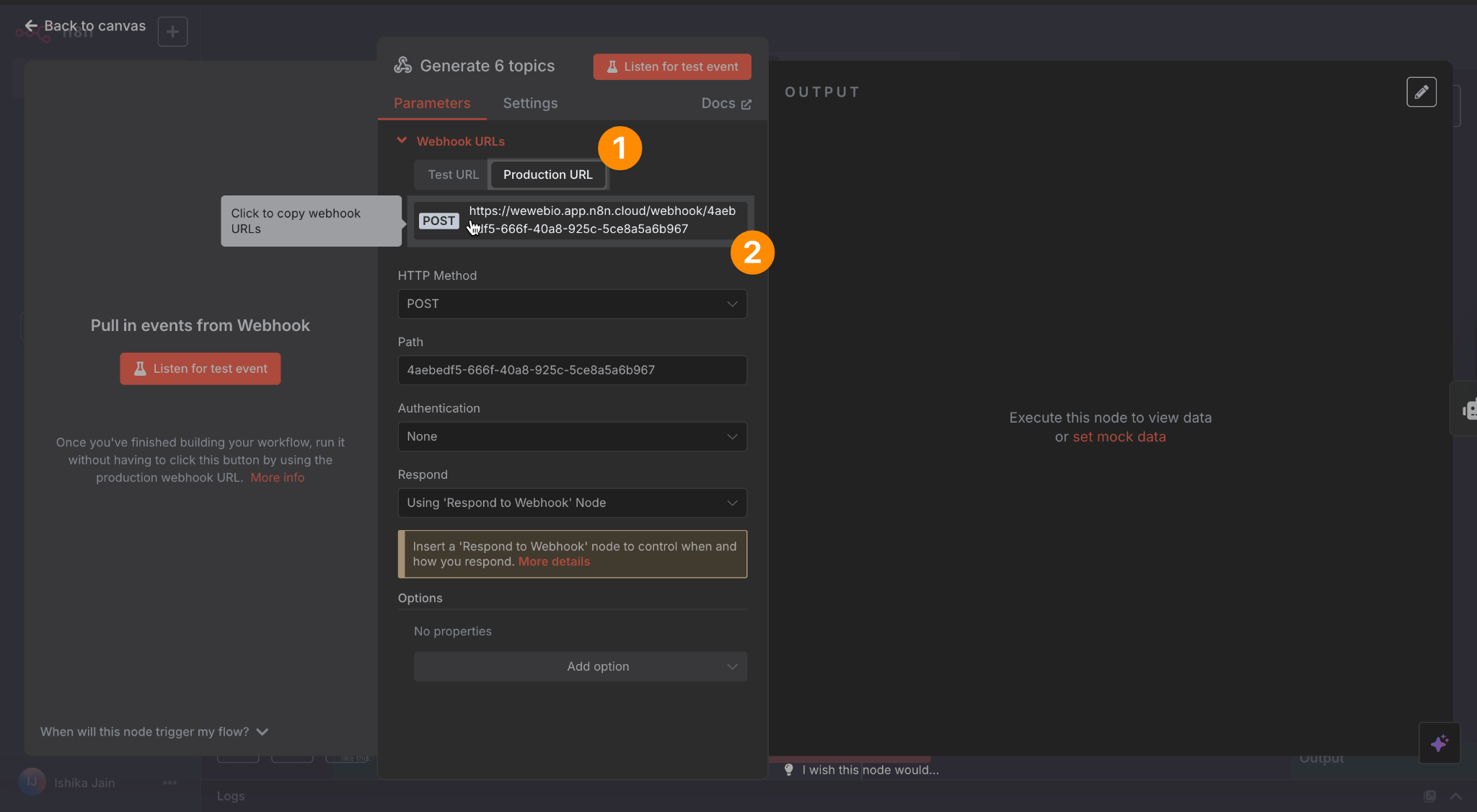
- In WeWeb, select the “Form Container” → open the “Create topic proposals” workflow (under the Workflows tab):
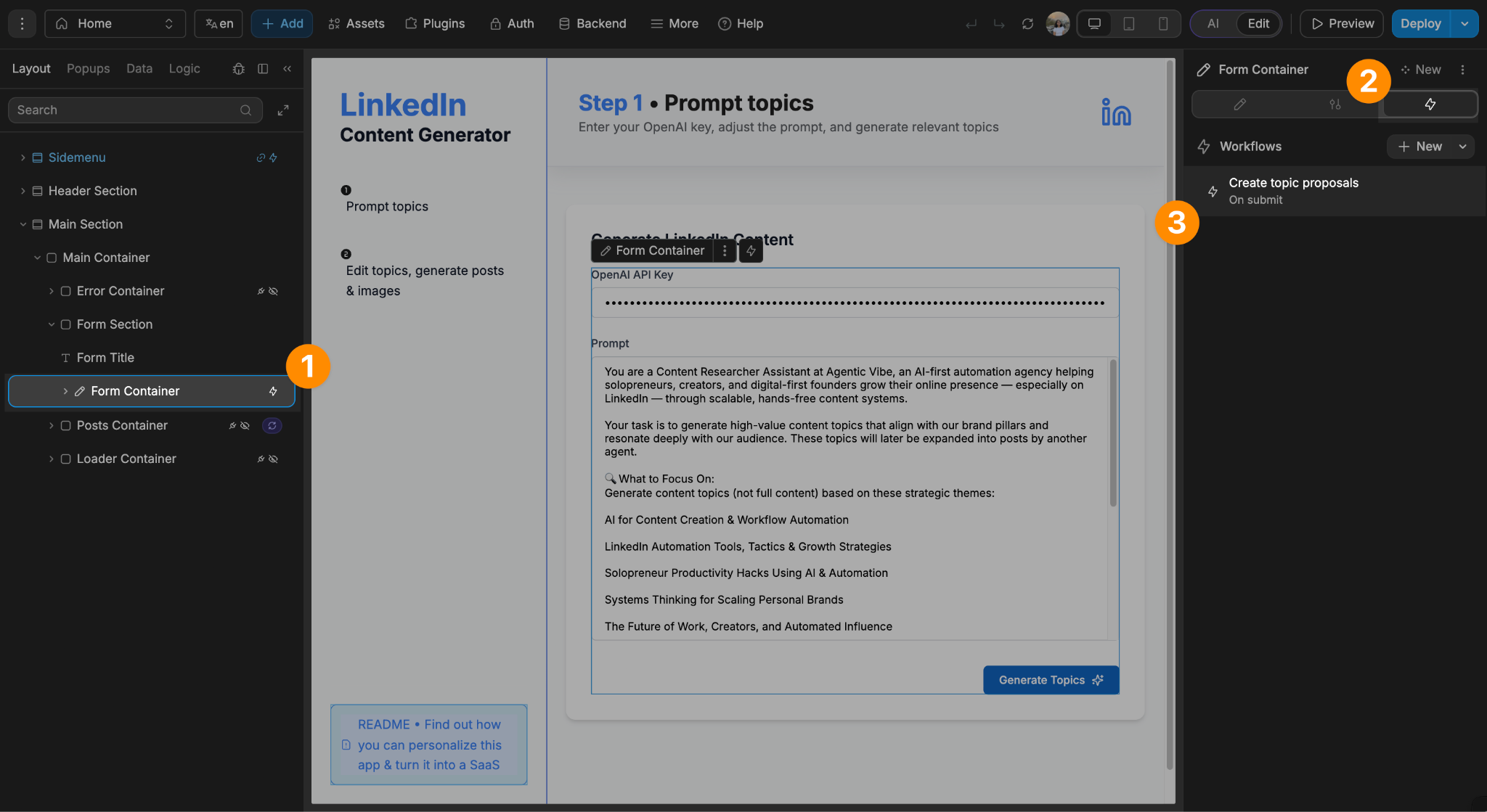
- Inside the REST API action, replace the existing action URL with your n8n webhook URL:
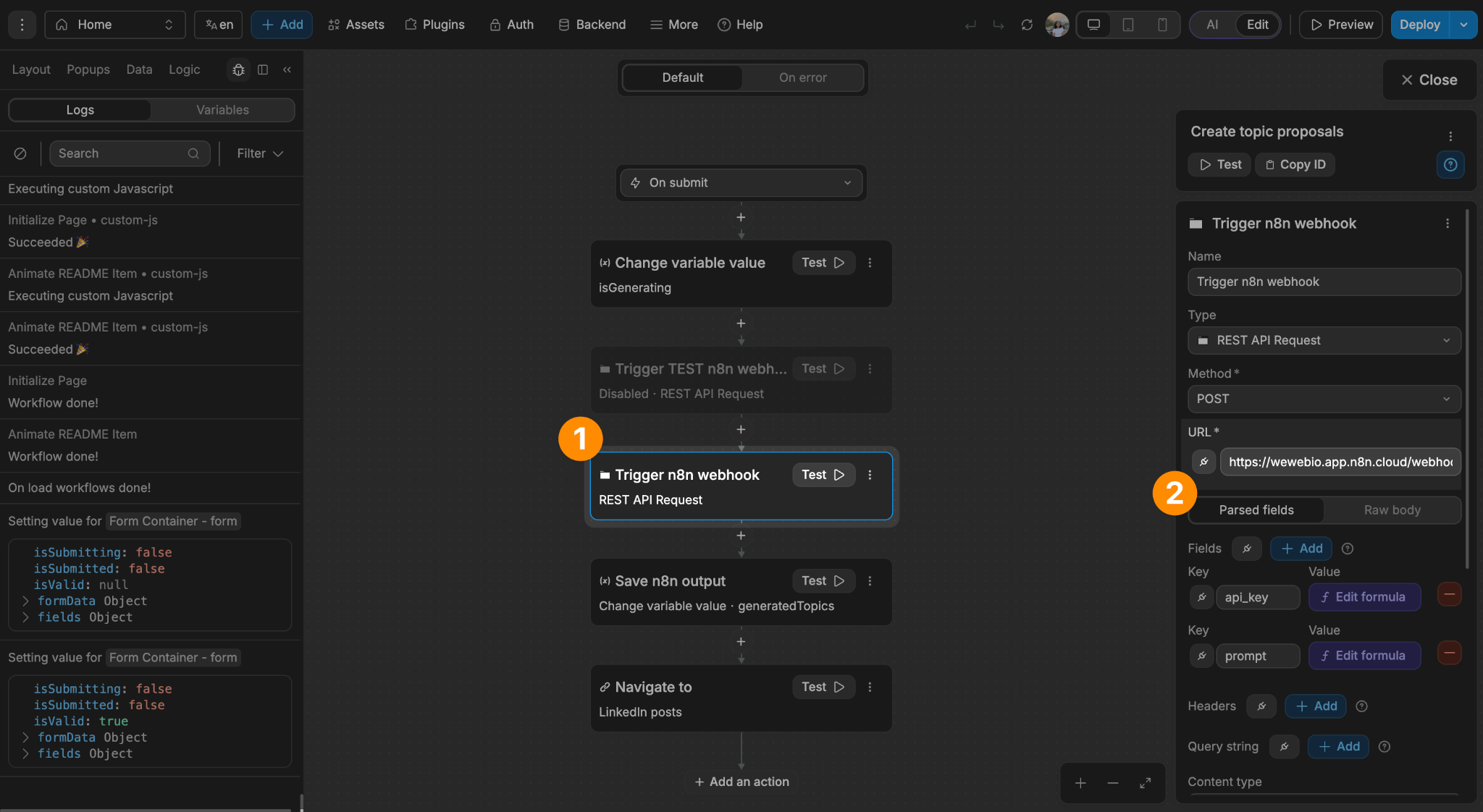
- (Optional) Add a test webhook URL for staging:
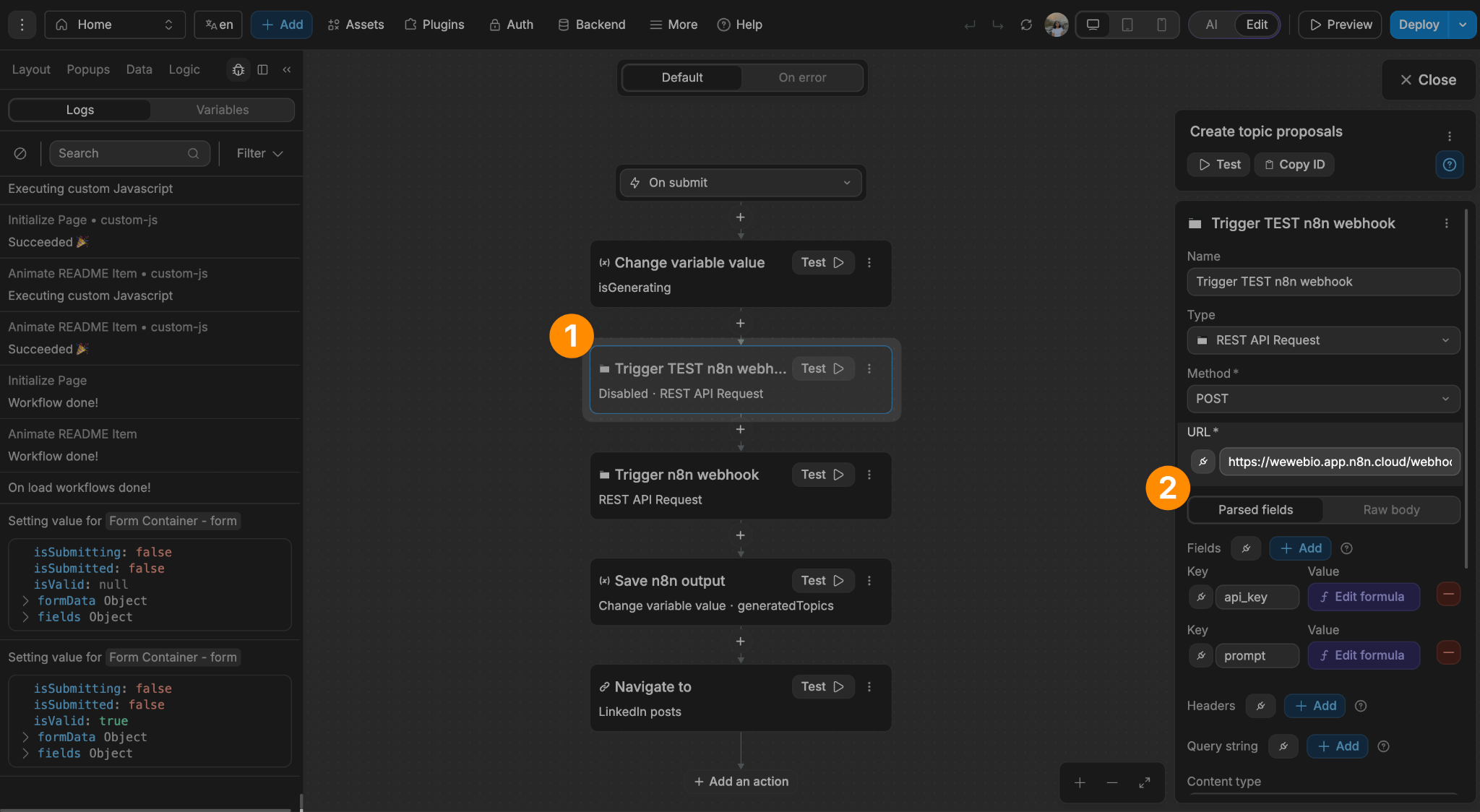
Webhook 2: Generate post copy (on button click)
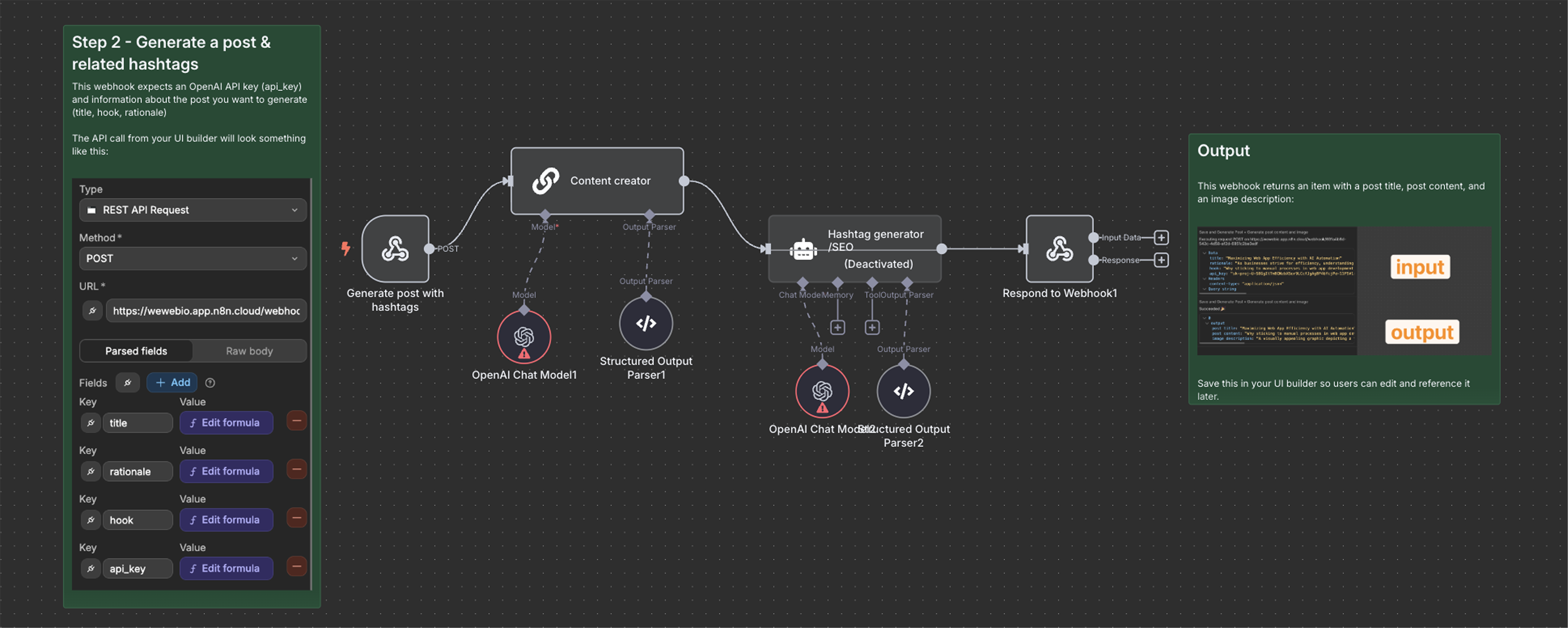
Follow the same process for generating the post copy:
- In n8n, copy the production webhook URL for the “Generate post with hashtag” workflow:
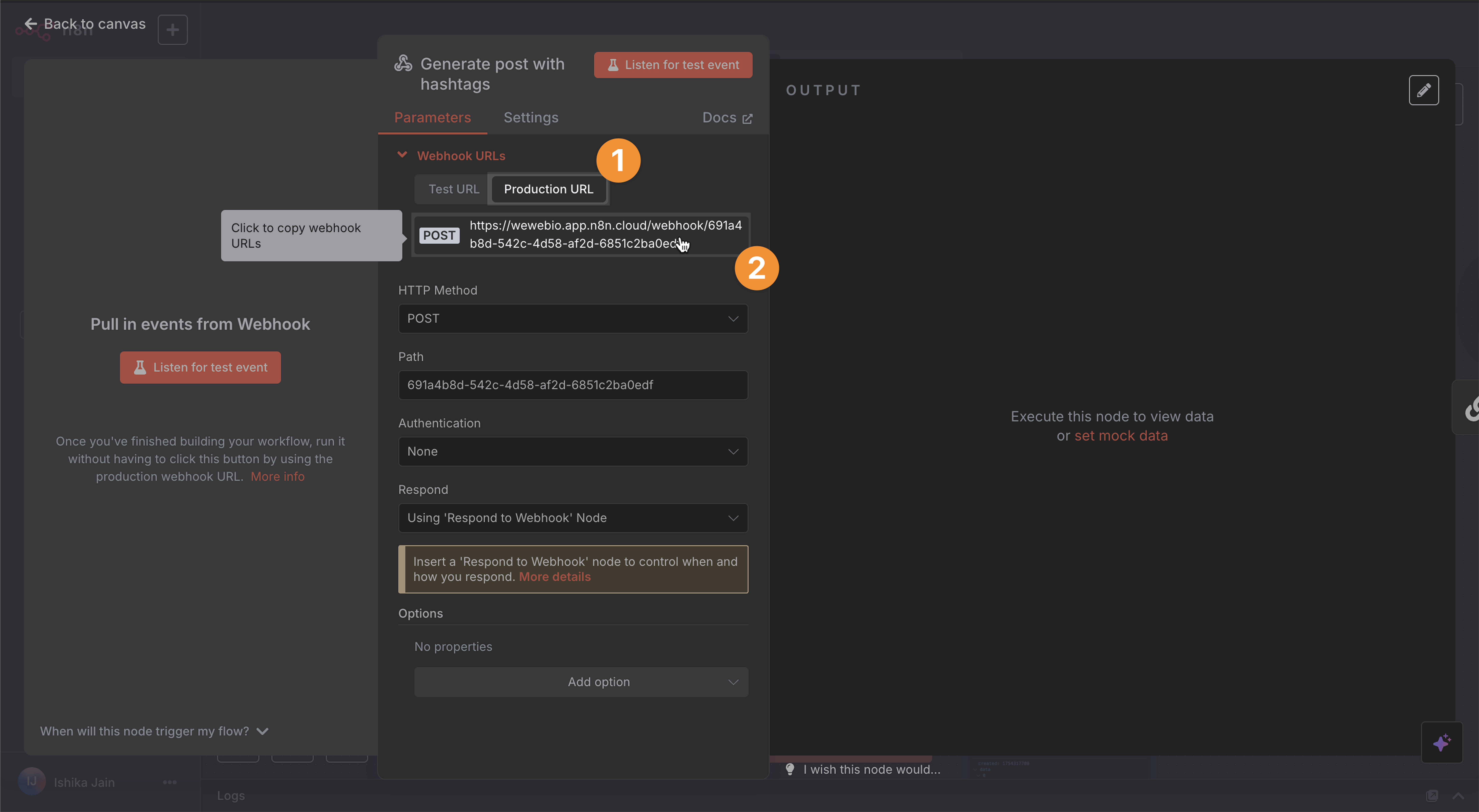
- In WeWeb, edit the “Edit Topic Popup” → open the “Save and Generate Post” workflow (attached to the Generate Post button):
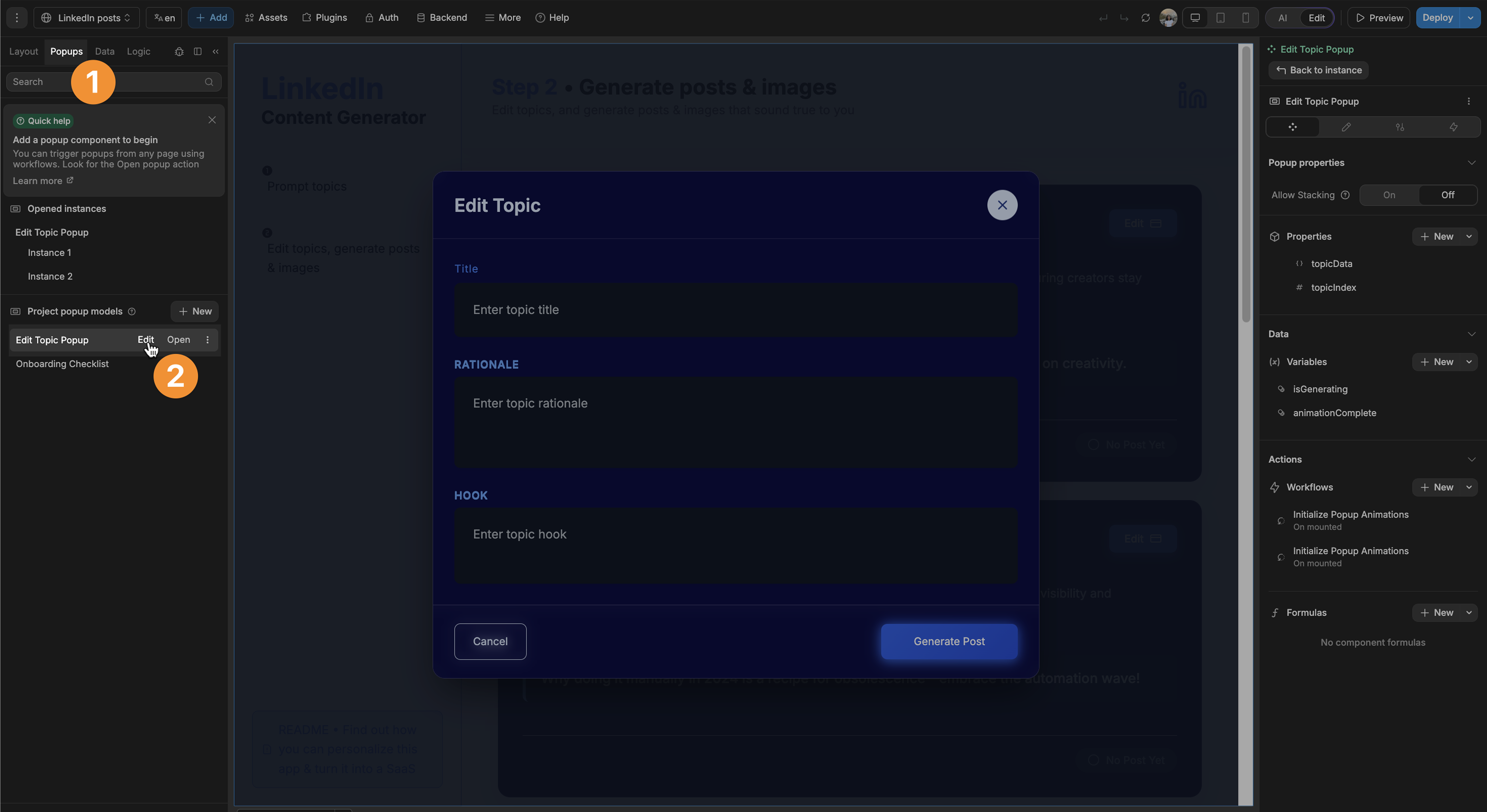

- In the REST API action, replace the existing action URL with your n8n webhook URL:

- (Optional) Add a test webhook URL for staging:
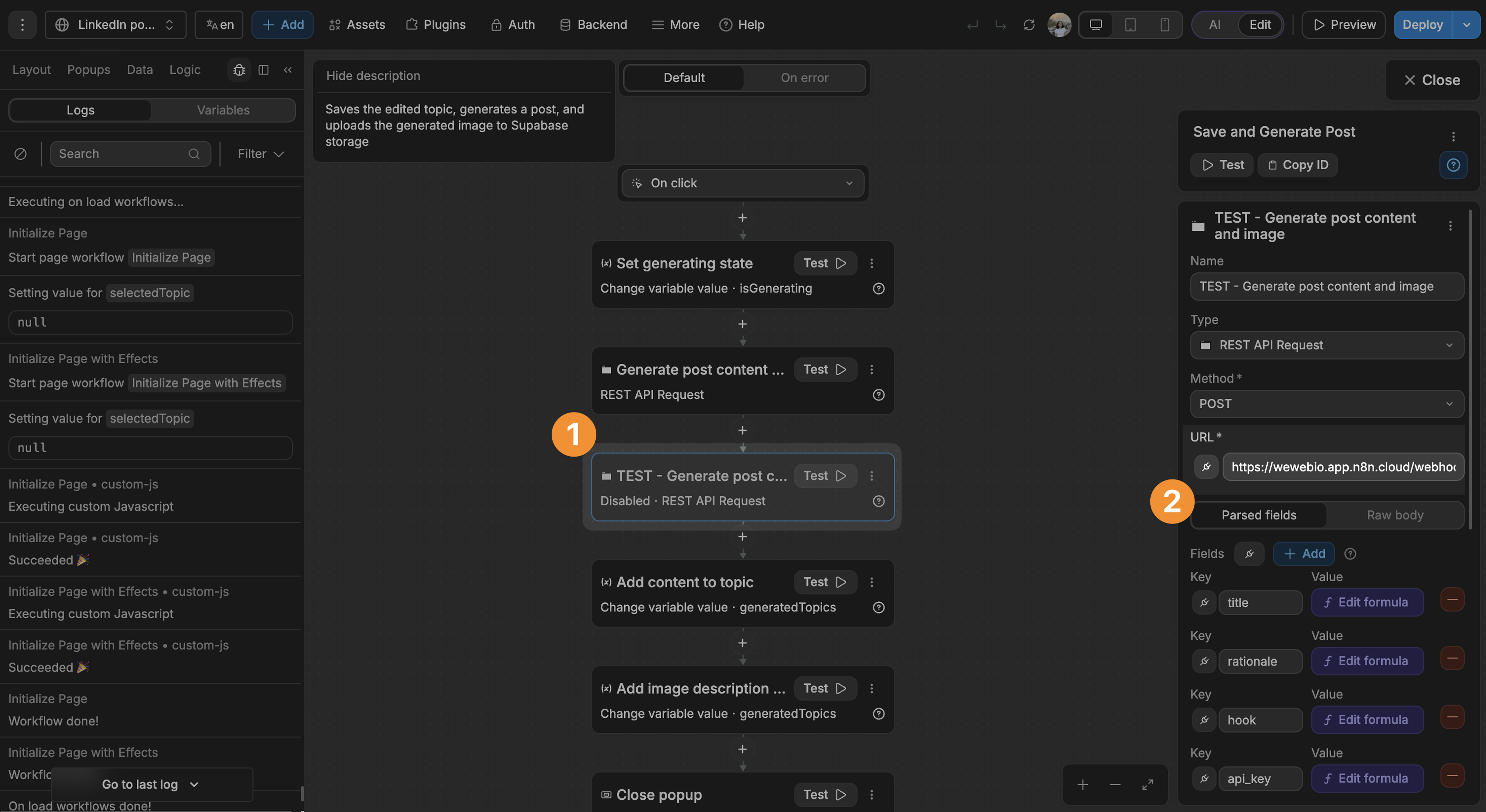
Webhook 3: Generate image (on button click)
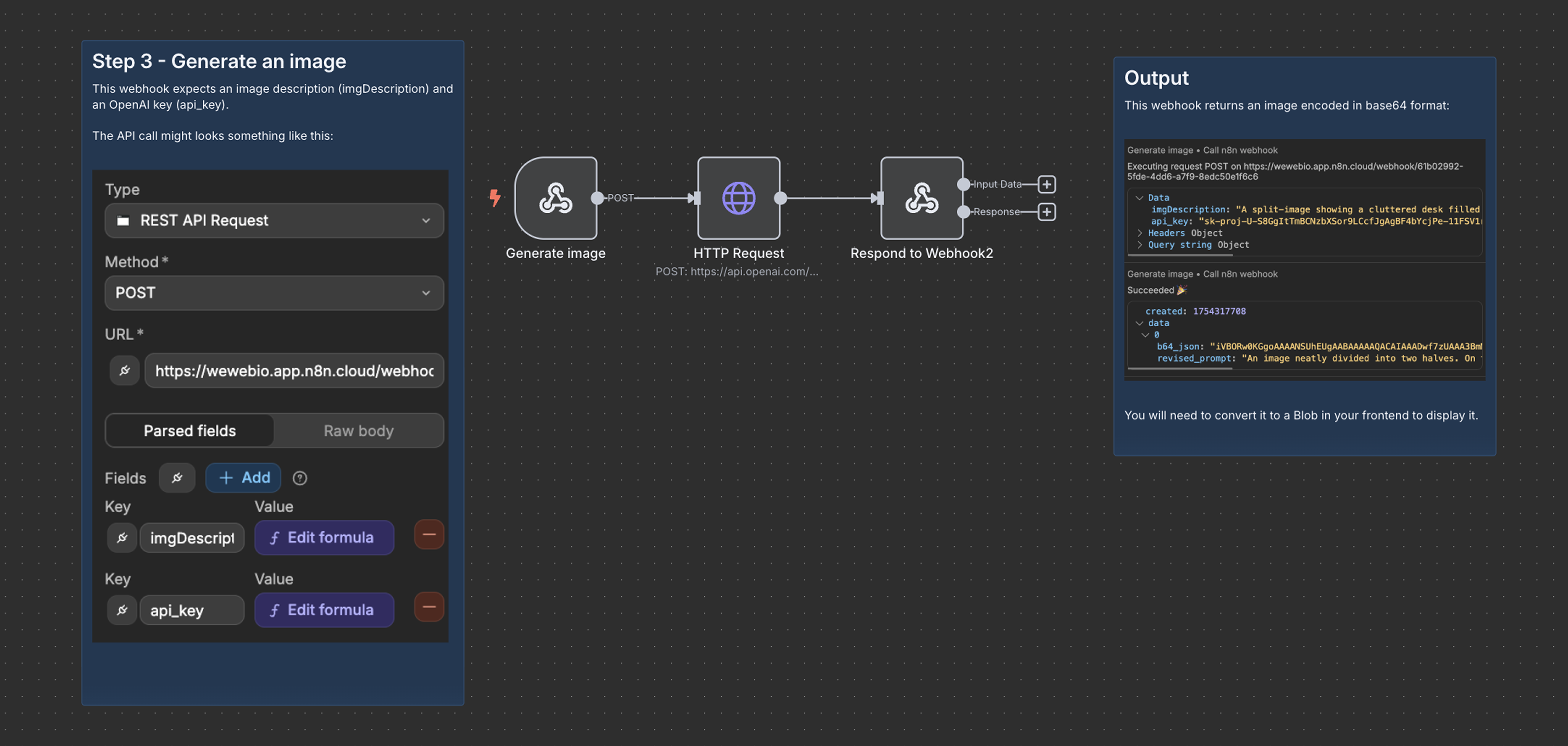
Repeat the same steps for generating images:
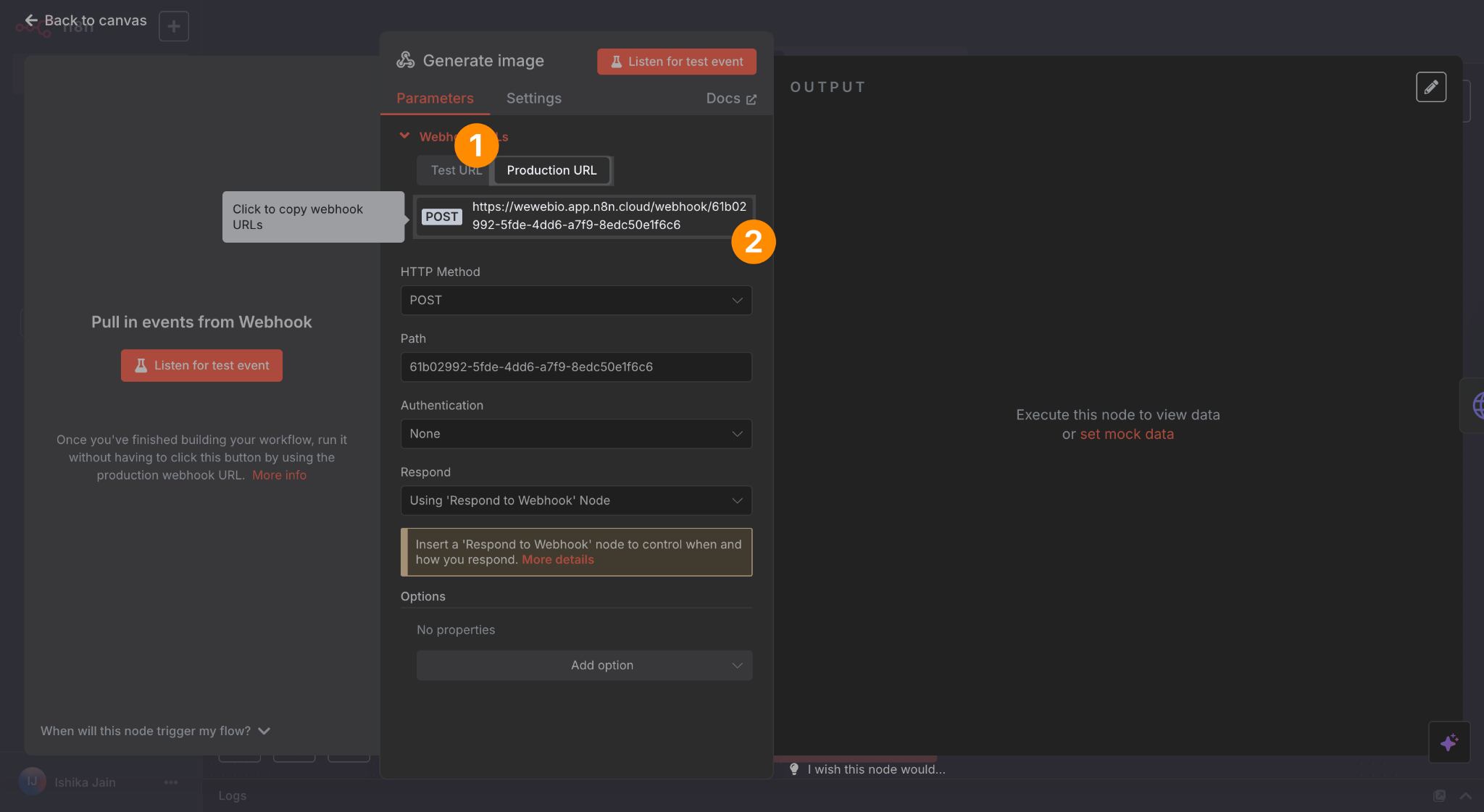
- In n8n, copy the production webhook URL for the “Generate image” workflow:
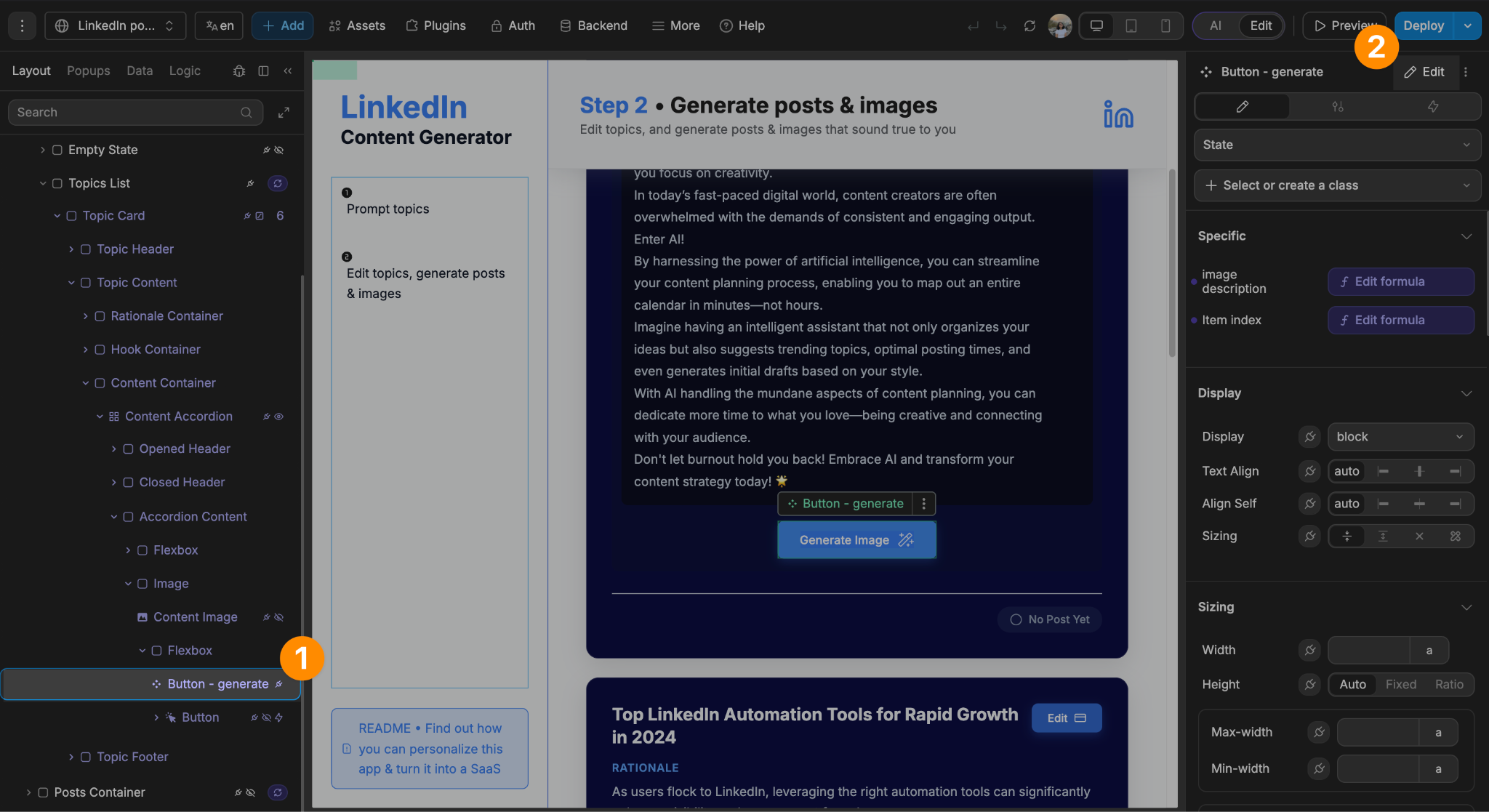
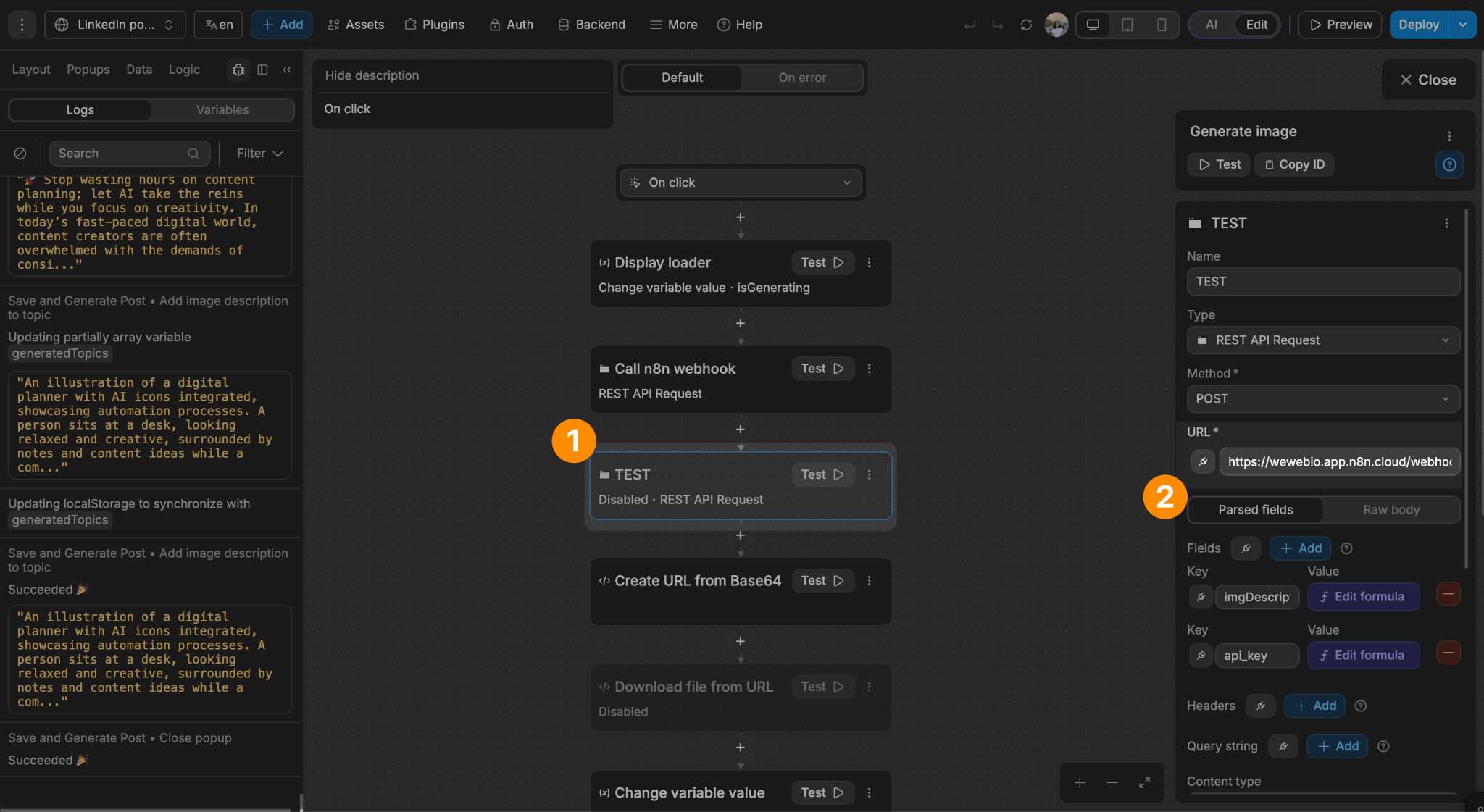
- In WeWeb, edit the “Generate Image” button → open the “Generate image” workflow (under the Workflow tab):
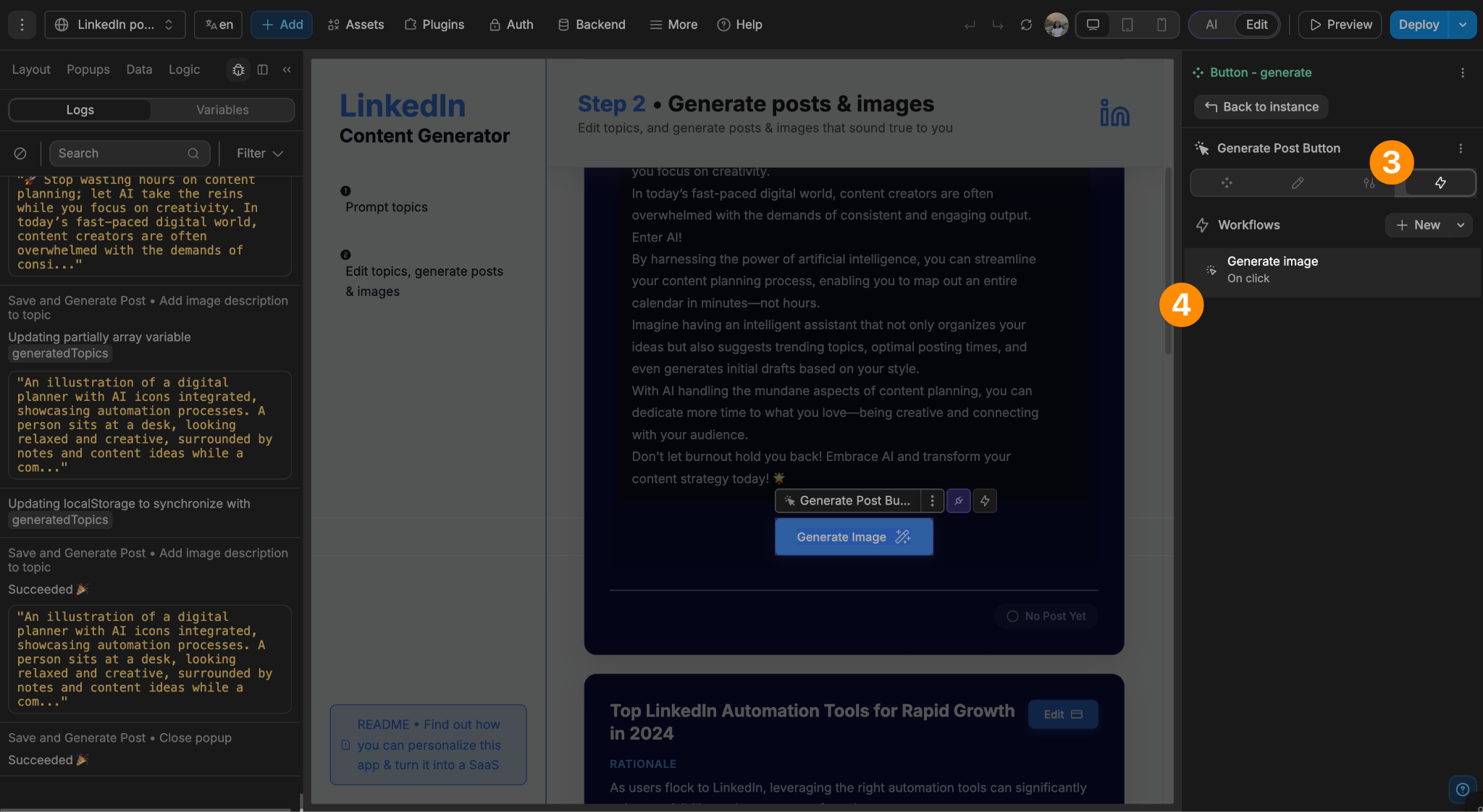
- In the REST API action of the workflow, replace the existing action URL with your n8n webhook URL:

- (Optional) Add a test webhook URL for staging:
Step 3: Update the OpenAI config in n8n
You have two approaches:
- Option A: Let users bring their own OpenAI API key.
- Pros: no extra cost for you.
- Cons: less SaaS potential, since users need their own key.
- Option B: Provide users your own OpenAI API key.
- Pros: seamless experience for users.
- Cons: you pay for the API calls → in this case, make sure your app is paid so you don’t lose money.
Here are the steps to help you set up option A (BYOK) in n8n:
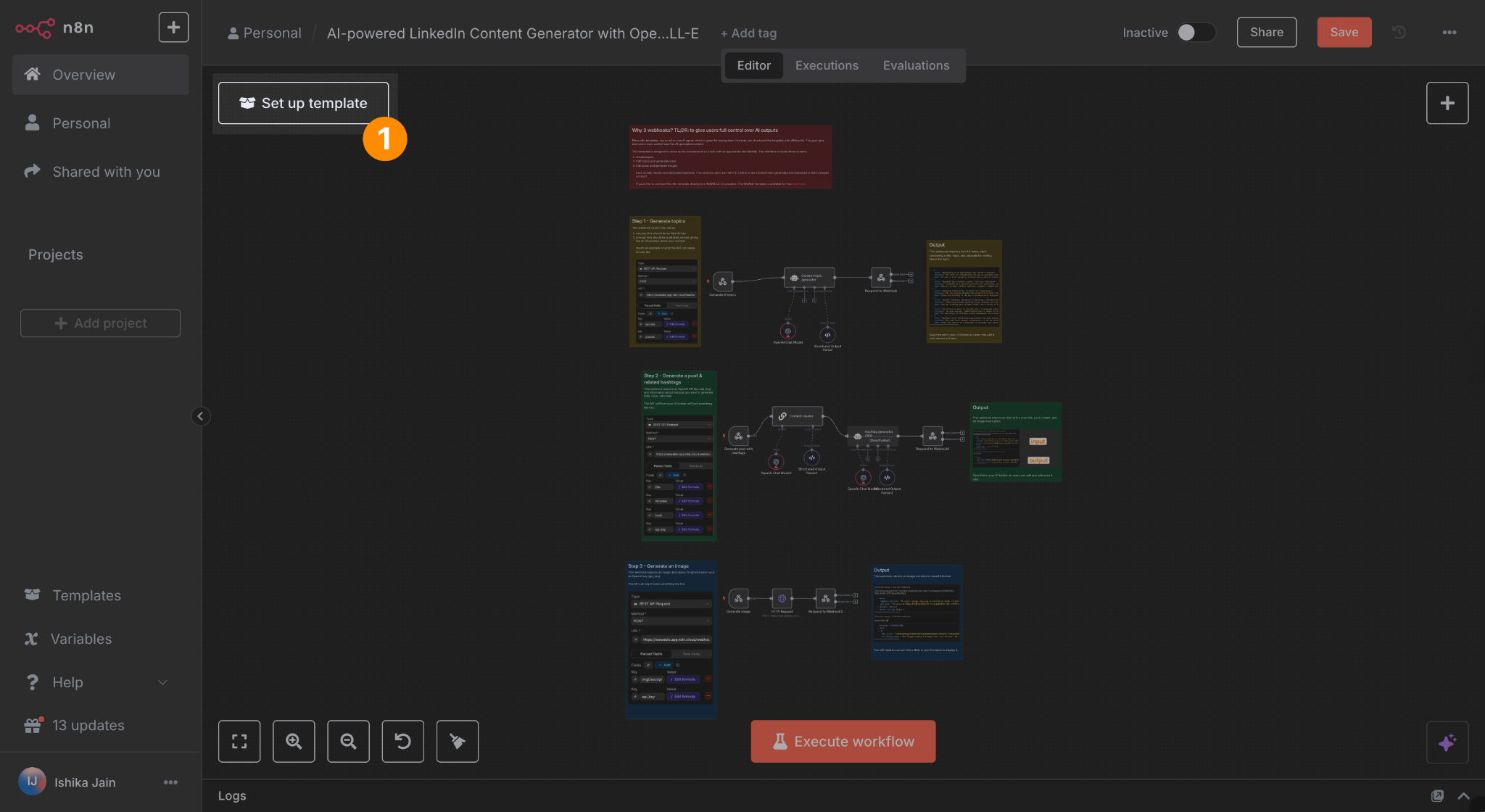
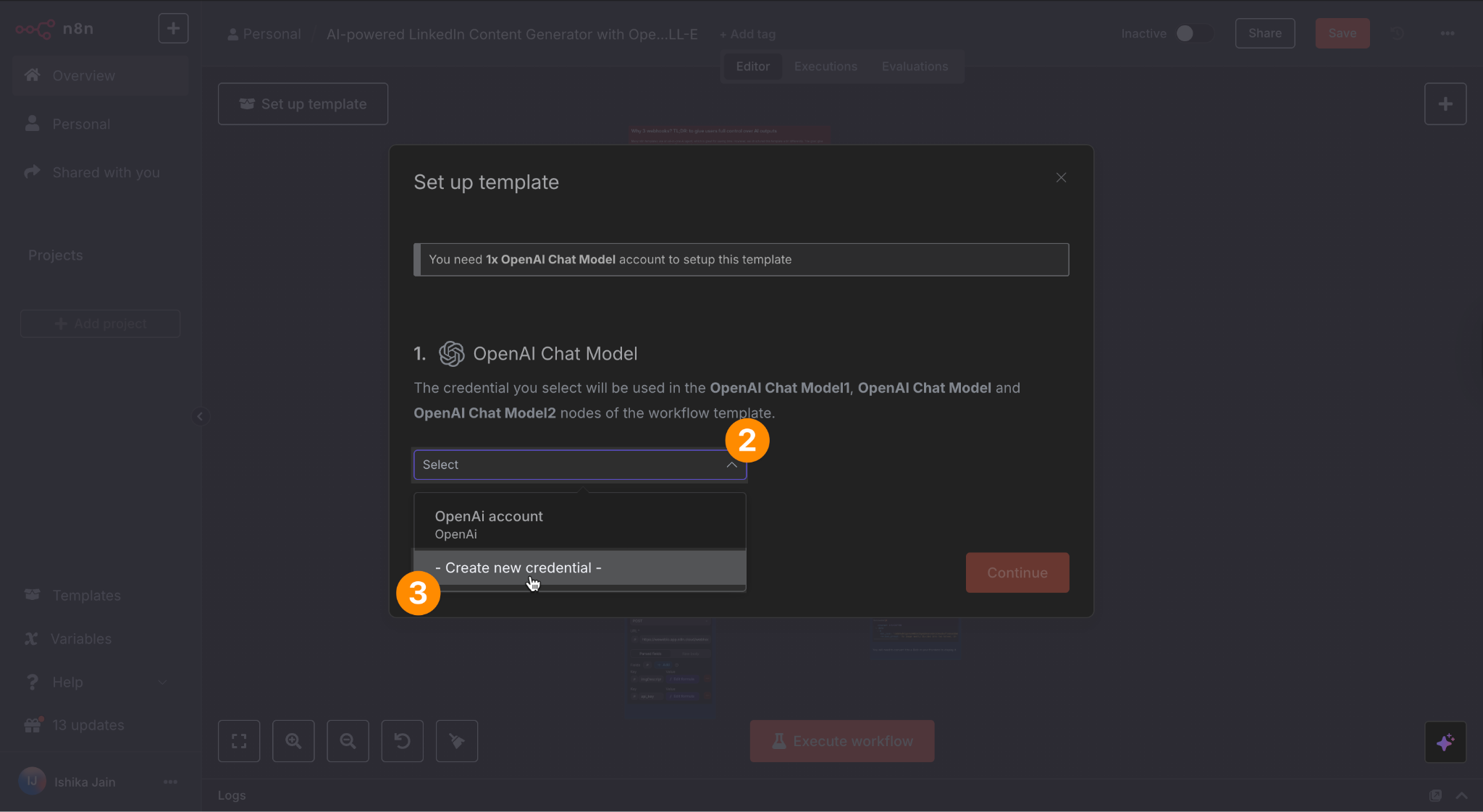
- Click on “Set up template” → select “Create new credential”:
- Bind the API key to an expression that reads the key the user enters in the WeWeb frontend:
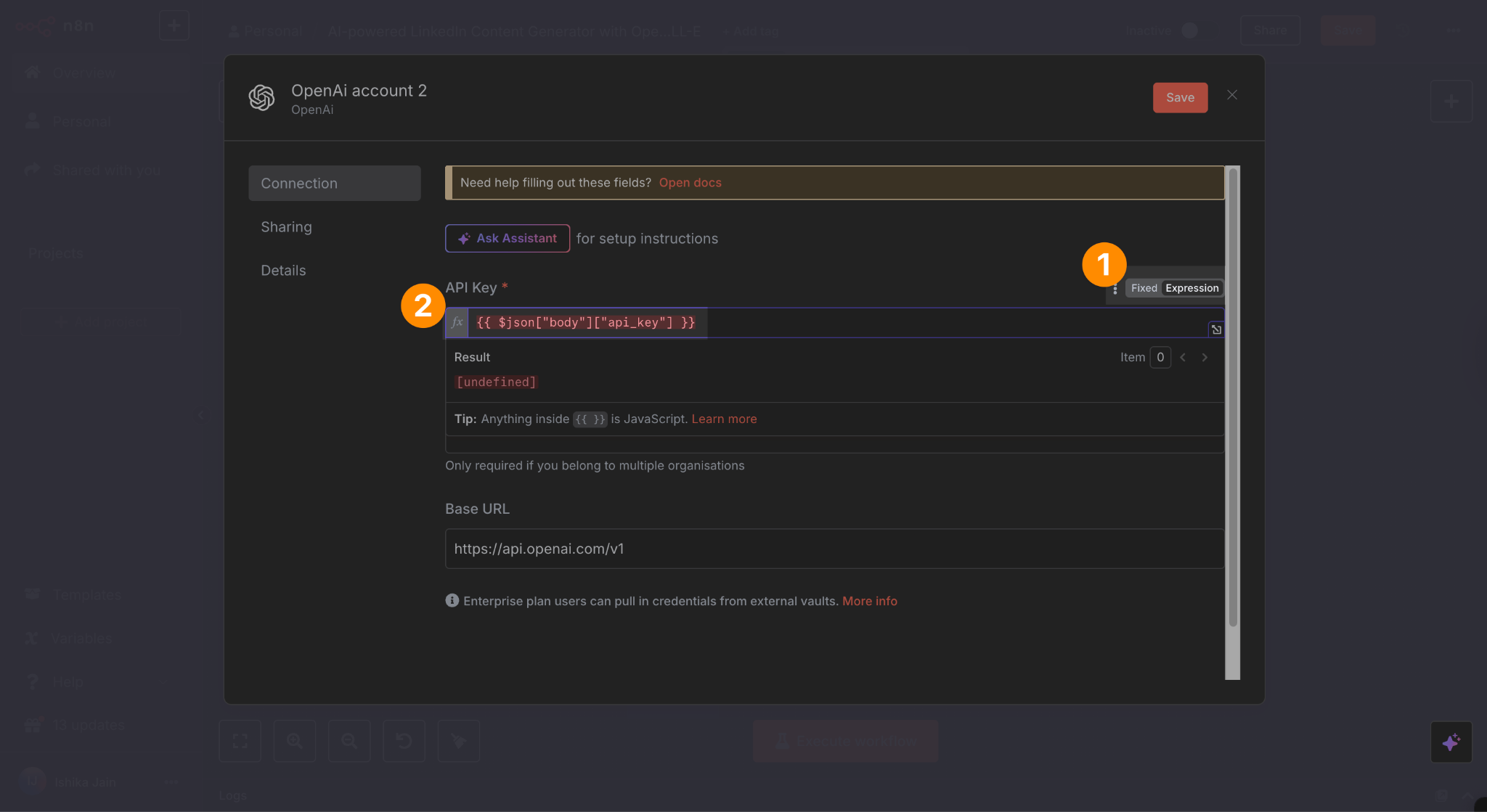
The key is sent to n8n but NOT stored. The app preserves it across page navigation so it’s available on the second screen, without saving it to a database:

With these steps, you’ll have a working LinkedIn content generator in under 15 minutes.
Next steps: Customize & monetize
Alright, hopefully you found this build guide helpful!
The WeWeb and n8n templates are just starting points though.
You can publish the app for free and it will be ready to go. However, if you want to go a few steps further, you could turn it into a real SaaS product that monetize.
Here are a few ideas to help you get started:
- Add User Authentication
- Use WeWeb’s built-in auth features or connect a service like Supabase or Firebase.
- This lets you manage users, subscriptions, and account settings.
- Improve the AI Agent
- Train the system to learn from users’ edits.
- Over time, your app could generate posts that better reflect each user’s tone of voice.
- Make It Beautiful and Branded
- Customize the WeWeb UI for a professional, polished look.
- Add your logo, color scheme, and even tiered pricing plans.
- Expand Features
- Schedule posts directly to LinkedIn.
- Generate multi-post content calendars.
- Provide analytics on engagement.
Ready to get started?
👉 Try the templates now:
In less than 15 minutes, you’ll have your own AI-powered LinkedIn content generator up and running. From there, the possibilities are endless.
.avif)