


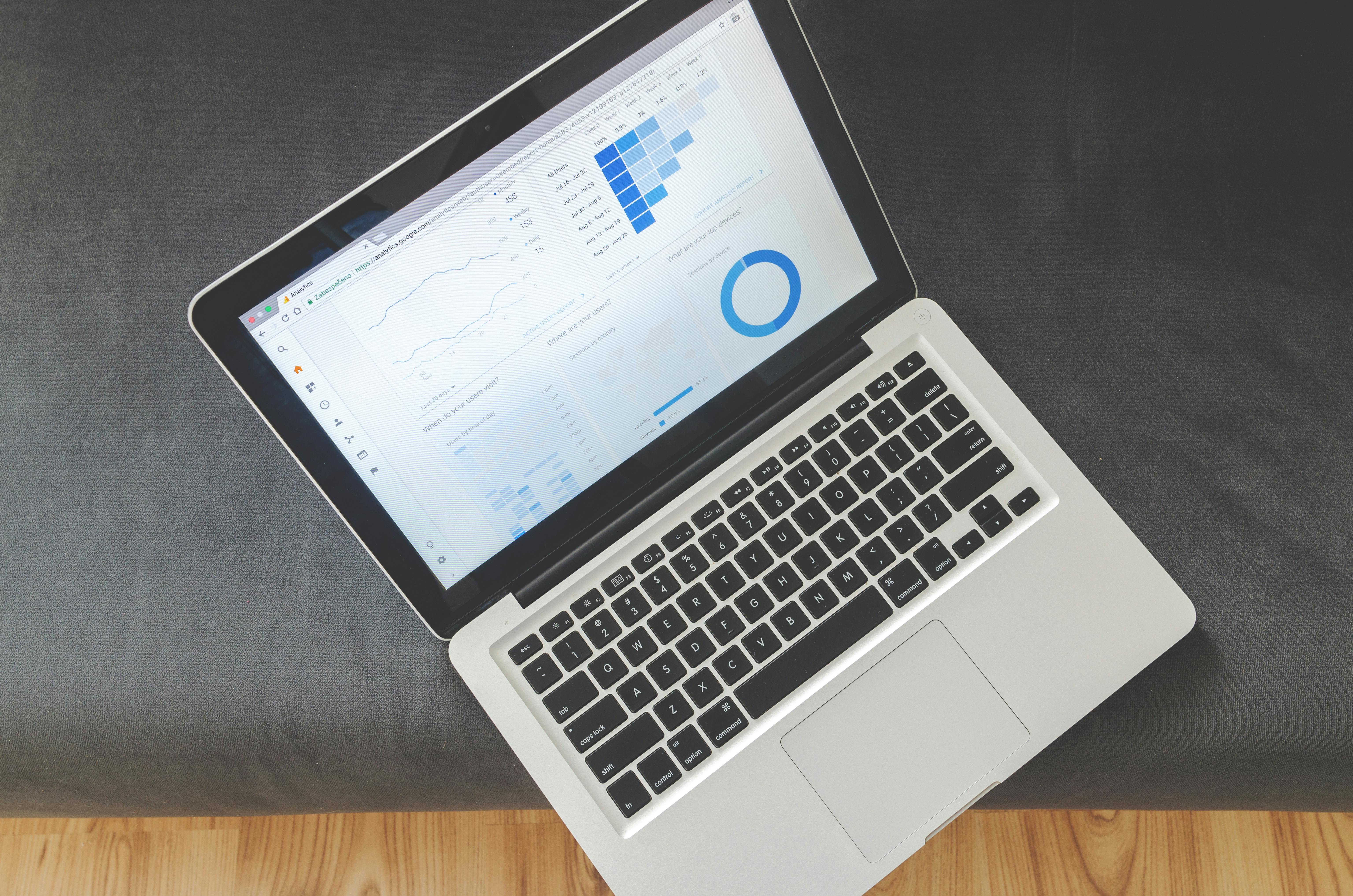
A dashboard builder is the workspace where you connect data, arrange charts, add filters, and publish interactive dashboards without hand coding. If you work with data, this flexible tool is the difference between guessing and knowing. This guide breaks down every core concept from choosing data sources to launching a responsive desktop and mobile view, all in plain language and with practical tips. You will also see where a modern platform like WeWeb fits when you want speed, scale, and full control.
What is a dashboard builder and why it matters
Today this category powers a large share of analytics work.
Useful facts from industry research and the source article
The business intelligence market, which includes dashboard builders, is projected to reach about 33.3 billion dollars by 2025
Organizations leave roughly 97 percent of collected data unanalyzed, a gap dashboards can close
Companies using BI dashboards are up to five times more likely to make faster decisions
In a review of 100 dashboards, 58 percent contained unnecessary visuals that added clutter
In the same analysis, 53 percent lacked clear labels or context
About 55 percent of BI users access dashboards on mobile devices
Many teams pull data from multiple sources, around 80 percent report multisource analysis
Overall BI adoption inside organizations still hovers around 26 percent, which means usability and clarity still matter
With a capable dashboard builder, you shorten time to insight and boost adoption across non technical users.
Tip
If you want a builder that pairs AI help with a pro grade visual editor and the freedom to use any backend, consider WeWeb.
Plan the work, then create custom dashboard
Before opening the canvas, define the audience and the one question each screen should answer. Then create custom dashboard pages that match those goals.
Practical flow
Identify users and their decisions
List the seven or fewer KPIs that matter first
Sketch a rough layout
Connect certified or trusted data
Build and iterate with user feedback
Low code and no code have changed the pace. By 2025, about 70 percent of new apps are expected to be created with low code or no code, which includes internal dashboards. That speed gives you room to iterate instead of waiting on long dev cycles. You can try this approach directly inside WeWeb.
Dashboard data source selection and element data source
Dashboard data source selection is the step where you connect databases, spreadsheets like Google Sheets, or APIs that power the whole dashboard. Most teams combine multiple sources, which is why connectors and governance matter. For quick iterations, many teams start with Airtable and graduate to a data warehouse later.
Element data source is the specific dataset or query used by one chart or table. Reuse shared datasets when possible for consistency. For performance, do not point every element at a huge raw table. Use summarized views when a metric does not need full detail.
Checklist
Pick the official source of truth for each KPI
Verify freshness needs, near real time or daily batch
Test a few values against a known report
Name datasets clearly to avoid confusion later
Add dashboard element and add dashboard tile
An element is any visual piece on the canvas, such as a line chart, KPI card, table, map, or text block. The add dashboard element action opens your library so you can drop a new widget on the page.
A tile is a compact block that usually holds a single insight, such as revenue this month or a mini trend. Use add dashboard tile to place fast reading metrics across the top row.
Why it helps
Tiles make scanning easier
You can resize and reorder tiles to reflect priority
Many tools include tile templates for common KPIs
Facts to keep in mind
Embedding tiles in everyday tools improved productivity in about 60 percent of organizations in one survey
Clear labels matter, 53 percent of dashboards reviewed lacked context like units or time frame
Dashboard tile management
After tiles are on the canvas, manage them as a set. Group related KPIs. Keep titles specific, for example Q3 sales vs target in USD rather than Chart 1. If a tile becomes dense, split it into two focused tiles. Less clutter leads to faster comprehension.
Chart selection and graph customization
Chart selection is choosing the right visual for the question. Use lines for time trends, bars for ranking or comparison, a limited pie for part of whole with a few segments, scatter for correlation, maps for location.
Common pitfalls
The 100 dash review found 42 percent used an inappropriate chart type
Overloaded pie charts above five slices reduce accuracy
Graph customization turns a default chart into a clear story. Adjust titles, units, colors, scales, and tooltips. Add reference lines for targets. Keep color assignments consistent across the dashboard. Remove visual noise that does not help the message.
Accessibility
About 8 percent of men have color vision deficiency. Use palettes with strong contrast and do not rely on color alone.
Dashboard layout and dashboard tab
Dashboard layout is the arrangement of elements. Establish a clear visual hierarchy. Top left is prime real estate in left to right cultures. Use whitespace to separate sections. Place related visuals near each other.
A dashboard tab is a separate page inside the same dashboard. Use tabs to split complex topics such as Sales, Marketing, and Finance. Keep tab labels short and clear. Share global filters across tabs when that matches the task.
Clarity reminder
Clutter is the top issue in many dashboards, with 58 percent showing unnecessary visuals. Layout and tabbing are your best tools to fix that.
Create desktop view and create mobile view
Design both views intentionally. Many tools reflow automatically, but a little care goes a long way.
Desktop view
Support multi column grids
Use hover tooltips and richer interactions
Keep the whole story visible with minimal scrolling
Mobile view
Prioritize the three most important visuals
Stack content in a single column
Use larger tap targets and no hover only interactions
Consider faster aggregated queries for mobile performance
Mobile usage is already significant. About 55 percent of BI users access dashboards from mobile. Test on a real phone before release.
Data filter capability and UI interactivity
Data filter capability includes dropdown lists, date pickers, search boxes, sliders, and legend toggles. Filters can be global across tabs or scoped to a single element. Default filters to the most common view so first time users see something useful.
UI interactivity lets users click to drill down, cross filter between charts, sort tables, and reveal details on demand. Around 75 percent of modern dashboards include interactive drill down. Interactivity turns a static report into a self serve exploration tool and reduces the need for one off requests.
Design suggestions
Make interactive controls obvious and near the visuals they affect
Provide a reset button that clears all filters
Show the active filters near the top to maintain context
Predictive analytics and AI feature
Predictive analytics adds forward looking insight. Examples include forecasted revenue, churn scores, or predicted delivery delays. The predictive analytics market is on track to surpass 22 billion dollars by 2026, with growth near 24 percent per year.
An AI feature inside a dashboard builder can generate charts from natural language, surface anomalies, or suggest the best visualization for a dataset. Over 80 percent of businesses report adopting some form of AI, and about 45 percent of BI vendors now ship embedded AI capabilities. These features help non technical users get to answers faster and help analysts focus on interpretation.
You can combine no code speed with AI assisted building in WeWeb, then fine tune every detail visually or with custom code when needed.
Real time update and run dashboard
Real time update means the dashboard refreshes continuously as new data arrives. Common technologies include streaming data and short interval polling. Real time matters for operations, trading, logistics, and support. About 64 percent of enterprise BI users rely on real time or near real time analytics for operational decisions.
Run dashboard is the simple act of loading a dashboard so it executes queries and shows fresh values. For a good user experience, aim for a load time that feels instant. If a dashboard is heavy, pre compute or cache during off hours and show a clear last refreshed timestamp.
Operational tips
Update only the components that changed
Pair real time data with alerts when thresholds are crossed
Balance freshness with data validation
Choose dashboard software
When you choose dashboard software, weigh ease of use against power. The average company often ends up with three to four BI tools because one is easy and another is powerful. Try to pick a platform that covers both ends so you avoid fragmentation.
Evaluation points
Data connectivity and volume handling
Customization and extensibility
Cloud or self hosted options
Security features including row level security and single sign on
Collaboration and sharing
Cost, licensing, and scalability
Facts to guide the decision
About 54 percent of enterprises consider cloud BI critical to their future plans
Roughly 44 percent of BI professionals cite data security as a top concern
BI adoption sits near 26 percent on average, simplicity and fit are key drivers
Power BI and Tableau have held significant market share in recent years
If you want a visual web app builder for professional teams that also fits enterprise needs, explore WeWeb. It combines AI generation with a robust editor, supports any backend, and even offers self hosting.
Dashboard template and prebuilt dashboard
A dashboard template is a starter layout with placeholder visuals and suggested structure. A prebuilt dashboard is a ready to use package, often bundled with a product. Templates and prebuilt content can cut build time dramatically and promote consistency across teams.
Good practice
Use templates for common structures, then customize heavily
Validate metric definitions in any prebuilt content to match your business logic
Remove anything that is not relevant to avoid clutter
Embedding option and user role
An embedding option lets you place a dashboard inside another product or portal. Embedded analytics is a large market, estimated in the tens of billions of dollars. Embedding puts insights in the flow of work and boosts adoption.
User role controls what a person can see and do. Viewers, editors, and admins may have different permissions. Row level security ensures each user sees only their own region, client, or account. Always test role configurations by logging in as sample users.
You can build a client portal in WeWeb and embed your analytics inside it, then pass roles from your app to filter data securely.
A simple build checklist inside your dashboard builder
Connect certified sources, then define shared datasets for reuse
Add dashboard element blocks for the core KPIs, then add dashboard tile rows for summaries
Configure each element with clear titles, units, and helpful tooltips
Choose simple, readable charts first, then customize for clarity
Arrange a clean layout, then add tabs for deep dives
Build a focused desktop view, then simplify for mobile
Add filters and obvious interactivity, include a reset
Decide on update cadence, from scheduled refresh to real time
Test with each user role and capture feedback
Embed where your users already work
Frequently asked questions
What is a dashboard builder
A dashboard builder is a tool for creating interactive dashboards that connect to data, assemble charts and filters, and publish to the web with little or no code.
How do I create custom dashboard pages that people actually use
Start with a single audience and their top five KPIs. Build a simple first version, test it with users, then iterate. Keep each screen focused on one primary question.
What is the difference between dashboard data source selection and element data source
Dashboard data source selection connects the overall project to databases or APIs. Element data source specifies exactly which dataset or query a single chart uses.
How should I handle chart selection
Match chart type to the question. Lines for time, bars for comparisons, limited pies for composition, scatter for correlation. Avoid overloaded visuals.
What is the fastest way to add dashboard tile rows that make sense
Place three to five KPI tiles across the top with clear titles and time context. Use color sparingly and reserve bright colors for alerts.
How do I run dashboard with real time update safely
Use streaming or short interval refresh for live metrics, and show a last updated timestamp. Validate data quality for any metric that triggers action.
What is an embedding option and why use it
Embedding lets you place a dashboard inside another app or portal so people see insights where they already work. It usually increases usage and reduces context switching.
Which dashboard builder should I pick if I need speed and enterprise features
Look for a platform that combines AI help, a pro grade visual editor, complete backend freedom, and role based security. Many teams choose WeWeb for that mix.
Ready to build faster without limits
Spin up a production ready dashboard builder project in minutes with WeWeb. Prefer a walkthrough? Book a live demo. View real customer apps in the WeWeb showcase and see how founders, agencies, and enterprise teams ship custom dashboards and portals quickly.
Confirmed for publication on the WeWeb site.