Protect sensitive pages at the WeWeb routing level
Test edge cases like expired sessions and logout flows
Follow Supabase’s recommended auth providers and settings
FAQs
1. How do I connect Supabase Auth to WeWeb?
Open the WeWeb Editor and go to Integrations, add Supabase Auth, and enter your Supabase project URL
2. What authentication methods does Supabase Auth support in WeWeb?
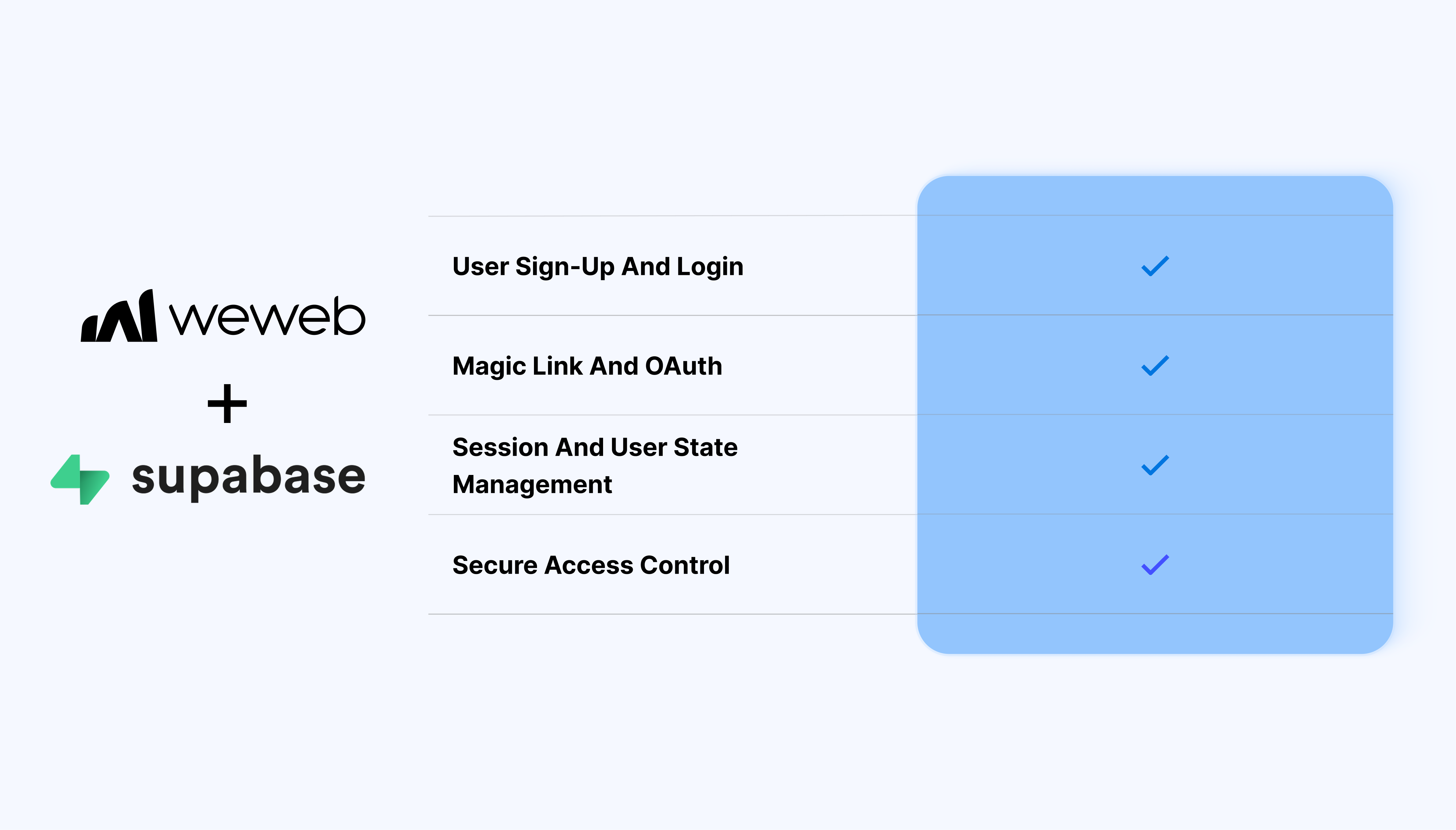
It supports email/password signup/login, magic link (passwordless), OTP codes, and OAuth providers like Google through dedicated workflow actions and UI components. All standard Supabase auth flows work out of the box with minimal configuration.
3. Can I use Supabase's pre-built auth UI components?
Yes, WeWeb provides ready-made Login, Signup, and Password Reset components you can drag onto pages. These components handle form validation, error states, and styling automatically, with full customization available.
4. How does user context work after login?
Once authenticated, WeWeb exposes a "current user" object containing the user's ID, email, metadata, and session state. You can bind this object to show personalized content, user avatars, or conditionally render admin sections.
5. How do I protect pages or components for logged-in users only?
Use page settings to mark pages as "private" or add conditional visibility rules to components based on authentication state. Unauthenticated users get redirected to login automatically when accessing protected content.
6. Can I manage user roles and permissions with Supabase Auth in WeWeb?
Yes, the integration connects to Supabase roles and user_roles tables, letting you assign and display user permissions. You can then use role data in conditional logic for admin panels, feature gating, or personalized dashboards.