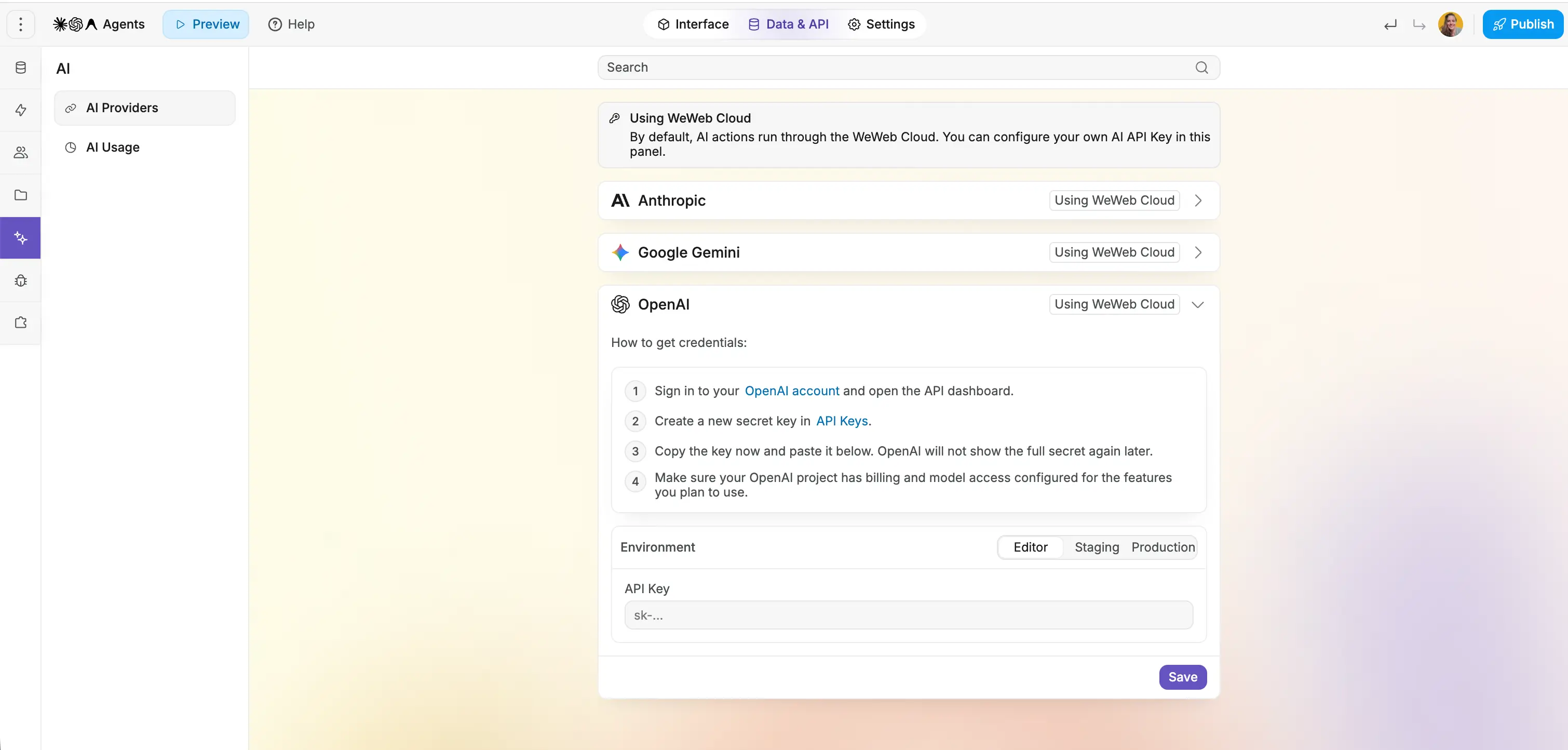
Create an OpenAI API key from your OpenAI dashboard
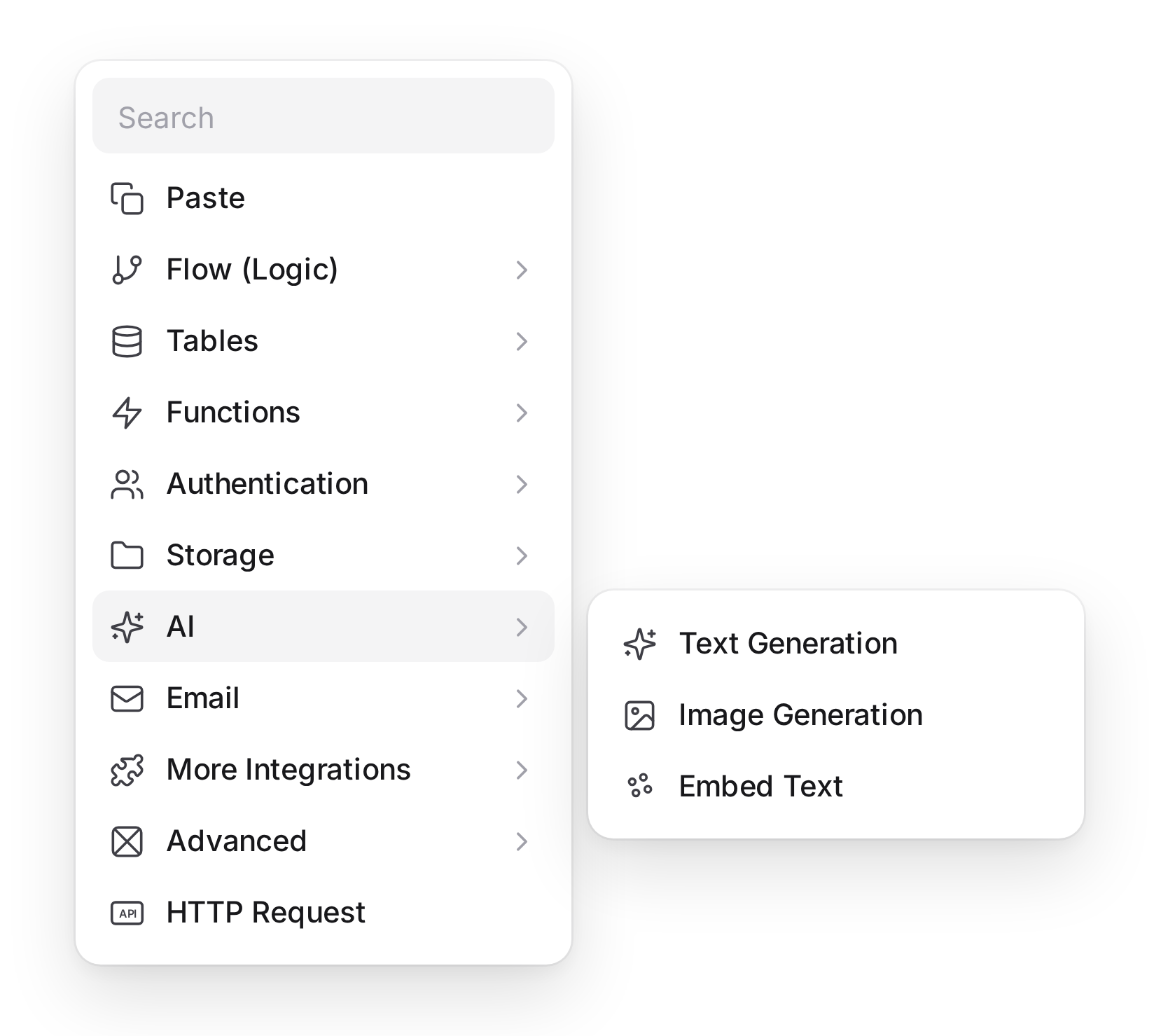
In WeWeb, in the Data & API tab, navigate to "AI"
Select OpenAI and add your API key
Best practices
Be mindful of OpenAI rate limits and token usage
Avoid sending sensitive or unnecessary data in prompts
Use clear, structured prompts for more predictable results
Cache or store AI responses when appropriate to reduce repeated calls
FAQs
1. How do I connect OpenAI to a WeWeb project?
Add OpenAI integration and add your OpenAI API key in the settings so calls are routed through WeWeb rather than from the browser directly. Once configured, OpenAI actions become available in workflows (for text, chat, and image generation).
2. What is the advantage of “Secured prompts”?
Secured prompts let you define system instructions and base prompts on the server side, referenced only by an ID from the client. This keeps prompt logic and secrets out of the browser network inspector, reducing leakage of sensitive instructions.
3. Can I dynamically inject user context (plan, language, input) into prompts?
Yes, prompts can contain variables like {{question}} or {{language}} that are bound to WeWeb variables at runtime when the workflow runs. This allows personalized responses while the underlying prompt template remains secured in the plugin.
4. How do I handle and display OpenAI responses in the UI?
Workflow actions can save the OpenAI response into variables, which you then bind to text components, rich‑text blocks, or collections. For multi‑step flows, you typically append new responses to an array variable representing a chat history or list of suggestions.
5. What are the main limitations of the native OpenAI integration?
The integration focuses on mainstream endpoints (completions, chat, images) and common parameters. More advanced features such as Assistants, function/tool calling orchestration, and fine‑tuning often require custom backend logic or direct API integrations outside the predefined actions.
6. Can I monitor my OpenAI usage?
Absolutely, in the "AI" panel of the "Data & API" tab, you'll be able to monitor all AI requests and costs per workflow.
7. Can I use separate OpenAI API keys in the editor, staging, and production environments?
Yes! in the "AI" panel of the "Data & API" tab, you'll be able to add separate OpenAI API keys for the editor, staging, and production environments of your app.