Extend your WeWeb apps with the npm ecosystem
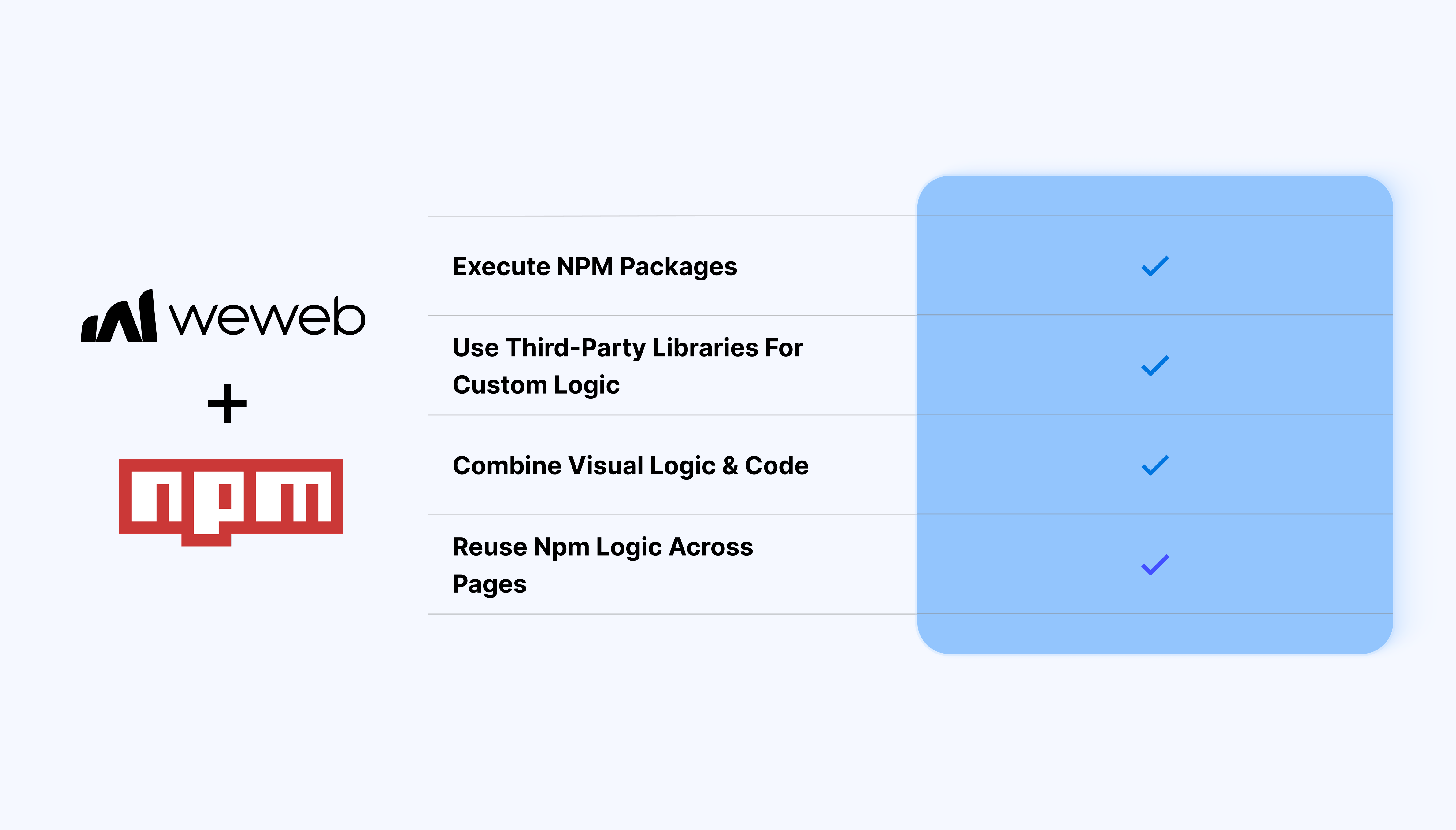
The WeWeb and npm integration lets you run frontend JavaScript libraries from the npm ecosystem directly inside your WeWeb apps.
You can import and execute client-side packages to handle advanced interactions, data processing, or UI behavior:
- Execute frontend npm packages in WeWeb
- Use third-party libraries for custom client-side logic
- Extend WeWeb workflows with JavaScript execution
- Access WeWeb variables inside npm-based logic
- Combine visual logic with code where needed
- Reuse npm logic across pages and flows
What WeWeb supports natively
| Category |
Feature |
What it does |
| Plugin setup |
npm plugin |
Enable via Plugins → Extensions → npm. Search/add packages like Lodash, PapaParse by name.
|
| Package search |
Built-in npm search |
Type package name in plugin UI. Auto-fetches docs/GitHub links for reference.
|
| Instance config |
Manual instance naming |
Enter exact global instance name (e.g., XLSX for SheetJS) to expose in formulas.
|
| Formula access |
npm folder in formulas |
Added packages appear under Formulas → npm with autocomplete for functions/methods.
|
| Use cases |
Data manipulation |
Filter collections (_.filter), parse CSV (Papa.parse), utilities in formulas/JS inputs.
|
| Custom JS |
JavaScript plugin pairing |
Combine with JS plugin for advanced package usage beyond formulas.
|
Why use WeWeb with npm
WeWeb is built for visual development, but real-world apps sometimes need custom logic that goes beyond standard components.
The npm integration gives you an escape hatch.
Perfect for:
- Advanced data formatting or calculations
- Client-side validation or transformation
- Custom charts or visualization helpers
- Handling files, dates, or complex inputs
- Integrating SDKs that run in the browser
And more…
Integrating npm packages in WeWeb
Integrating npm packages in WeWeb is straightforward:
- Open the WeWeb Editor
- Go to Plugins → Extensions and add npm plugin
- Select or import the npm package
- Write the execution logic
- Bind inputs and outputs to WeWeb variables
Learn more about npm x WeWeb integration
Best practices
- Only use packages designed for browser environments
- Avoid libraries that require server-side execution
- Be mindful of bundle size and performance
- Keep npm usage focused on isolated logic
FAQs
1. How do I enable the npm plugin?
Navigate to Plugins → Extensions → npm to activate it, then search and add packages by name directly in the plugin interface.
2. How do I access npm packages in formulas?
Added packages appear under Formulas → npm with autocomplete. Reference by global instance name (e.g., _.filter(collection, condition)).
3. What types of packages can I use?
Client-side browser libraries only (e.g., Lodash, PapaParse, XLSX), no Node.js/server-side packages.
4. Do I need to know the exact instance name?
Yes, enter the global variable name manually (check package docs/GitHub). Plugin shows links for reference.
5. Can I combine NPM with other plugins?
Yes, the plugin pairs well with JavaScript plugin for advanced usage beyond simple formulas.