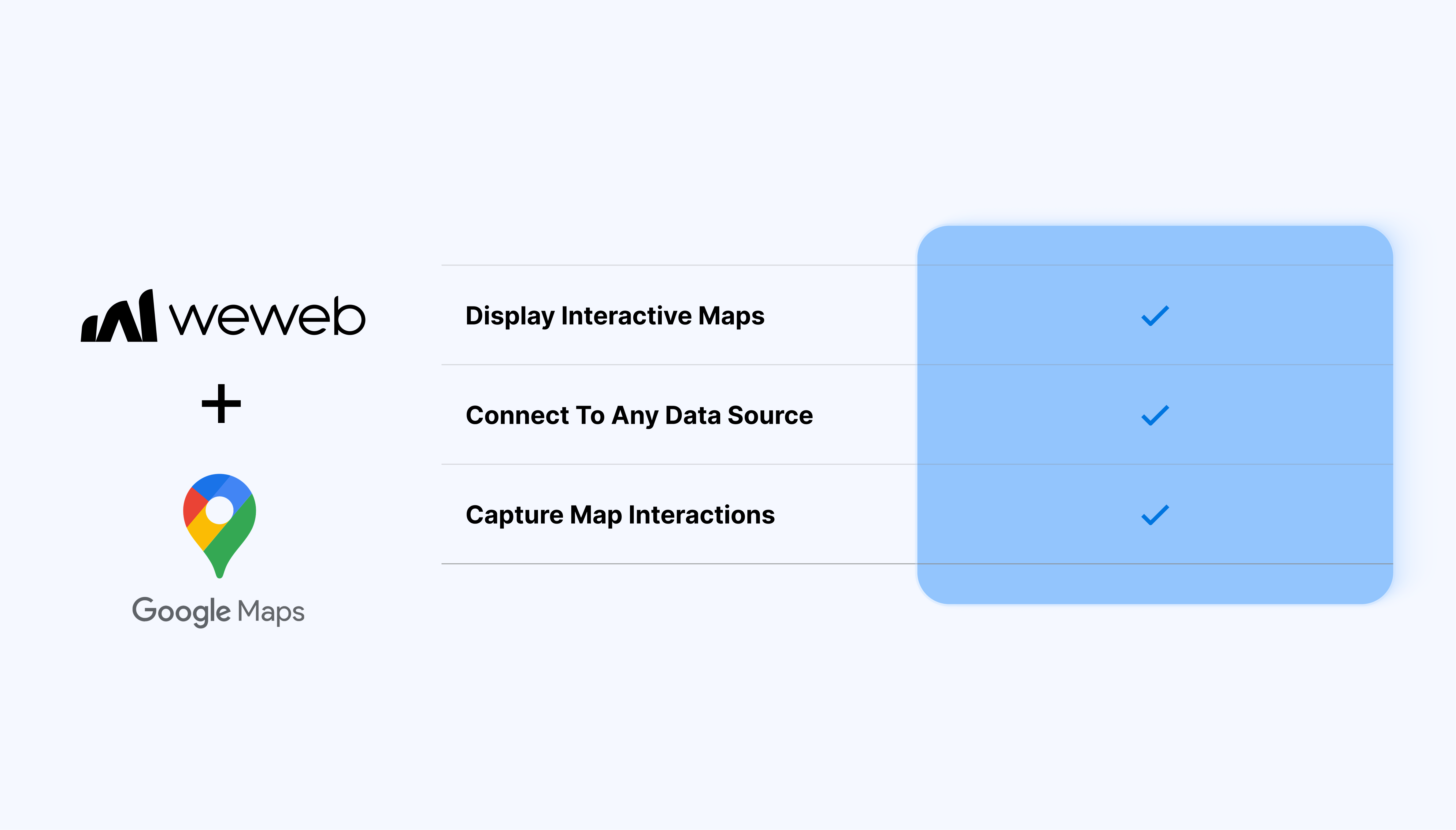
Display maps with custom zoom, styling, and layers.
Add markers from any data source, including dynamic collections.
Bind marker labels, colors, or icons to your data for clear visual context.
Capture map interactions like clicks, drags, location selection and use them in workflows for routing, filtering, or saving data.
Convert addresses into coordinates and vice versa using geocoding.
Build location-based search, filters, and routing experiences.
What WeWeb supports natively
Category
Feature
What it does
Plugin setup
Google extension
Adds the Google plugin from Plugins → Extensions, which exposes Google Maps and reCAPTCHA elements in the Add panel.
Map element
Maps element
Provides a drag-and-drop map element that renders a Google map on any page once a valid Google Maps JavaScript API key is provided.
API key config
In-element API key
Lets you paste a Google API key directly into the map element settings so the map loads without additional scripting.
HTTP referrers
Editor and live referrers
Documents which referrer patterns to add in Google Cloud so maps work in the editor and in production.
Markers data
Bind markers from collections
Binds the Markers field of the map element to an array of locations from a collection, array variable, or createArray formula (each with name, latitude, longitude).
Marker mapping
Map collection fields
Lets you map which fields in your data correspond to marker title/name, latitude, and longitude so markers auto-generate from your backend data.
Manual markers
Add markers by hand
Allows manually adding, editing, and deleting markers directly in the element settings for quick static maps.
Map controls
Built-in UI toggles
Offers on/off toggles for standard Google Maps UI controls such as zoom control and street view control.
Interactivity
On marker click workflow trigger
Exposes an “on marker click” event that triggers WeWeb workflows, enabling patterns like updating a selectedMarker variable when a user clicks a pin.
Selected marker data
Bind UI to clicked marker
Supports displaying additional information (e.g., location name or details) by binding other UI elements to an Object-type variable updated on marker click.
Data sources
Works with external backends
Can use any backend (Airtable, Supabase, Xano, etc.) as long as a collection or variable returns an array of locations with coordinates and names.
Why use WeWeb with Google Maps
WeWeb manages the data, interactions, and frontend logic while Google Maps provides the mapping layer so that you can:
Fetch spatial data, capture user selections, and run logic.
Use Google Maps with Xano, Supabase, Airtable, REST APIs, or any data source supported in WeWeb.
Adjust map behavior and visuals to fit dashboards, client portals, admin tools, or customer-facing apps.
Deliver location-focused apps for clients without managing custom map libraries or frontend frameworks.
Perfect for:
Real-estate or property maps: plot listings, show details on click, and filter by location or attributes.
Logistics and fleet dashboards: show vehicle locations, routes, and status updates on a live map.
Store finder or service locator: let users search for nearby locations using geocoding and dynamic markers.
Field operations tools: capture coordinates from map clicks and pass them into workflows for reporting or task creation.
And more…
Integrating Google Maps with WeWeb
Integrating Google Maps with WeWeb is straightforward:
Get your Google Maps API key: sign in to the Google Cloud Console, enable the Maps JavaScript API, create or retrieve your API key and restrict it to your allowed domains.
Add your API key in WeWeb: open your project in the WeWeb Dashboard, go to Settings → Environment variables and add your API key.
Add a Google Maps component to the page: in the WeWeb Editor, open the components panel and drag the Google Maps component onto your page.
Configure interactions: enable map clicks, marker clicks or location selections, use workflows to handle the selected coordinates or display related data, and more.
Add geocoding or address search (optional): create a workflow that calls Google’s Geocoding API and bind the result to your map center or markers.
Restrict your API key: limit usage to your app’s domains for security and cost control.
Keep markers scalable: large numbers of markers can impact performance. Consider clustering or filtering.
Use workflows for data prep: format and validate latitude/longitude data before binding it to the map.
Preview on multiple devices: confirm the map layout and interactions feel good across screen sizes.
Possible limitations
API usage costs:Google Maps may incur usage fees depending on volume and features.
Rate limits on geocoding: high-frequency lookups may be throttled. Batching or caching may help.
Performance with very large data sets: thousands of markers might affect rendering. Consider clustering or server-side filtering.
FAQs
1. Where do I put my Google Maps API key, and how do I secure it?
You enter the API key directly in the map element’s Settings panel: no extra code is required.
2. How can I show multiple markers from my backend on the map?
Return an array of locations from a collection or variable, with fields for name, latitude, and longitude. Bind that array to the Markers field of the map element and map each data field (title, lat, lng) in the element settings so pins are created automatically.
3. Can I add markers manually without a database or API?
Yes! WeWeb lets you add markers one by one in the map element’s configuration by specifying the label and coordinates. This is useful for simple “store locator” or static location maps where you only have a handful of points.
4. Does the Google Maps element work with any backend (Xano, Supabase, Airtable, etc.)?
Yes, as long as the backend can return an array of objects with coordinates and optional names or IDs, the map can consume that data.
5. What built-in map controls can be configured from the Editor?
The native element exposes toggles for standard Google Maps UI components like zoom control and street view control. You can switch these on or off in the settings panel without touching the underlying Google Maps JavaScript API.
6. What are the main limitations of the native Google Maps element?
The element focuses on displaying markers and basic interactions, so advanced features like drawing shapes, querying features around a point, or custom overlays aren’t exposed directly.